



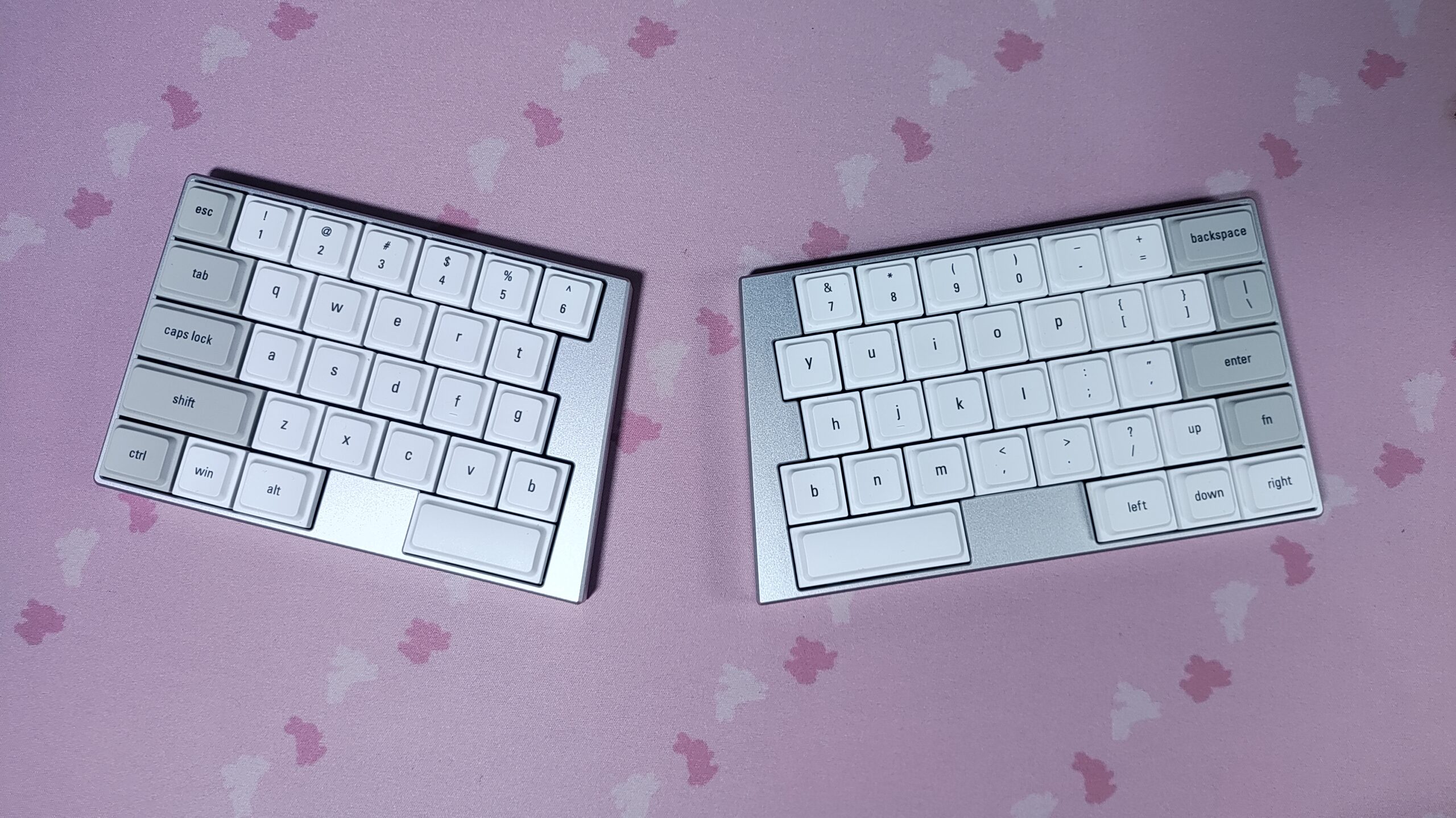
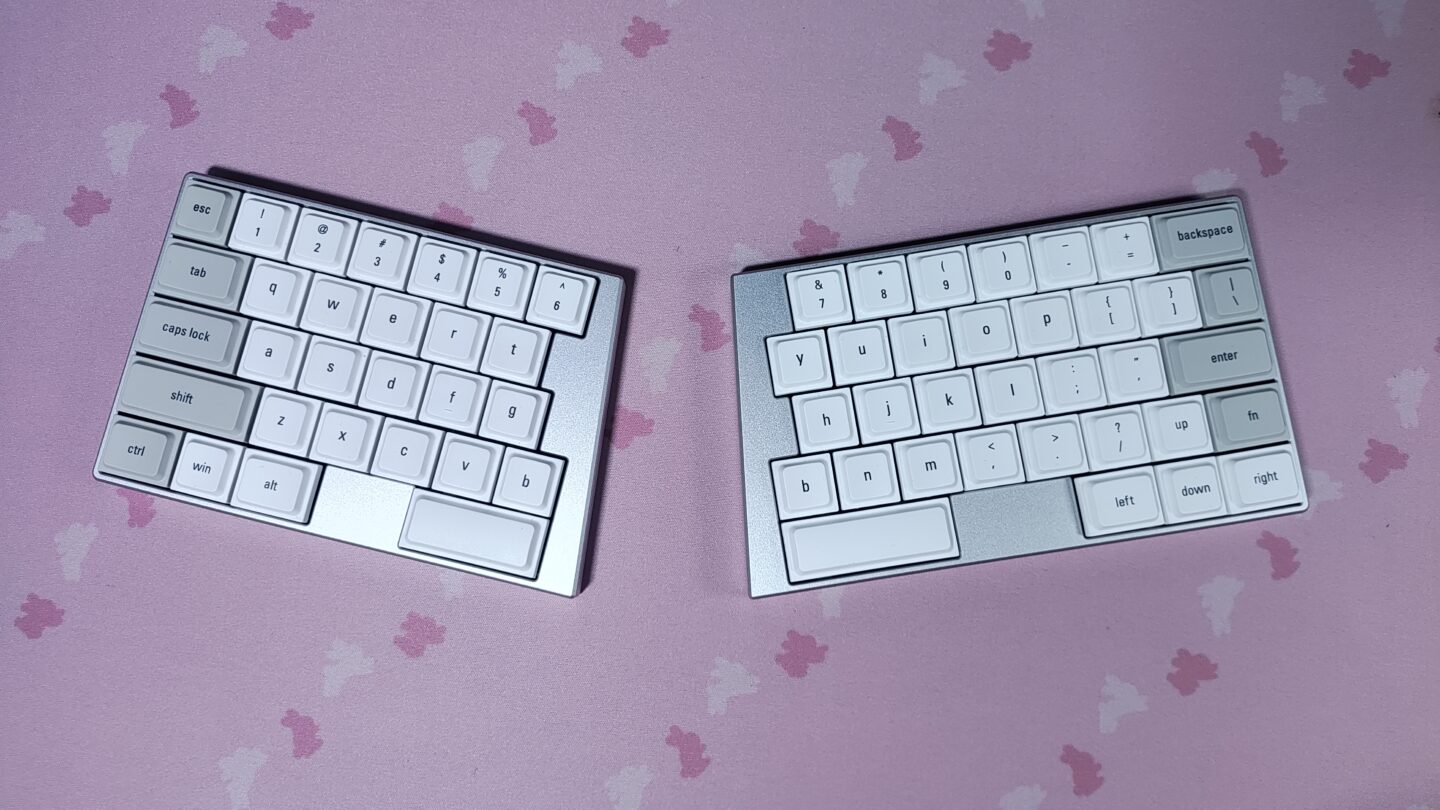
I’ve always been intrigued by low profile split keyboards. I’ve used low profile keyboards, and I’ve used split keyboards. But this combination is a new world to me, and I’ve always kept it on my list to get some day. I haven’t gotten one yet because most keyboards in this category have some daunting aspects like columnar stagger, thumb clusters, and over-reliance on layers.
But today, we’re looking at a keyboard that manages to avoid most of these pitfalls – The ElimKeys Elytra. It looks friendly for the average keyboard user. The familiar row-staggered layout is my main winning point, but the wireless capabilities and build quality are also excellent. But… at the price of $249, it better be the closest thing to perfect for what it aims to do. Let me show you whether the Elytra achieves this, or how close it gets, in this review.
Disclaimer : This unit was sent to me by ElimKeys to be reviewed. This has no impact on the review, and all the opinions in this review are honest and my own.
Keyboard Specs
| ElimKeys Elytra | |
|---|---|
| Layout | Split 60%-style, row-staggered, ANSI US, QWERTY |
| Number of Keys | 63 (no knob, no screen) |
| Colours | White / Black |
| Connectivity | Wired (left half only) / Bluetooth 5.0+ (Up to 3 devices) / 2.4GHz via optional dongle |
| Compatibility | Windows / Mac / Linux / Android / iOS |
| Battery | 300mAh x 2 (One in each half) |
| Dimensions | Left : 153.97 x 101.25mm Right : 173.33 x 101.25mm |
| Thickness | 11.8mm (excluding keycaps) |
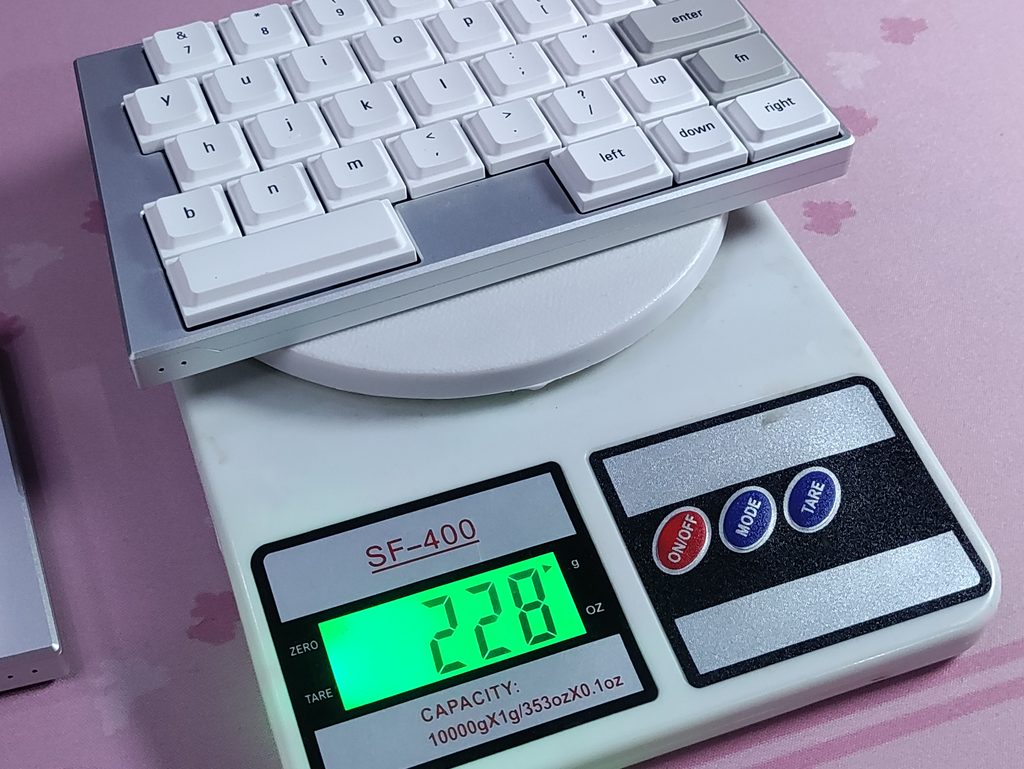
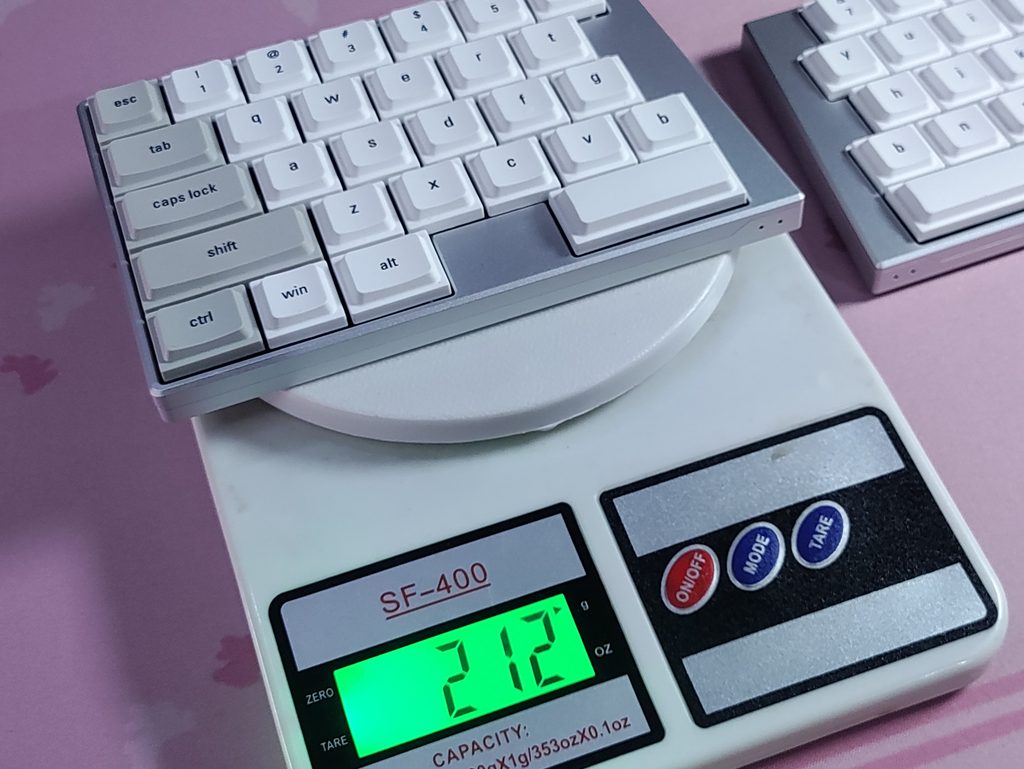
| Weight | Left : 228g Right : 212g Total : 440g |
| Case Material | CNC aluminium, bead-blasted and anodised |
| Mounting | Tray mounted, FR4 plate, no flex cuts |
| PCB | Hotswap, Choc V2 footprint with MX-style stems, no per-key RGB |
| Switches | Kailh CloudShell White (Linear) JZF Mist (Silent Linear) |
| Keycaps | Low-profile LAK-style caps |
| Sound Dampening | Hollow bottom insulation pad pre-installed |
| Software | Vial (browser based) |
| Firmware | RMK (open source, Rust based), v1.5 at time of writing |
| Price | $249 + accessories |
Unboxing & First Impressions
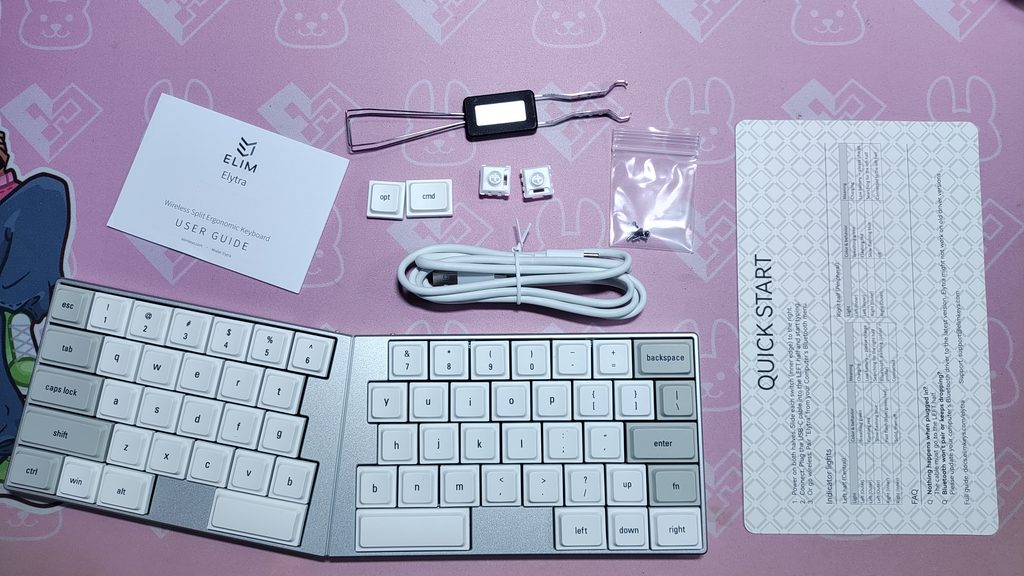
The Elytra arrives in a two-layer foam tray with one keyboard half per layer, and a small accessory box tucked in at the side. In the box, you’ll find the following:
- The Elytra – left half (Central) and right half (Peripheral)
- USB-A to USB-C cable
- 2 spare switches
- 2 spare keycaps
- A Keycap & Switch puller
- Manual card / welcome card
Not in the box, and available to purchase separately:
- Carrying case
- Palm rest
- Tenting kit
- 2.4GHz dongle
I think they should have included a carrying case in the base variant. Being lightweight and portable seems to be one of the core appeals of this keyboard, so I wish there was some way to safely transport it included in the base variant. Regardless, at least it’s available for purchase separately. If you want a cheaper alternative, I found that my “big cable organizer pouch” from a random brand on amazon fits this quite well. I use that to carry it to and back from work.
I have the Elytra in the White colourway, but it’s also available in a nice black colourway. The white variant has a silver coloured aluminium body with white keycaps pre-installed.
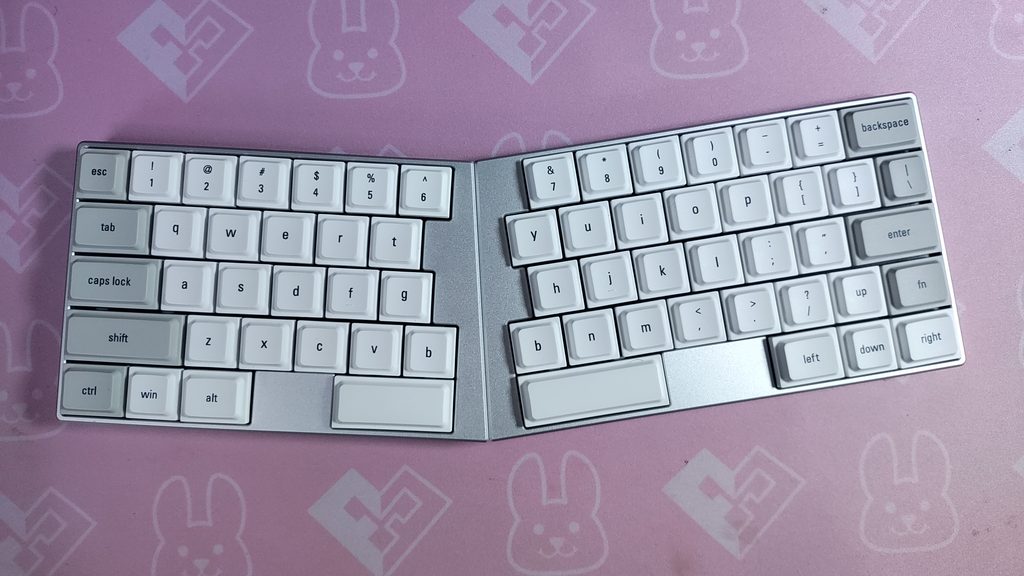
Design-wise, this feels like a polished retail product as opposed to the usual DIY feel that I get from most Corne style keyboards. The top is quite clean looking: no RGB, no screen, no knob. It does help to maintain the minimal aesthetic of the Elytra, and it also extends the battery life. As much as I like backlit keyboards, it wouldn’t be of much use here since the keycaps aren’t shine-through.
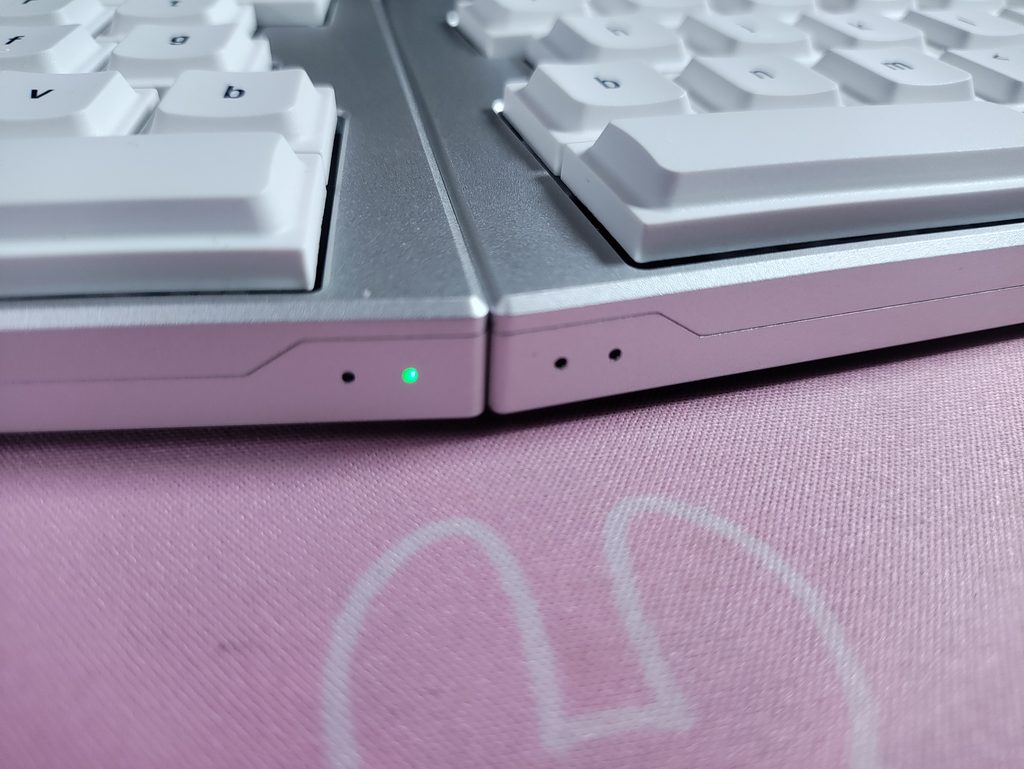
You also get four tiny front-facing indicator LEDs (two per half) that cover the basics like battery and connection. I like that these LEDs aren’t in your face like the MelGeek O2. They fade into the background, and most importantly, they don’t stay on after a while.
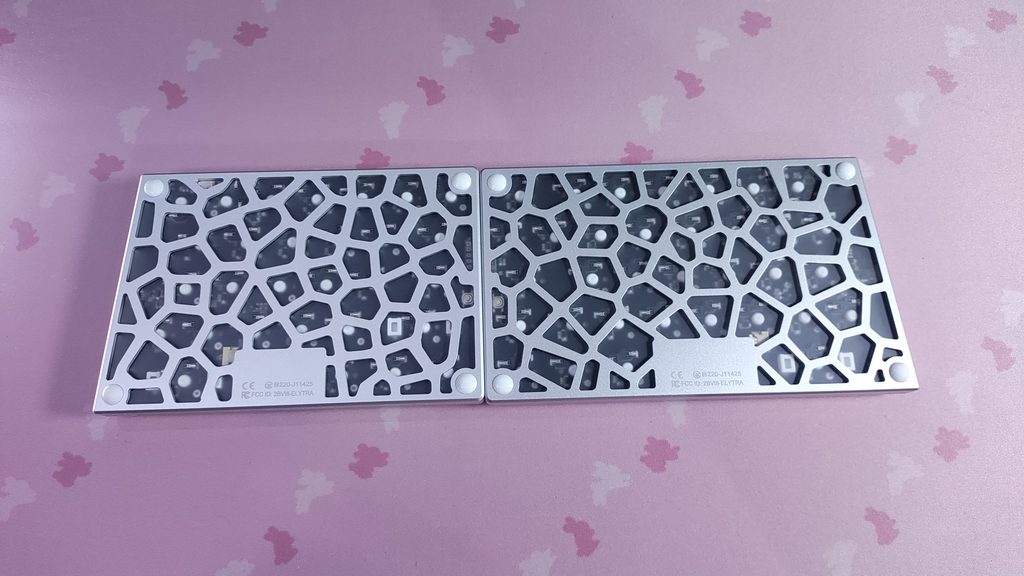
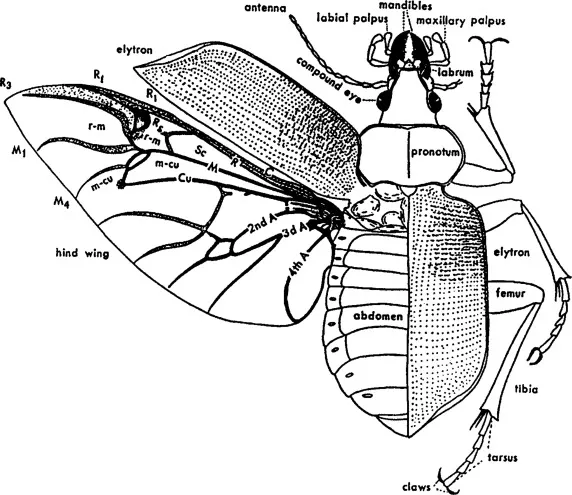
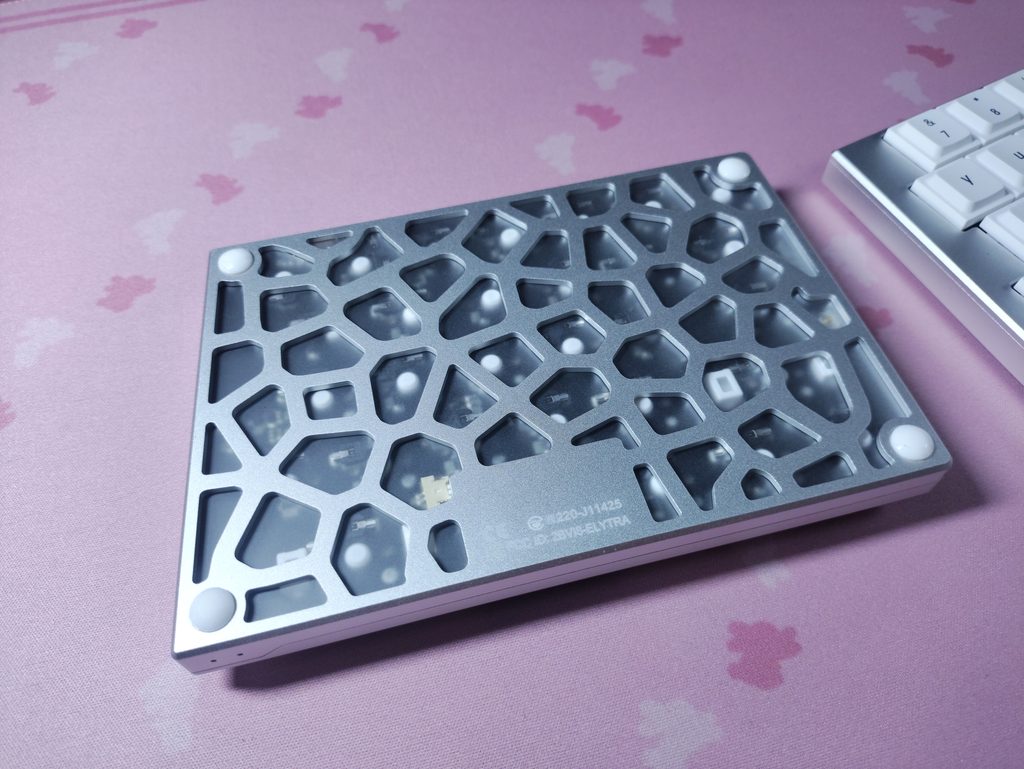
Flipping the keyboard over, we are met with a unique sight. People afflicted with trypophobia should look away now, as the bottom is kind of a lattice structure made of aluminium. It’s a Biomimetic Hollowed-Back Structure (which means that it has taken inspiration from an organism – namely the beetle). This preserves the rigidity of the keyboard while shaving off precious grams from the weight. The internal components are protected by a thin layer of plastic.
As soon as you pick it up, the first thing you notice is the weight… or lack thereof. It is metal so it feels rigid, but at just over 200 grams per half, it’s quite lightweight.
Build Quality
The ElimKeys Elytra features a CNC machined aluminium case with a bead-blasted, anodised finish. It feels great. The edges are crisp, there’s no flex, and it all looks sleek as heck. Both halves feel solid and stiff which is great for something so thin and light.
As I mentioned before, the trick here is the web-like pattern that has been cut out of the bottom of the keyboard. ElimKeys milled this pattern into the bottom of the case, apparently inspired by the Elytron (plural – Elytra) of a beetle (hence the name). I would’ve liked to see a fully covered option, even if I myself would just pick this lighter one.
The two halves connect through three hidden magnets in the bridge. They pull the halves together firmly, so you get the same resting position every time when you want to use it as one compact board. Joined up, the halves sit at a gentle angle, which suits me fine. When you want the halves apart, you just pull. The bridge is fairly wide, so it’s pretty ergonomic even when the halves are put together.
The rubber feet at the bottom of the keyboard are quite effective. The keyboard doesn’t move around on my desk at all, with or without a deskmat, unless I intentionally push it in a manner that it moves.
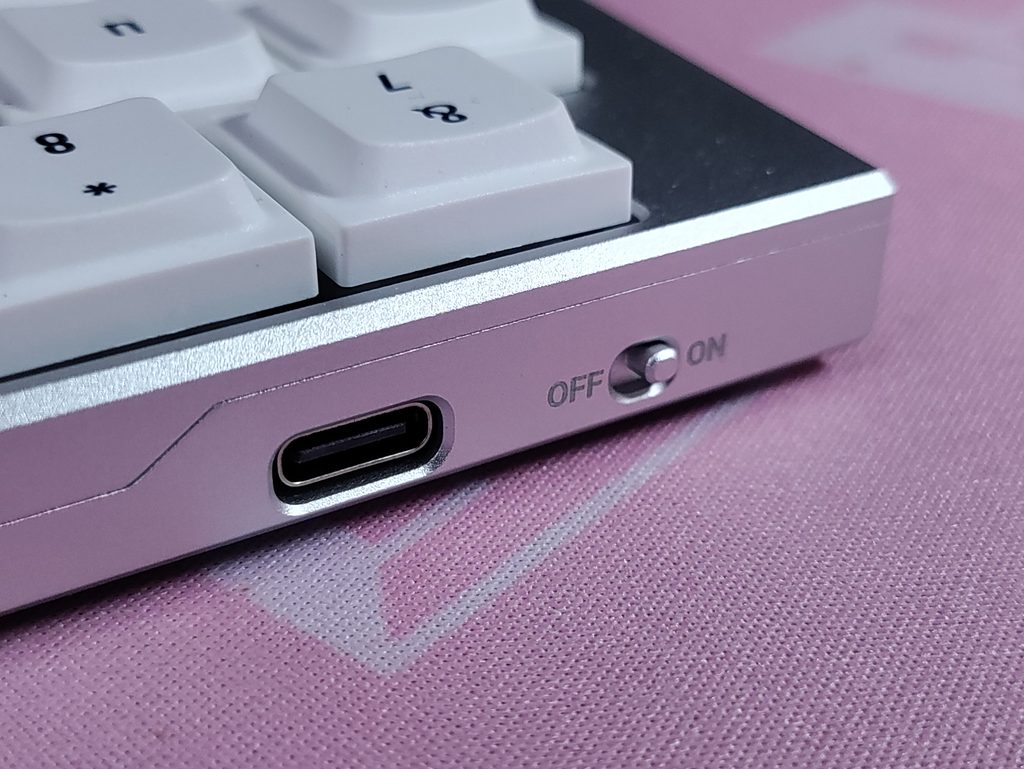
Each half has its own power switch on the inner edge, next to the USB-C port. ElimKeys says these physically disconnect the battery, which is a nice touch for travel or storage. It also means you can switch the battery off and run the left half straight from the cable. This won’t charge the battery, prolonging it’s lifespan. This is a pretty significant feature for a battery as small as 300mAh.
Disassembly is possible, but kinda fiddly. The screws are hidden under the keycaps, so you’ll be pulling off a lot of them. This isn’t a bad thing. But my partial teardown also pointed to a battery lead so short that you would need tweezers to pull the plug. A longer one would make servicing less of a chore, and it’s something I would have liked to see. I stopped my teardown at this point because I didn’t want to damage this keyboard.
Layout & Learning Curve
The ElimKeys Elytra follows a 63-key, row-staggered ANSI layout. The letters sit exactly where your fingers expect them. This is the primary reason that the ElimKeys Elytra is such a comfortable keyboard for me, and most people that know how to type without looking at their keyboard (My dad who doesn’t touch type struggled on this when I told him to try it out XD).
An interesting facet of this keyboard is that only the left half communicates with your computer. They call it the “central” half. The right half only communicates with the left half wirelessly, not with the computer. So they call it the “peripheral half”. The naming scheme is similar to the human nervous system. The brain and spinal cord make up the “central nervous system” and the nerves that go to your arms and legs (and everywhere else) make up the “peripheral nervous system”.
There is no additional thumb cluster to learn, but there are some compromises. First I’ll list out the things I particularly liked about this layout:
- a B key on Both Halves – Plenty of people hit B with their right hand, so having one on each half saves you a lot of mistyped words in the first few days. I noticed that I actually use BOTH b keys depending on what word I’m typing, since I don’t use standard touch typing (I learnt typing with my fingers defaulting to WASD and IJKL… yes I’ve been a gamer since forever)
- a Spacebar on Each Half – That lets one thumb keep spacing while the other doubles as a layer key, so your little finger doesn’t have to pick up the slack.
- a Proper Arrow cluster – on a board this small, I’m genuinely happy about this.
Now for the compromises:
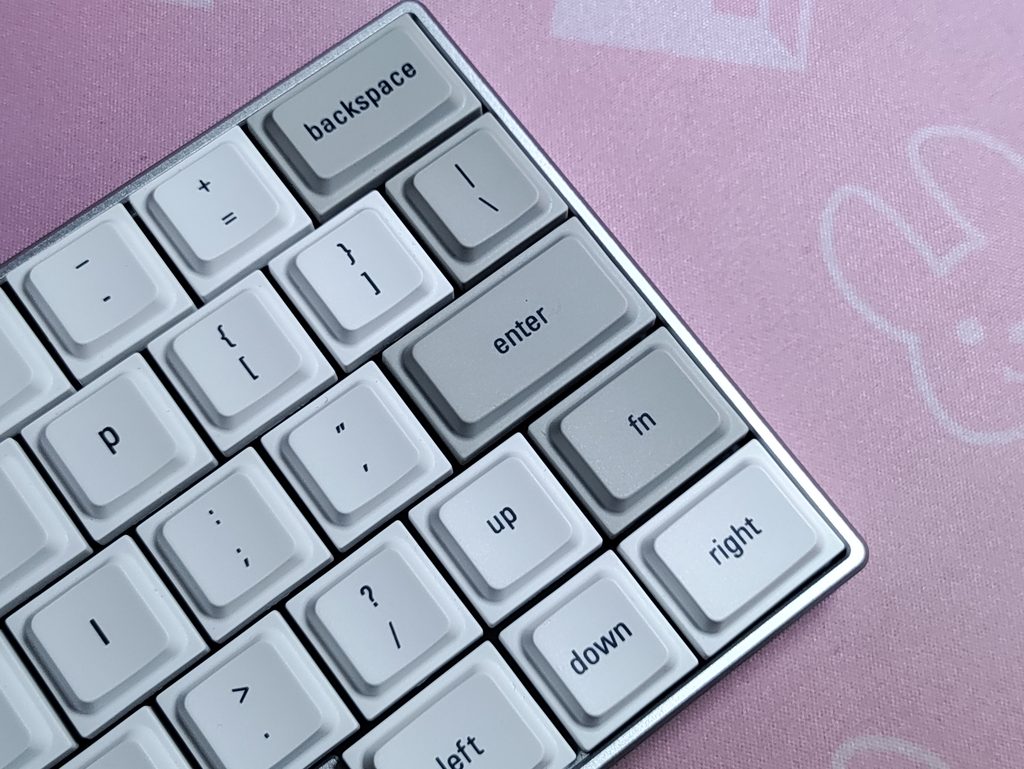
- The Right Half of the keyboard is quite squeezed, so it gives up some keys :
- No right shift key – I’m exclusively a left shift user, so this hasn’t affected me, but I know a lot of people use the right shift key.
- No right Ctrl, Alt keys
- The fn key is placed under the enter key, which took me some getting used to
- No Delete key – you have to use fn + backspace for delete. This was the biggest issue for me personally.
- The keyboard is available in US ANSI layout only, no ISO – I think this is fine for a keyboard that’s trying to use space minimally, but I know that this is a dealbreaker to some people

The right alt and ctrl buttons would have been nice to have, but that’s where the battery for the right half is. I wish there was an option to swap out the spacebar for multiple switches, and you could assign them as you see fit. Using Vial you can at least set one remap to the spacebar that you don’t use.
Typing Experience
Typing Height and Ergonomics
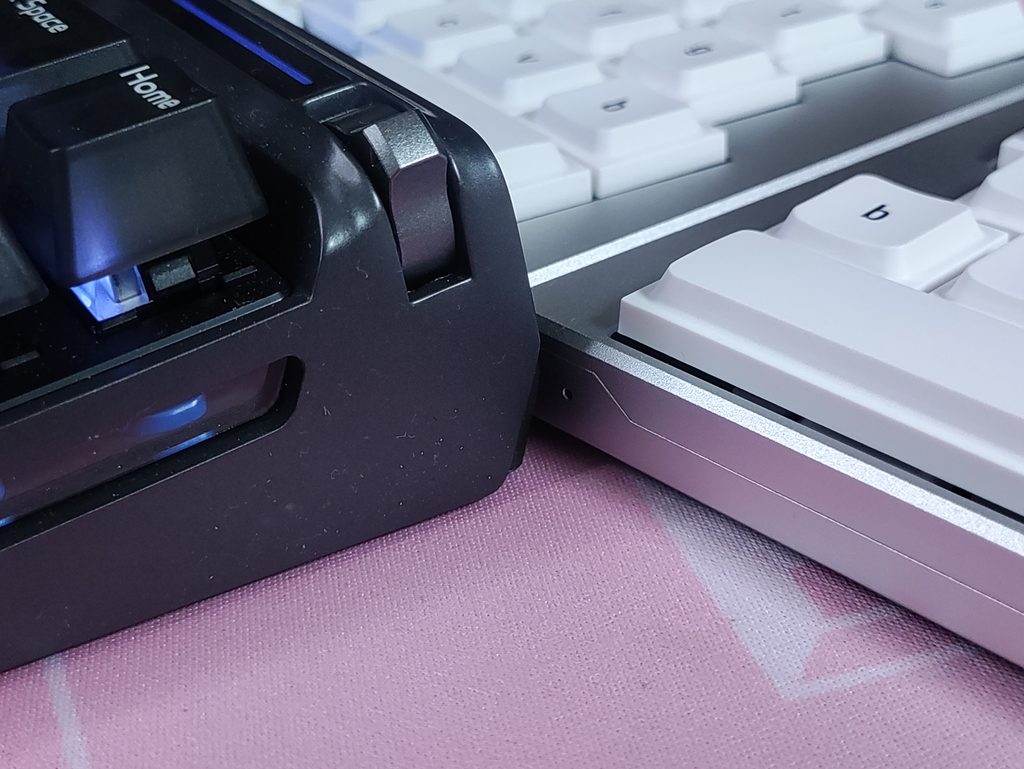
The Elytra’s case is just 11.8mm thick (excluding keycaps), so there’s no mountain to climb. A wrist rest isn’t mandatory here, though ElimKeys sells a wooden one if you like having something under your palms.
Splitting the board is where it gets fun. You can nudge the halves close together, set them wide apart, tilt them in towards each other, or even park a phone or tablet in the gap. Since I am already accustomed to a similar layout in the Epomaker Split70 keyboard that I reviewed earlier, I immediately got used to the split layout of the Elytra.
The Switches
The switches come in two flavours. I picked the CloudShells, but Elimkeys was kind enough to send me a few samples of the JZF Mist as well.
- Kailh CloudShell White (linear, 40gf) – An all-POM linear with a smooth, clean feel. It’s the more audible option, with a light popping note to each press.
- JZF Mist (silent linear, 37gf) – This is the one for offices, late nights, and anyone with a sensitive mic near their keyboard. It’s very quiet, and the key action still feels precise.
Both the switch options have 2.8mm of travel. And since this is a low-profile, hollow-bottomed, tray-mounted keyboard, the sound is firm and clean rather than deep. There is no gasket bounce to soften the typing feel. The slim case and light switches keep it feeling precise instead of harsh. The switches themselves provide a little bit of cushioning, and combined with their light actuation force, typing on this keyboard does not lead to much fatigue.

The switches are hotswappable with other Choc V2 style switches and keycaps with MX-style stem sockets. If you buy replacement switches, make sure they’re V2 and not V1, since those use different stems. ElimKeys also sells a 65-piece switch set of the JZF Mist switches.
The Keycaps

The stock LAK-style keycaps sit low and share one even profile across every row, with a compact top surface and soft edges that feel comfortable under the fingers. I really like the subtle concavity of the keycaps which cradle your fingertips ever so slightly. It gives the keyboard that little extra secure typing feel.
The legends are small and lowercase, which keeps things tidy. I really like the font. It goes well with the vibe of the keyboard. I also like the grey accent keys. I’m on the White version, so I can’t speak to this first-hand, but from what I can see in photos, the Black version has black-on-black legends that are hard to see in low light.
Connection & Latency
The Elytra is capable of being used fully wireless: there’s no cable between the halves, so they talk to each other over a Bluetooth connection. The left half (Central) is the one that talks to your computer. The right half (Peripheral) connects to the left, and its USB-C port is for charging only.
Your connection options:
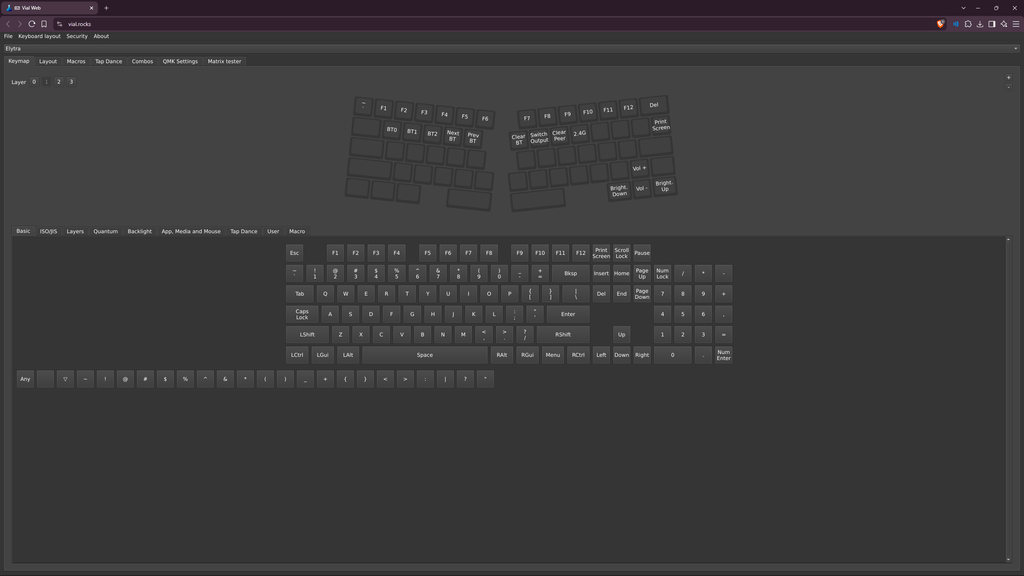
- Bluetooth 5.0+ – with up to 3 devices paired at once. You switch between them with the BT0 / BT1 / BT2 keys on the Fn layer.
- Wired – through the left half’s USB-C port.
- 2.4GHz Wireless – There is an optional ElimKeys dongle ($12.99) that you can buy along with the keyboard. You need firmware v1.5 for this. Hold the 2.4G key (Fn + O by default) until it connects. Vial works through the dongle too. I don’t have the dongle to test these, so I just listed out what I see on the product info.
By default the keyboard uses USB Priority: plug in the cable and it switches to USB, unplug it and it goes back to Bluetooth. You can map a key in Vial to force Bluetooth Priority, which turns the cable into charge-only.
One thing ElimKeys is very insistent about: update your Bluetooth drivers. Their docs blame most pairing problems and disconnects on outdated drivers (for Intel adapters, they suggest 24.10.00 or newer). My drivers are up-to-date and I haven’t faced any connectivity trouble.
As for latency, there are no official latency or polling rate numbers on the product page. This product is NOT aimed at gamers so that’s not a problem. But I will say that I didn’t face any latency when playing CS2, Valorant, and even rhythm games like osu! and Rhythm Doctor in both wired and Bluetooth mode.
Battery Life
According to ElimKeys , the Elytra’s battery should last up to 4 weeks on a single charge. My testing supports this claim. Each half of the Elytra has a 300mAh battery inside (under the space you see next to the spacebar). The right half (peripheral) depletes its battery slower than the left half (central), and it can go many weeks more before needing a charge. The left half is what needs to be charged every few weeks – This is because it handles all the processing and what not.
The right half is wireless only, so you can’t run the Elytra fully wired. If you want a keyboard permanently on a cable, this isn’t really built for that. Though it really doesn’t need to be charged often at all.
There is no backlight or RGB so battery drain from that is non-existent.
While charging, the left indicator breathes green and goes solid green when it’s full. A flashing red LED means low battery. And remember to use a 5V/1A charger at most for this keyboard.
Software
vial.rocks
The Elytra runs RMK, an open-source, Rust-based firmware, with Vial support. Vial works in the browser using vial.rocks, so there’s nothing to install. That keeps the whole process light and low-risk. Do note that vial might have some additional steps to run on linux or macOS.
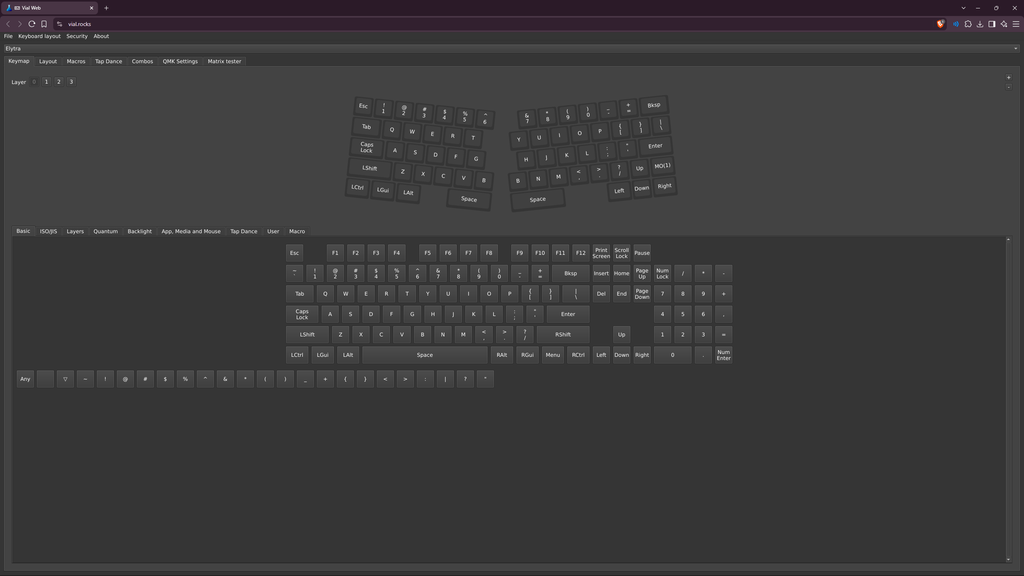
You get remapping, layers, macros, combos, tap-hold and tap-dance, so you can fix the Right Shift situation or build whatever layers you like. The default setup has a base layer plus an Fn layer, which is also where the Bluetooth keys live. Here are the shortcuts that I use. Since there is no volume shortcut by default, it was a necessity for me to remap a couple of keys. You can add common functions like PG UP and PG DOWN if you need them.
Updating the Firmware
The firmware update process for the Elytra is quite a bit more complicated than just running a firmware update tool. The guide that ElimKeys has provided is quite detailed. Even if you make a mistake, it can easily be fixed, so it’s not a deal breaker in my opinion. Here are the steps to update the firmware:
- Clear existing pairings. Remove “Elytra” from the Bluetooth device list on your computer or phone.
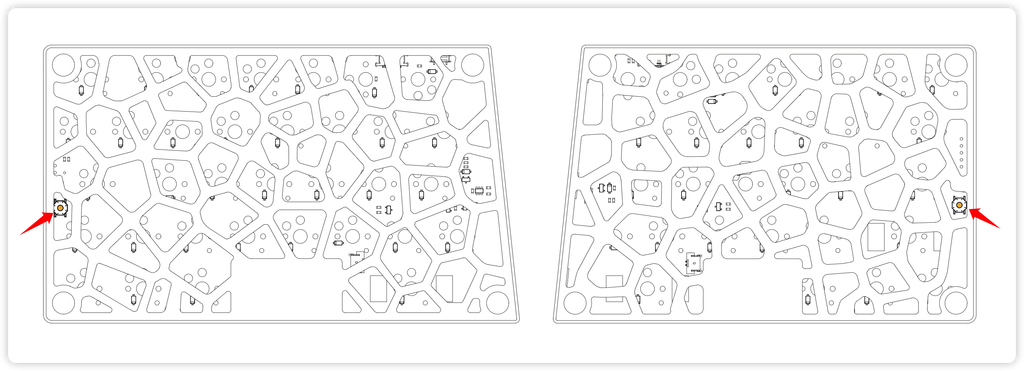
- Connect the right half (Peripheral). Plug the right half into your computer with the USB-C data cable. Locate the reset button on the bottom edge and double-click it to enter update mode.
- A flash drive named “Elytra” appears, containing three files:
CURRENT.UF2,INDEX.HTM, andINFO_UF2.TXT. - Flash the right half. Copy
elytra-peripheral.uf2onto the “Elytra” drive. - Flash the left half (Central). Unplug the right half and connect the cable to the left half. Double-click the reset button, but this time copy
elytra-central.uf2.
It’s not the most beginner-friendly update process in the world, but you’ll only ever do it a couple of times. There are additional warnings and things to keep in mind that you should read in the official manual.
Conclusion
I like the ElimKeys Elytra, and it’s a split keyboard I’d happily recommend to anyone who’s been eyeing the category but doesn’t fancy retraining their fingers. The row-staggered layout, the B key on both halves, the light aluminium build and the quiet switch option make it an easy way to try a split.
But it’s $249, and that’s before the extras. Add the palm rest ($39), tenting kit ($79), tenting kit for the palm rest (+$50), carry case ($39) and 2.4GHz dongle ($12.99) at their listed prices, and you’re at roughly $470, which is firmly premium pricing.
Aside from the price, the keyboard also has other minor nitpicky flaws:
- No dedicated Right Shift, Delete key, and unfamiliar placement of fn key
- The right half is wireless only, so no fully wired setup
- Fiddly disassembly (hidden screws, very short battery cable)
If you can live with those, there’s a lot to like:
- An excellent CNC aluminium build at around 440g total
- A familiar layout that doesn’t need relearning
- Browser-based Vial and open-source firmware, with nothing to install
- Magnets that make it easy to go from split to compact
Personally, I love how this keyboard feels to type on and the feature set it comes with. To answer my question from the intro – Yes, the Elytra does achieve what it sets out to do.
ElimKeys Elytra


Hello! 🥰 I'm Fang.
I like gaming and related tech. I enjoy learning more, and sharing my experiences through my review videos and blog posts. Have fun! 💖


