


Double key presses on Keychron keyboards are usually caused by debounce behavior, not hardware failure. In most cases, the issue can be fixed through firmware and launcher settings. In this guide I’m using Keychron V3 keyboard.
Step 1: Connect to Keychron Launcher
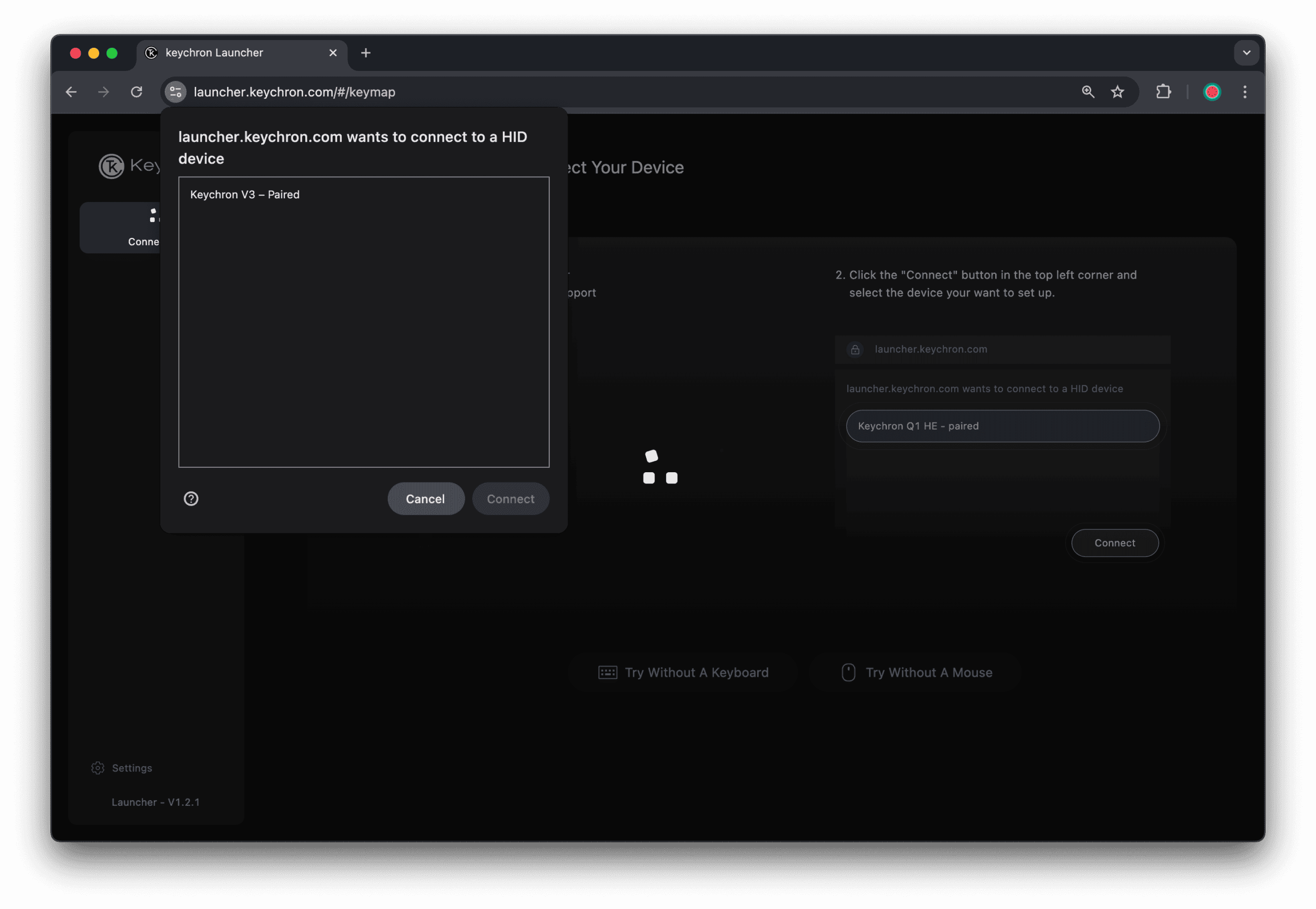
- Open Chrome, Edge, or Opera
- Go to: https://launcher.keychron.com
- Click Connect to pair your keyboard with Keychron Launcher
- Select your keyboard and confirm
Step 2: Update Firmware
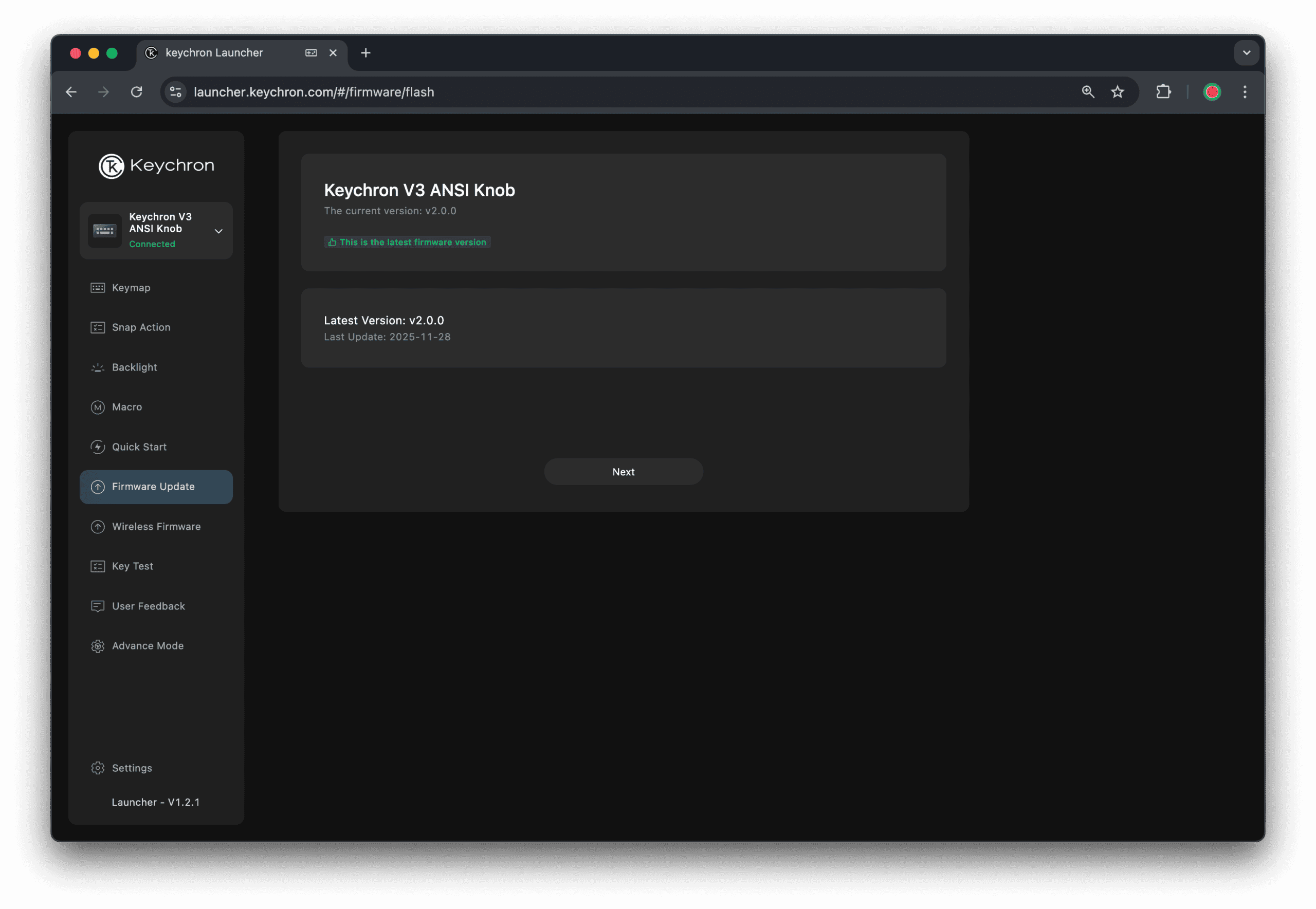
- Open Firmware Update
- If an update is available, proceed
Firmware Update Method
- Unplug the keyboard
- Hold ESC
- Plug the keyboard back in
- Release ESC
- Click Update and wait until finished
Use a wired connection. Do not unplug during the update.
Step 3: Change Debounce Mode (Most Important)
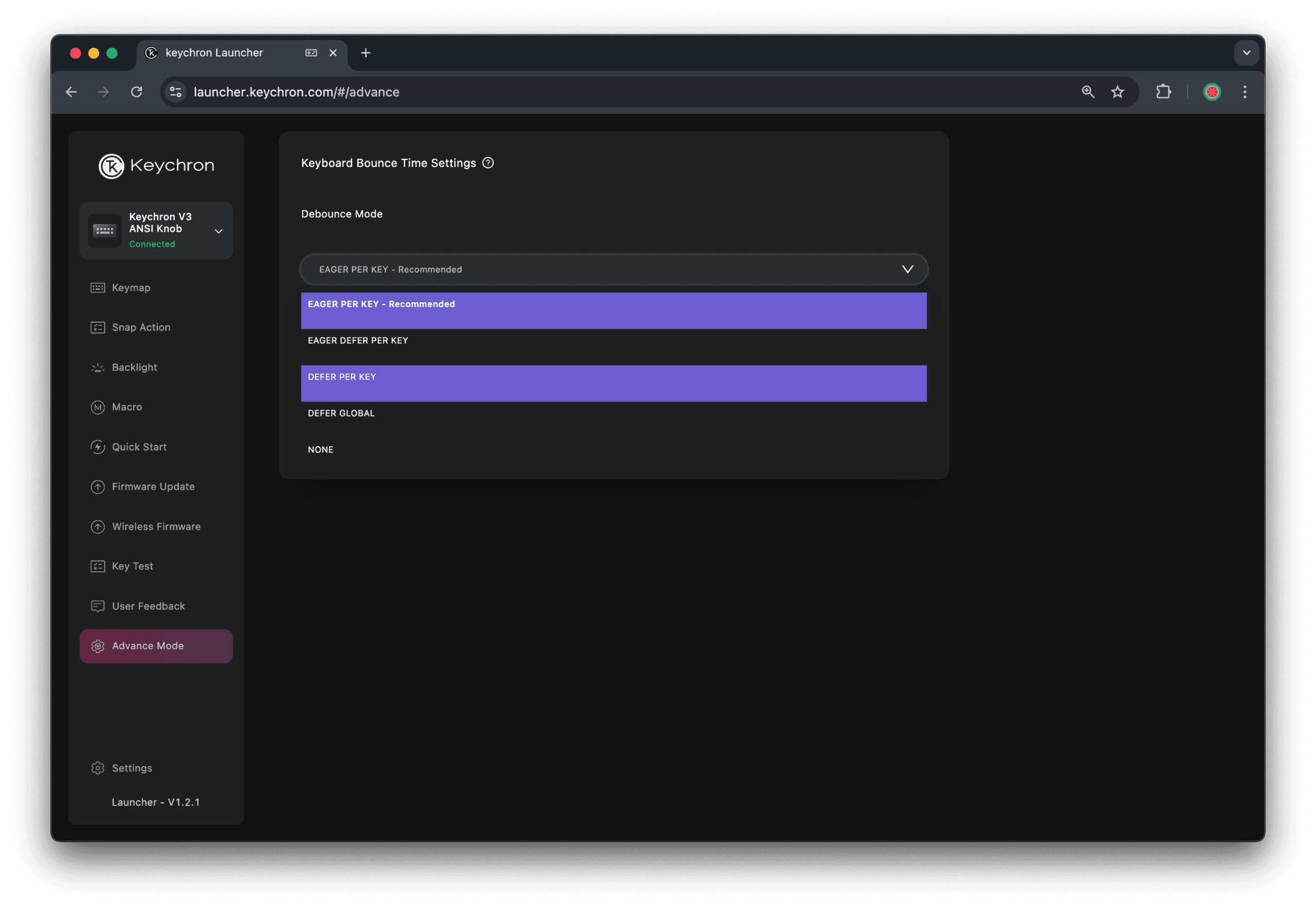
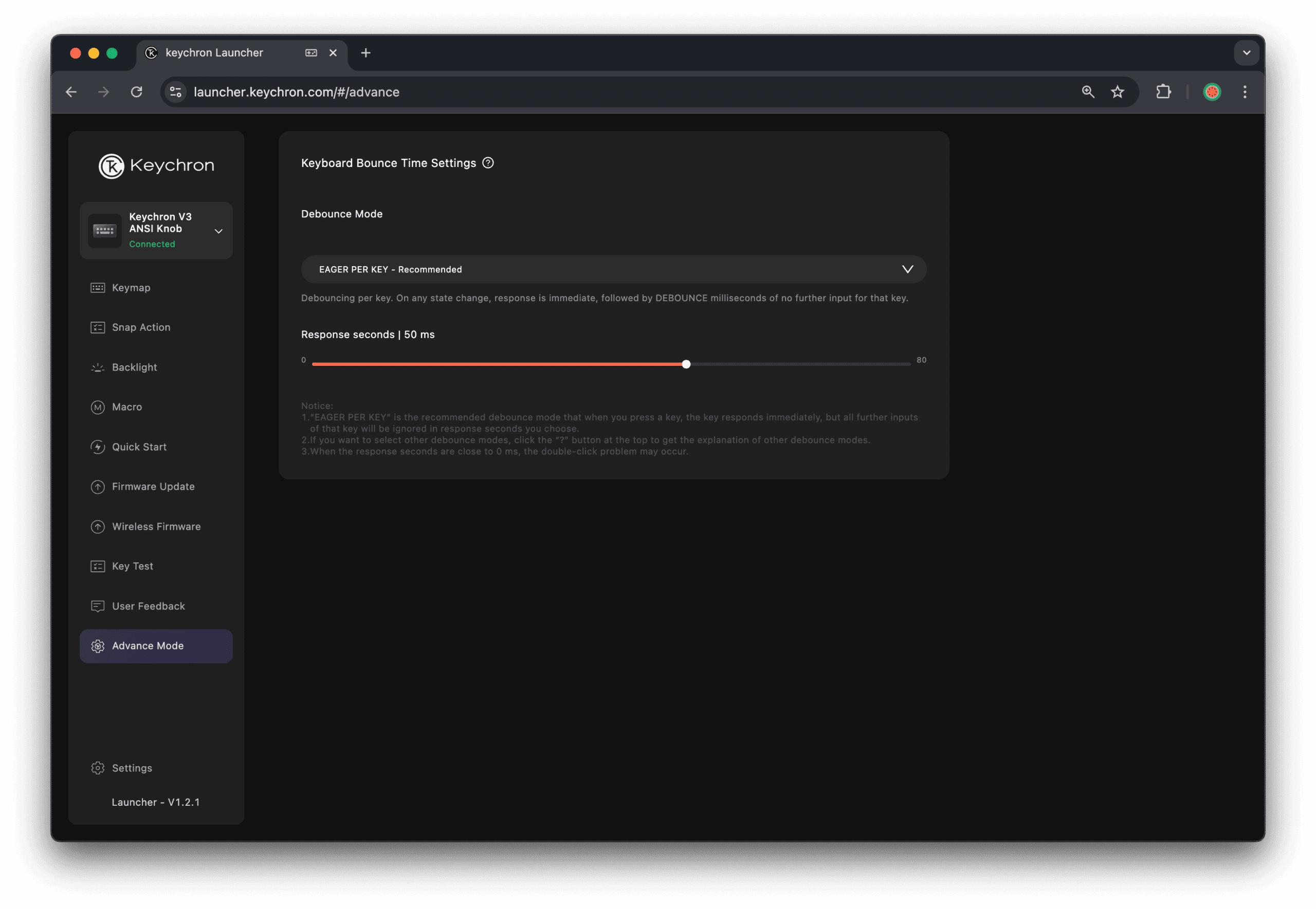
- Go to Advanced Mode
- Find Debounce Mode
- Change from Eager Per Key to:
- Defer Global (recommended)
- Defer Per Key (if needed)
Step 4: Increase Response Time (Optional)
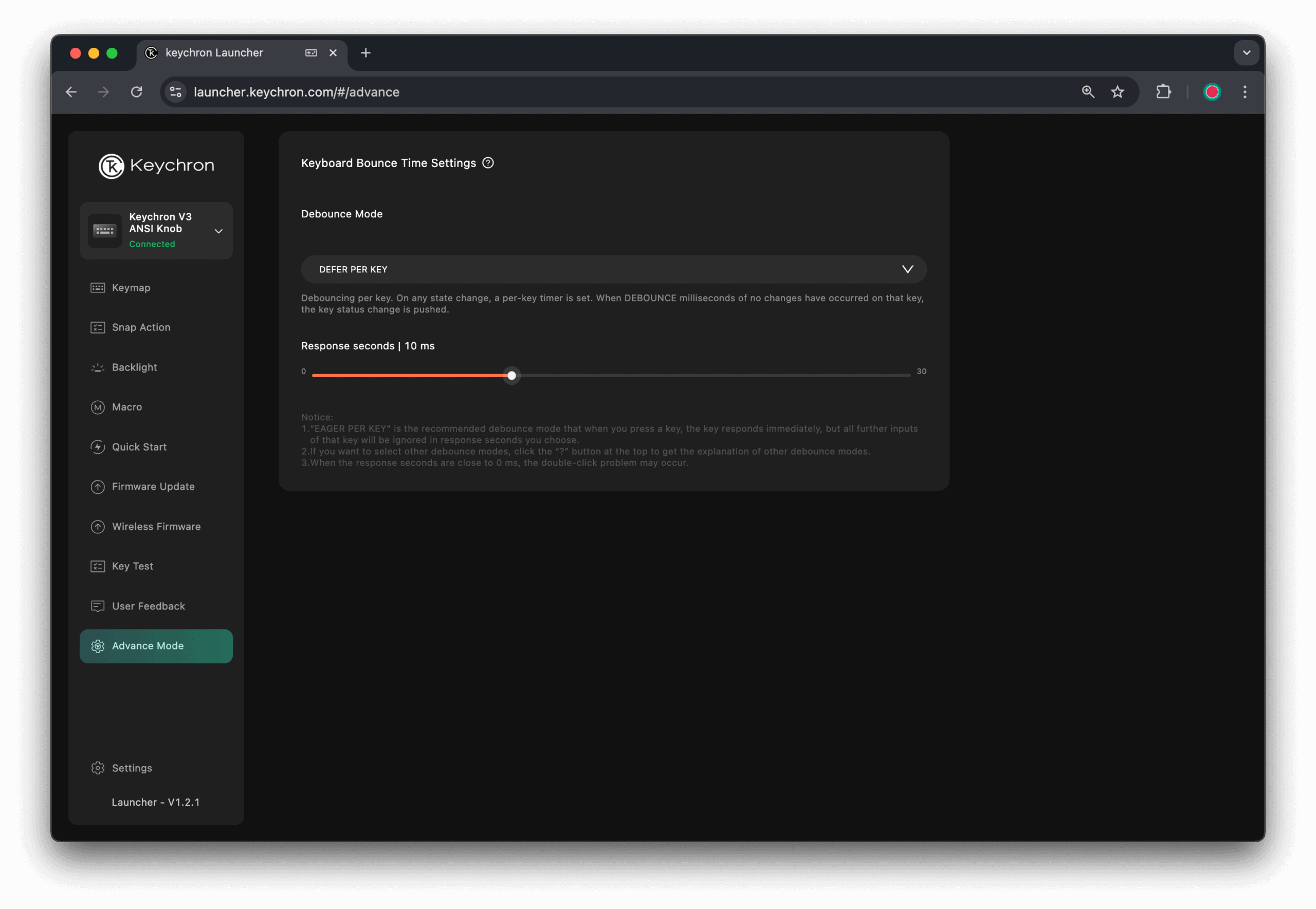
If double presses still happen:
- Increase Response Time from 5 ms to 10 ms
This significantly reduces the issue with no noticeable input lag. You can also do maybe 15 ms if you still have the issue.
If it doesn’t work, try:
- Test it on another PC
- Try a different USB cable
- If only specific keys are affected, the switch may be worn and need replacement
- Contact Keychron support
Also, check out our Keychron keyboard reviews such as Keychron K3 HE test.
Alicia Clayton
Gamer and tech reviewer in my spare time.


