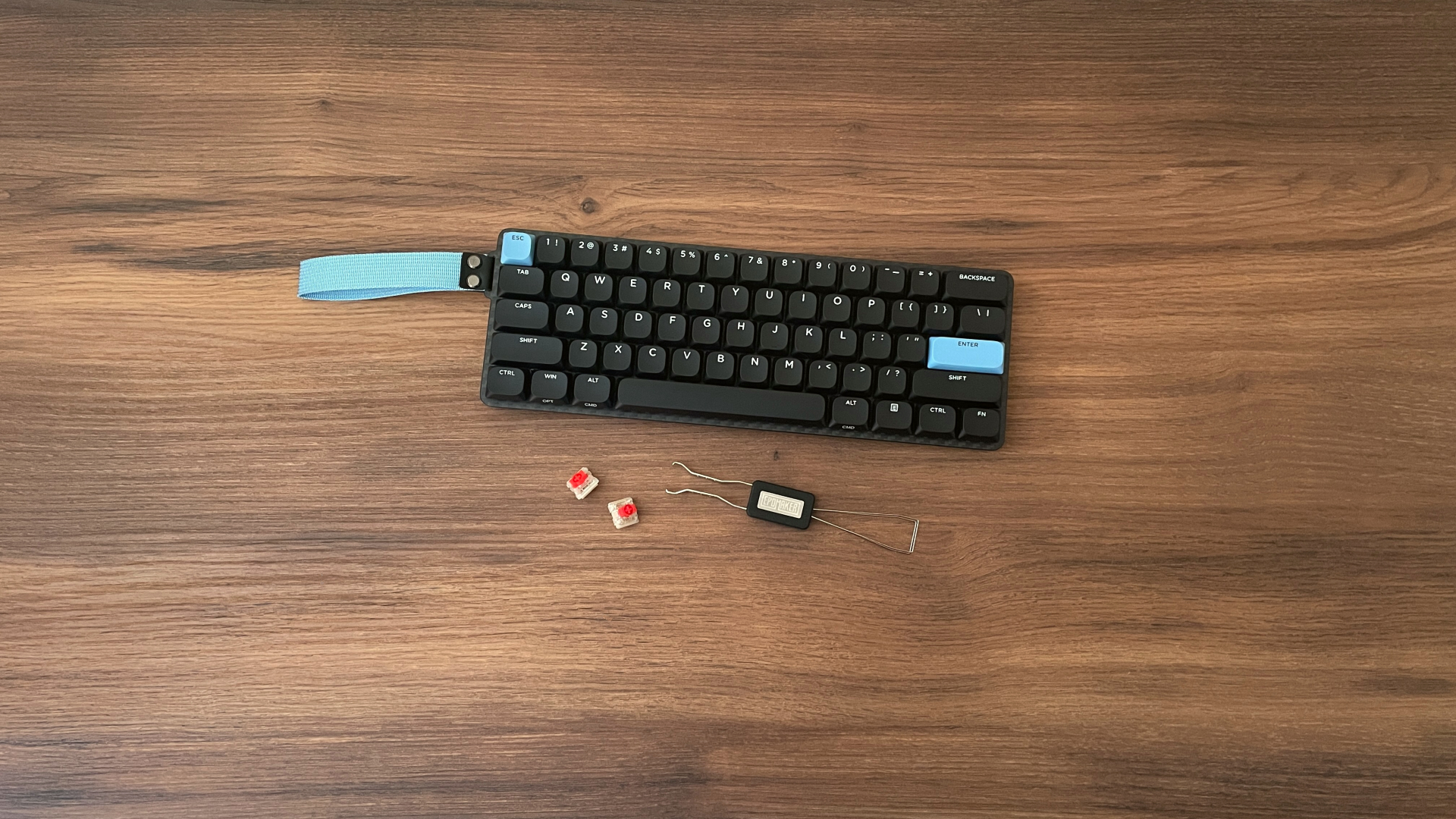

Low-profile mechanical keyboards are fantastic for portability. They are significantly thinner than traditional mechanical keyboards, usually stick to compact layouts, and easily slide into any backpack.
But, as always, there’s a catch. Most low-profile boards fall into one of two categories. You either get a plastic one whose thin case, let’s be honest, doesn’t feel built to last, let alone premium. Or you go with aluminum, which offers a solid build, but adds noticeable weight to your backpack.
Epomaker tried to solve that dilemma with the Carbon60 by wrapping a low-profile keyboard in actual carbon fiber. It promises the best of both worlds – lightweight portability without compromising on durability or making the board feel cheap. But can this board actually offer something solid beyond its distinctive carbon fiber case? Let’s find out.
Unboxing: What’s Inside?
The Carbon60 arrives in a small cardboard box, with the keyboard packed securely inside. The presentation is fairly simple, but everything is well organized and protected for shipping.
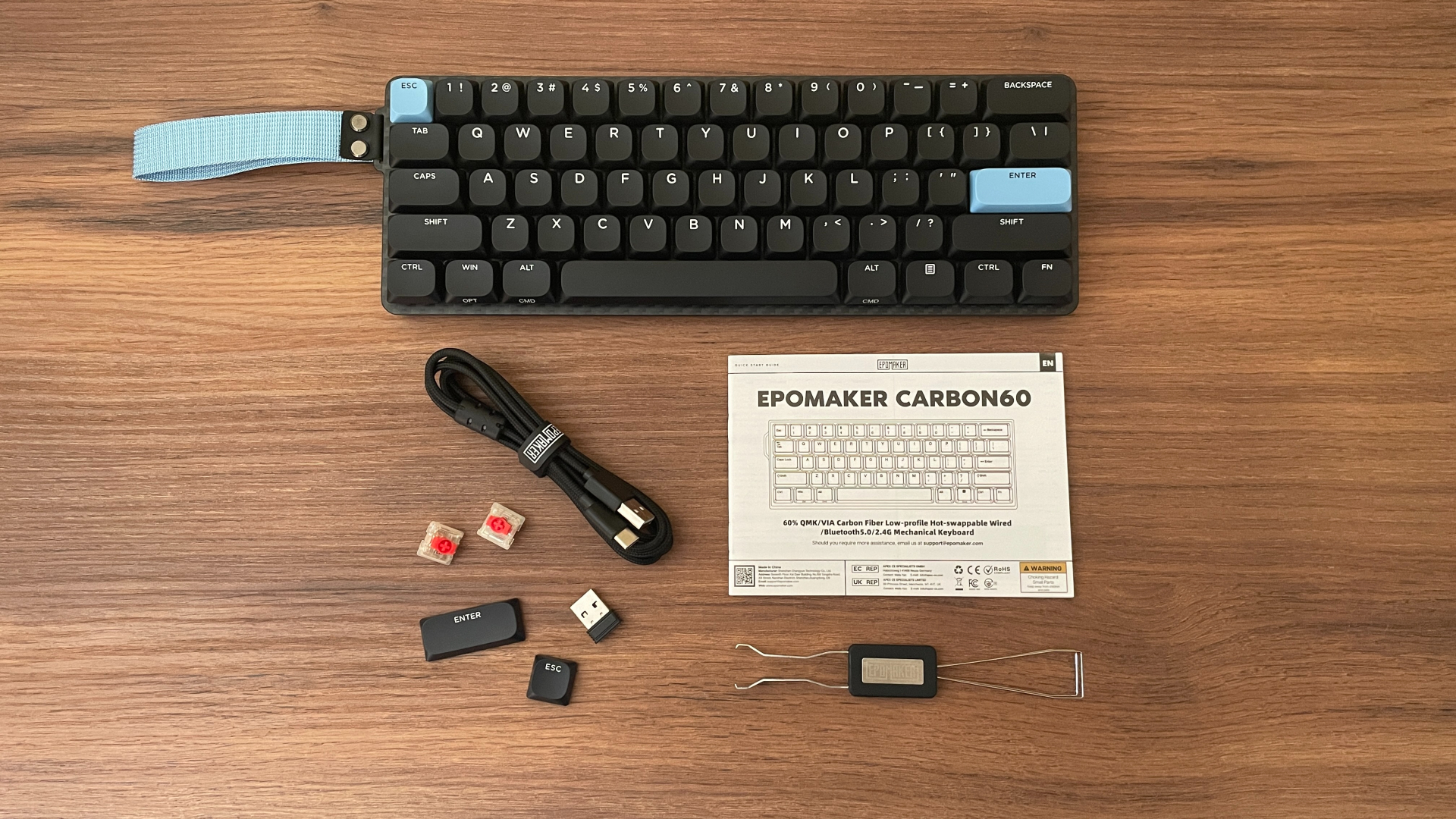
Inside, you’ll find:
- Carbon60 Keyboard
- 2.4 GHz Wireless Dongle
- Braided USB-C to USB-A Cable
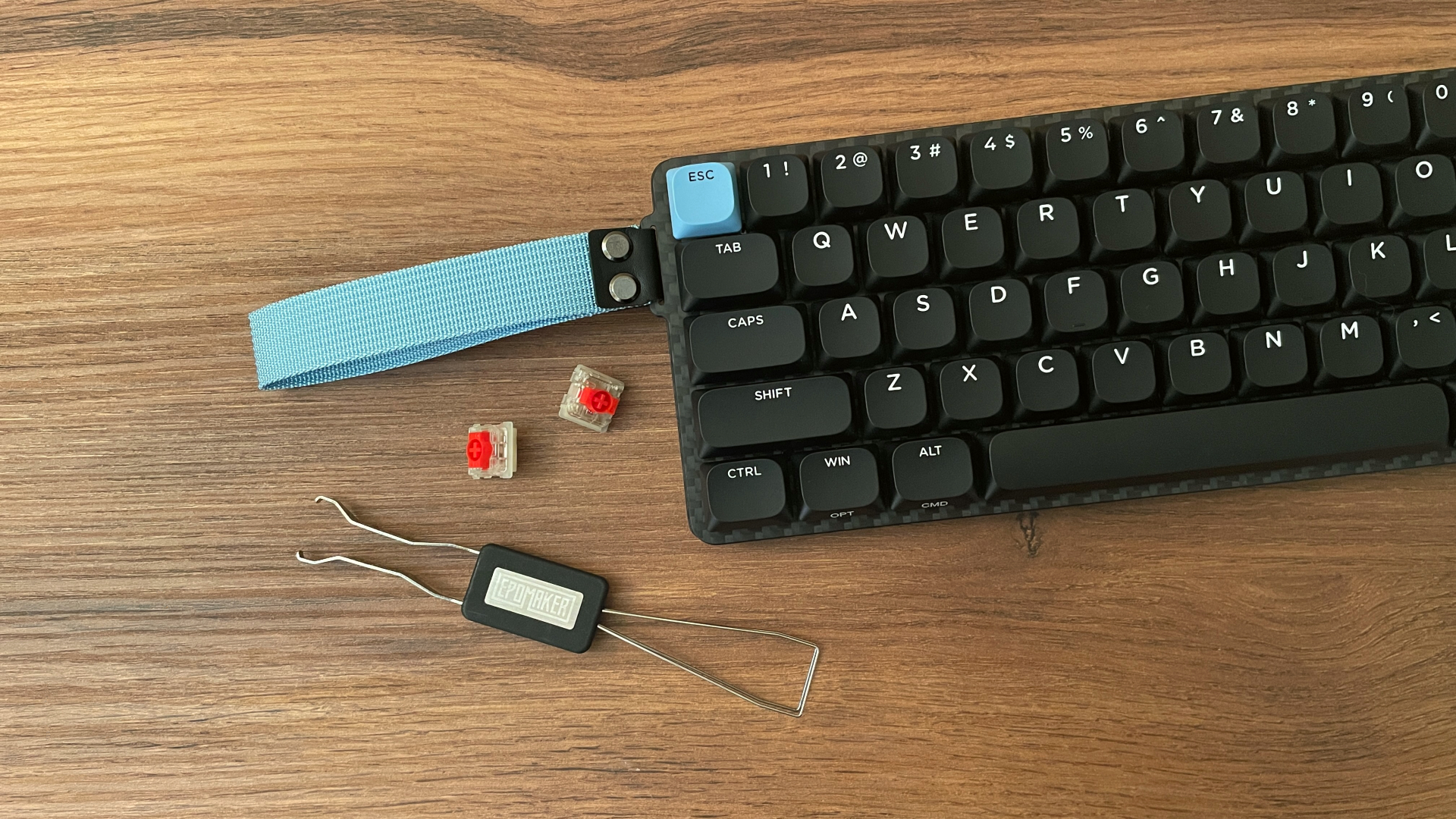
- 2-in-1 Keycap and Switch Puller
- 2 Spare Switches
- Two Additional Keycaps
- Manual
The accessory bundle is fairly standard, but it’s still nice to see a braided cable (even with a ferrite bead!) and a couple of spare switches – just in case you ever need them. There is also a nice little bonus: extra black keycaps to swap out the pre-installed accent ones if you prefer a more understated look.
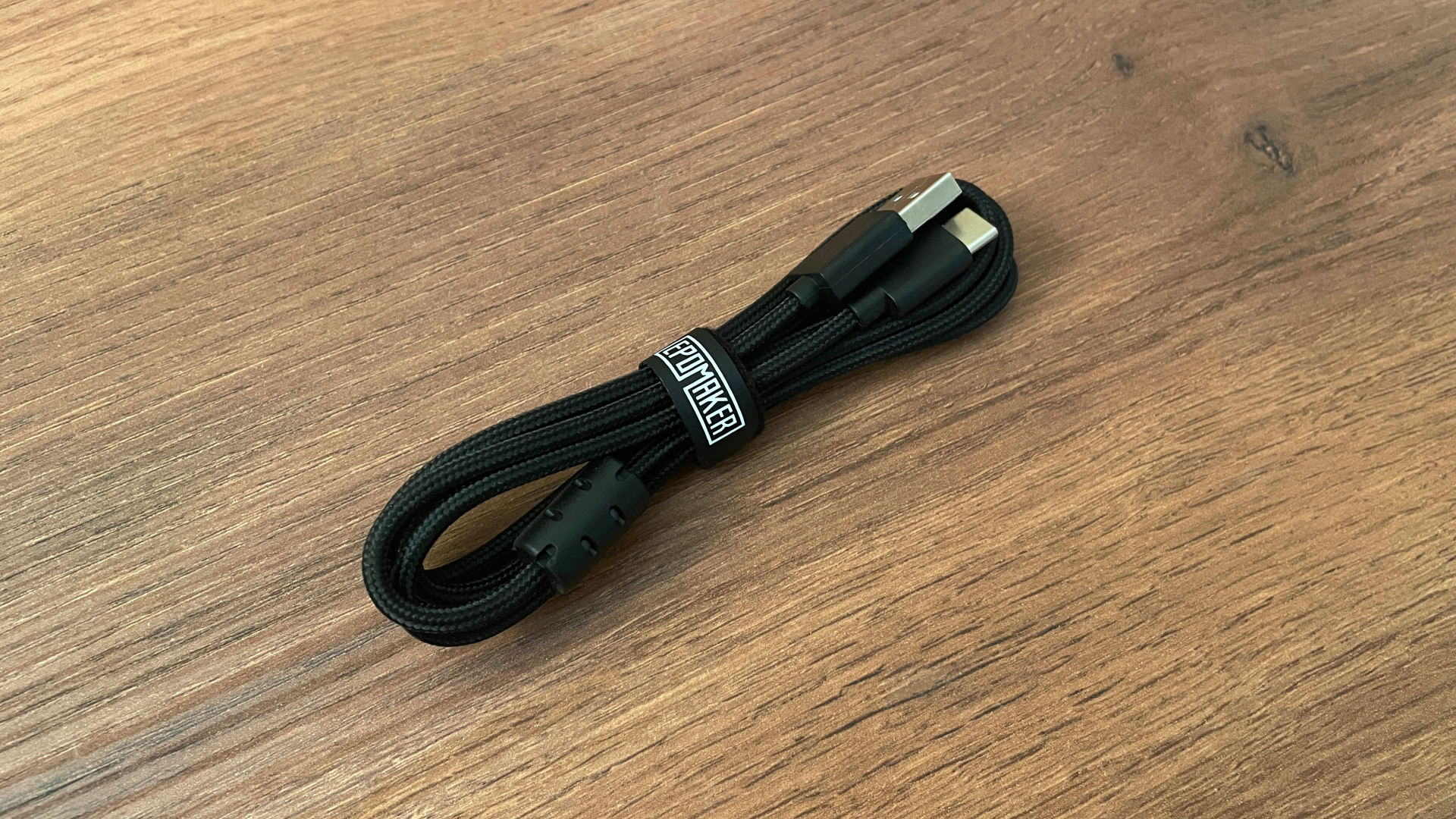
Also, while the included keycap/switch puller itself is pretty basic, it has Epomaker branding on it. That makes it feel a bit more special – and I say that as someone who already has a drawer full of them. I appreciate little details like that.
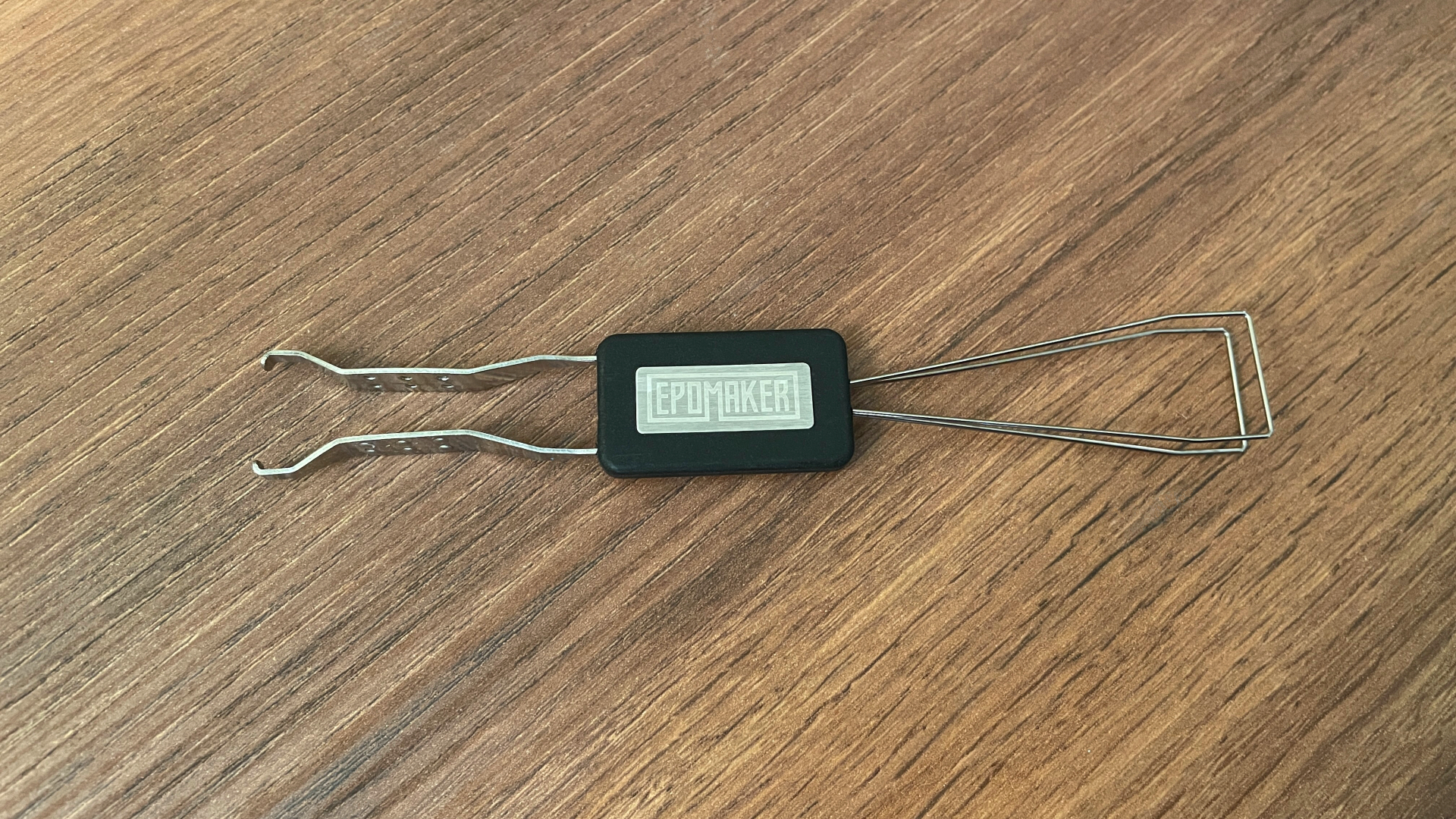
The only thing I really miss here is a dust cover, although, to be fair, that is a small accessory not everyone will care about.
A Closer Look
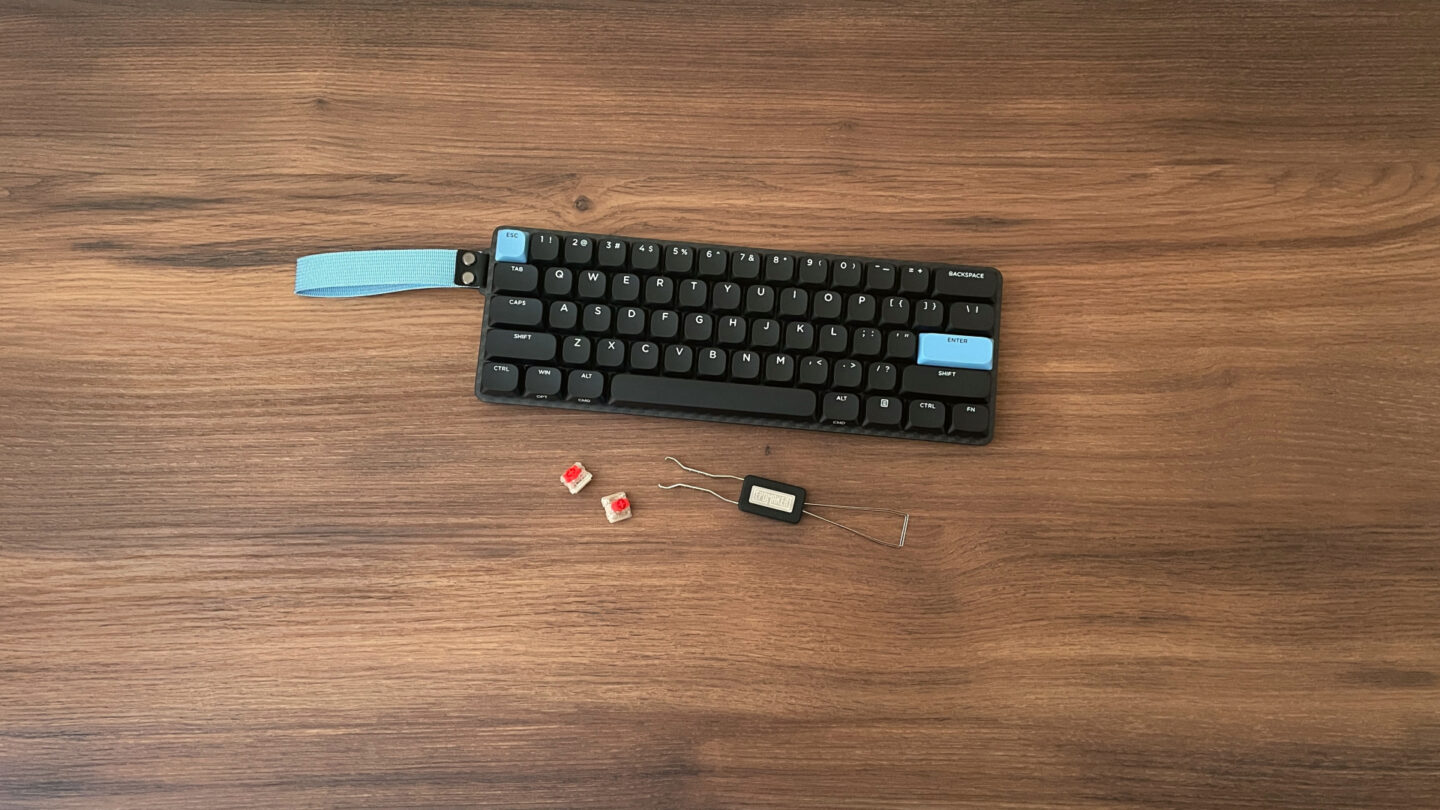
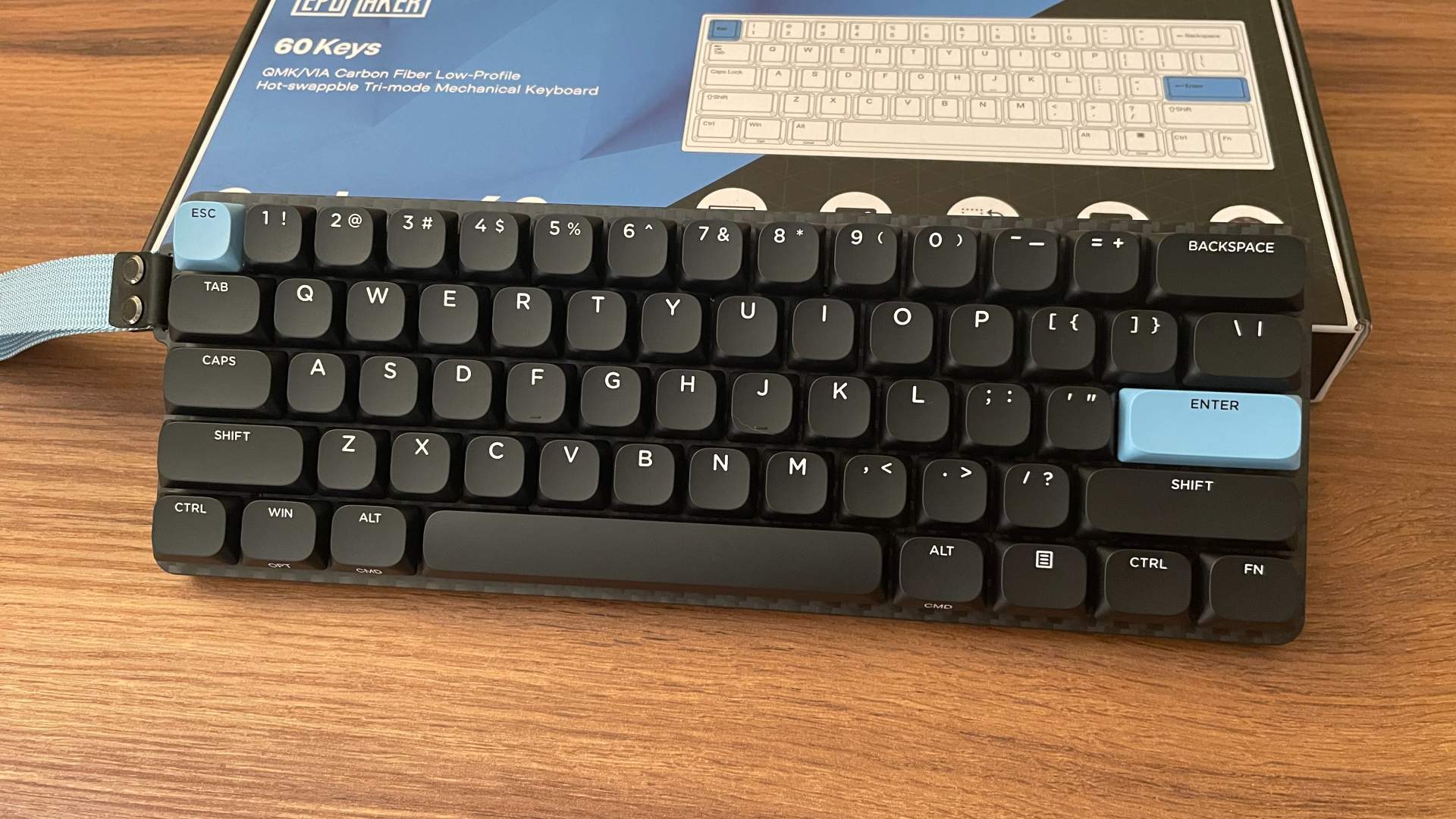
The Carbon60 is a 60% low-profile mechanical keyboard featuring 61 keys in a standard ANSI layout, with a fixed 3-degree typing angle.
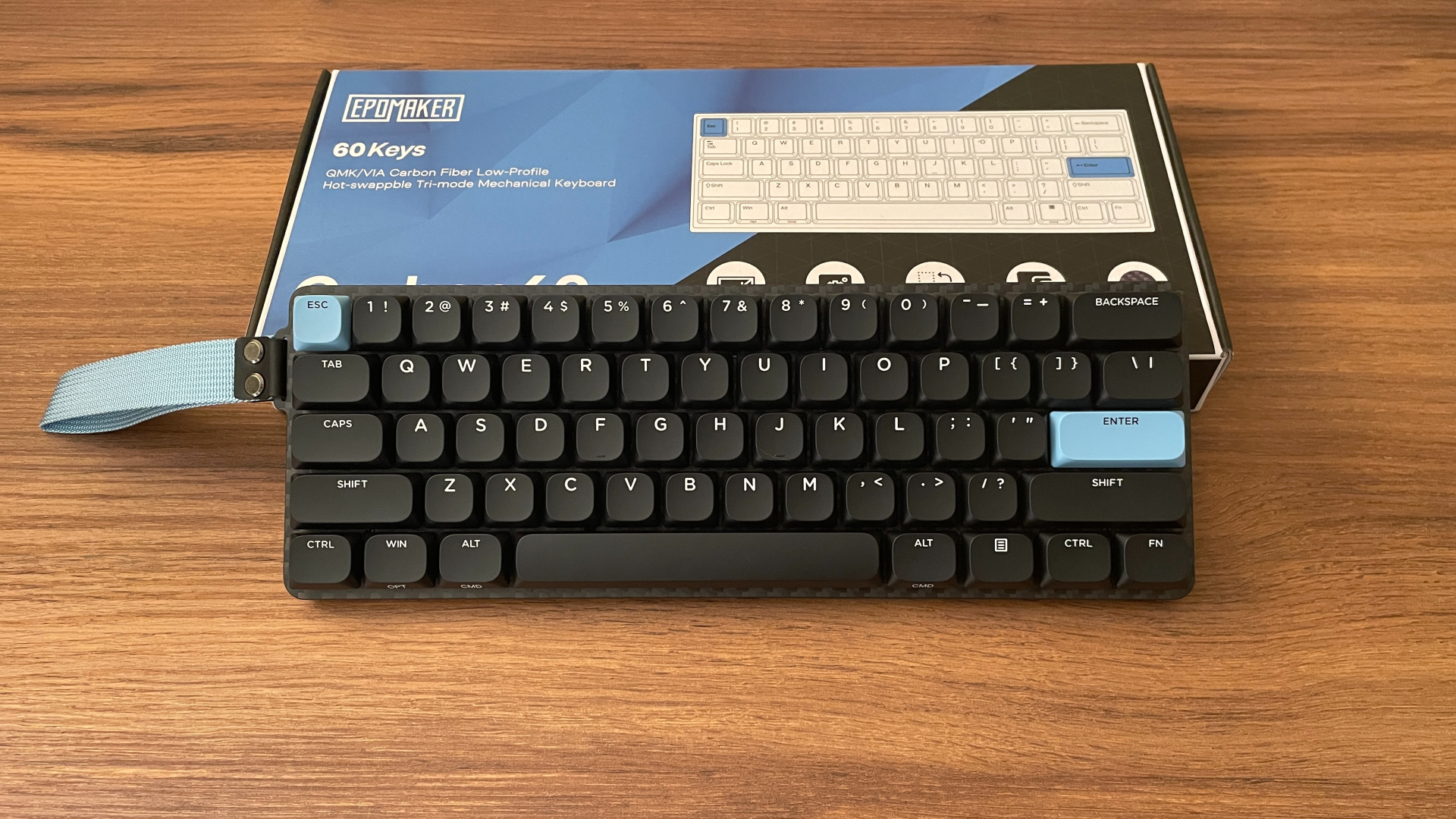
A 60% layout is a great fit for portability. Cutting away the function row, navigation cluster, and numpad keeps the footprint small, which makes the board easier to carry and leaves noticeably more room for mouse movement on the desk.
Just keep in mind that going this compact means you don’t get dedicated arrow keys. You can still access them easily through function layers, of course, but it’s definitely something to consider if you’ve never used a board like this before. That said, the 60% layout definitely has its fans, and plenty of people genuinely enjoy using it. So if missing physical arrow keys isn’t a dealbreaker for you, this form factor could work very well.
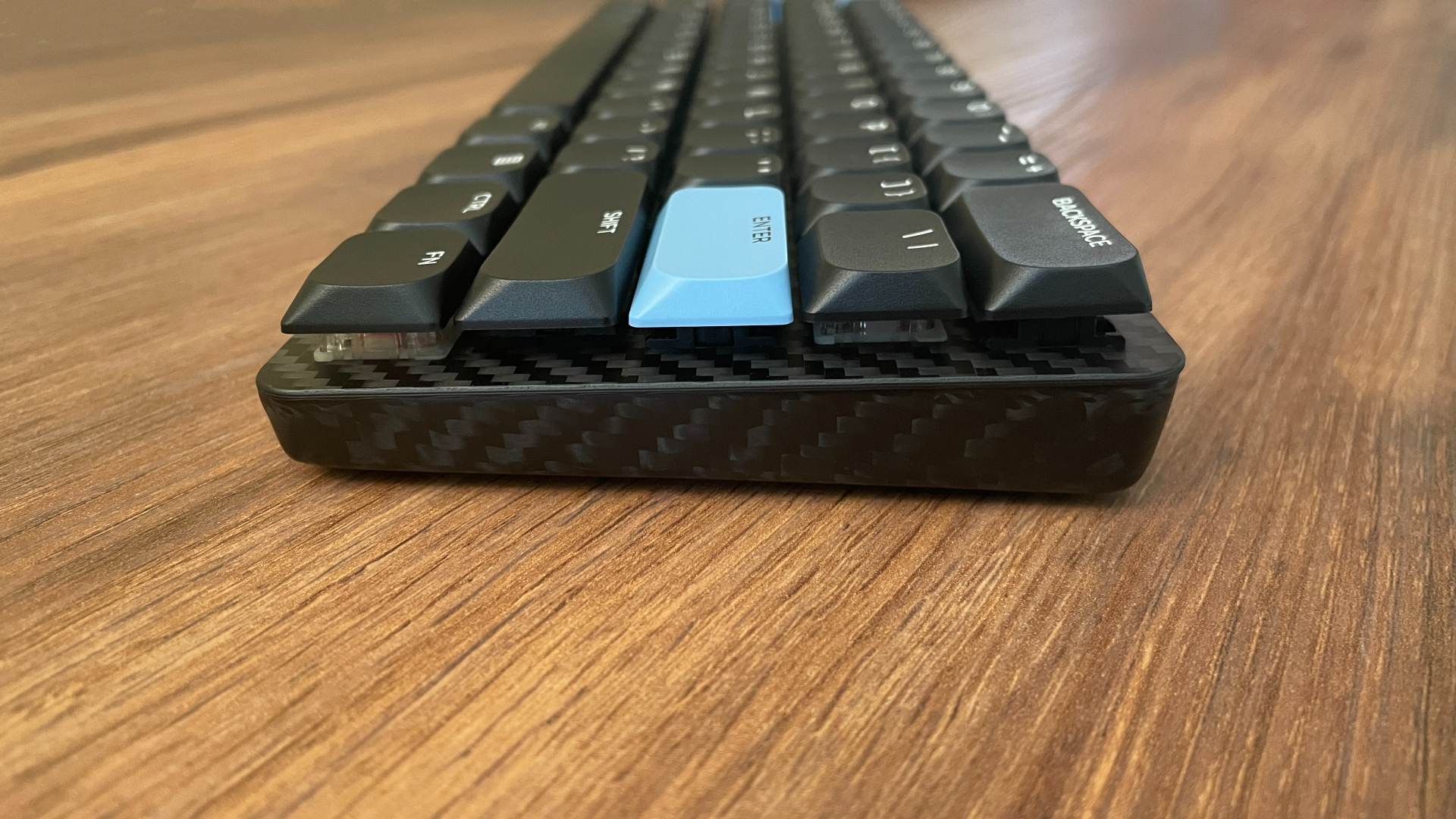
However, the layout isn’t the real star of the show here – it’s the case, which is made of carbon fiber. It’s actually a genuine rarity in the keyboard world and makes this board pretty unique.
Carbon fiber is known for combining very low weight with impressive strength. My unit weighs just 436 grams, making it a genuinely lightweight board even by 60% keyboard standards. That combination of a durable carbon fiber case, compact layout, and very low weight makes the Carbon60 particularly well suited for portability.
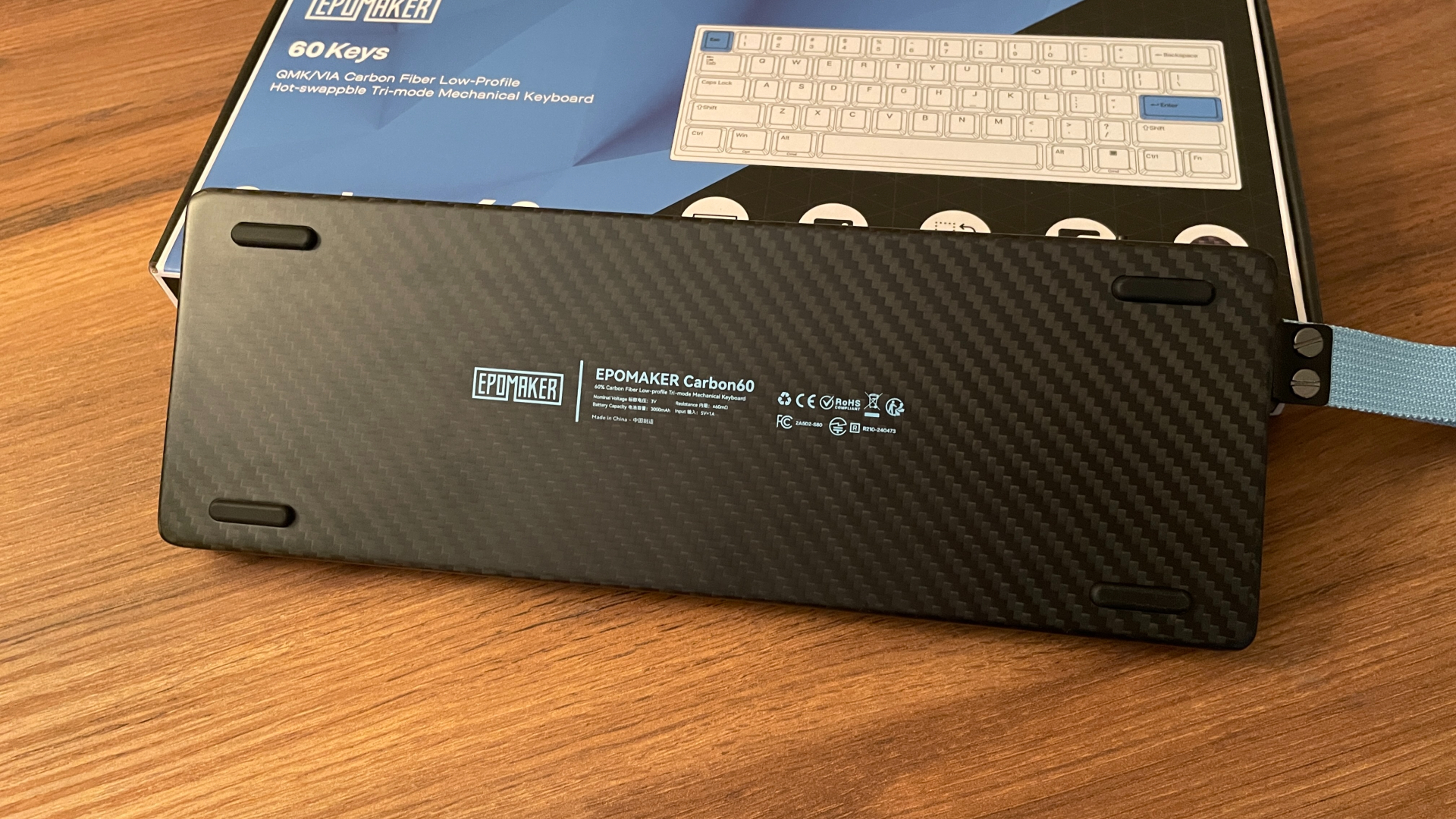
And, of course, the carbon fiber looks great too. The woven pattern gives the keyboard a very sleek, distinctive appearance, and while you can see it around the top of the case, the underside gives you the best view of it in all its glory. The pattern also shifts slightly as the light hits it from different angles, which makes the material much more interesting in person than it may look in photos.
The underside also carries the Epomaker branding and regulatory markings, both printed in blue. It is a small detail, but the color contrasts nicely with the dark carbon fiber and ties in well with the blue accent keycaps and matching strap.
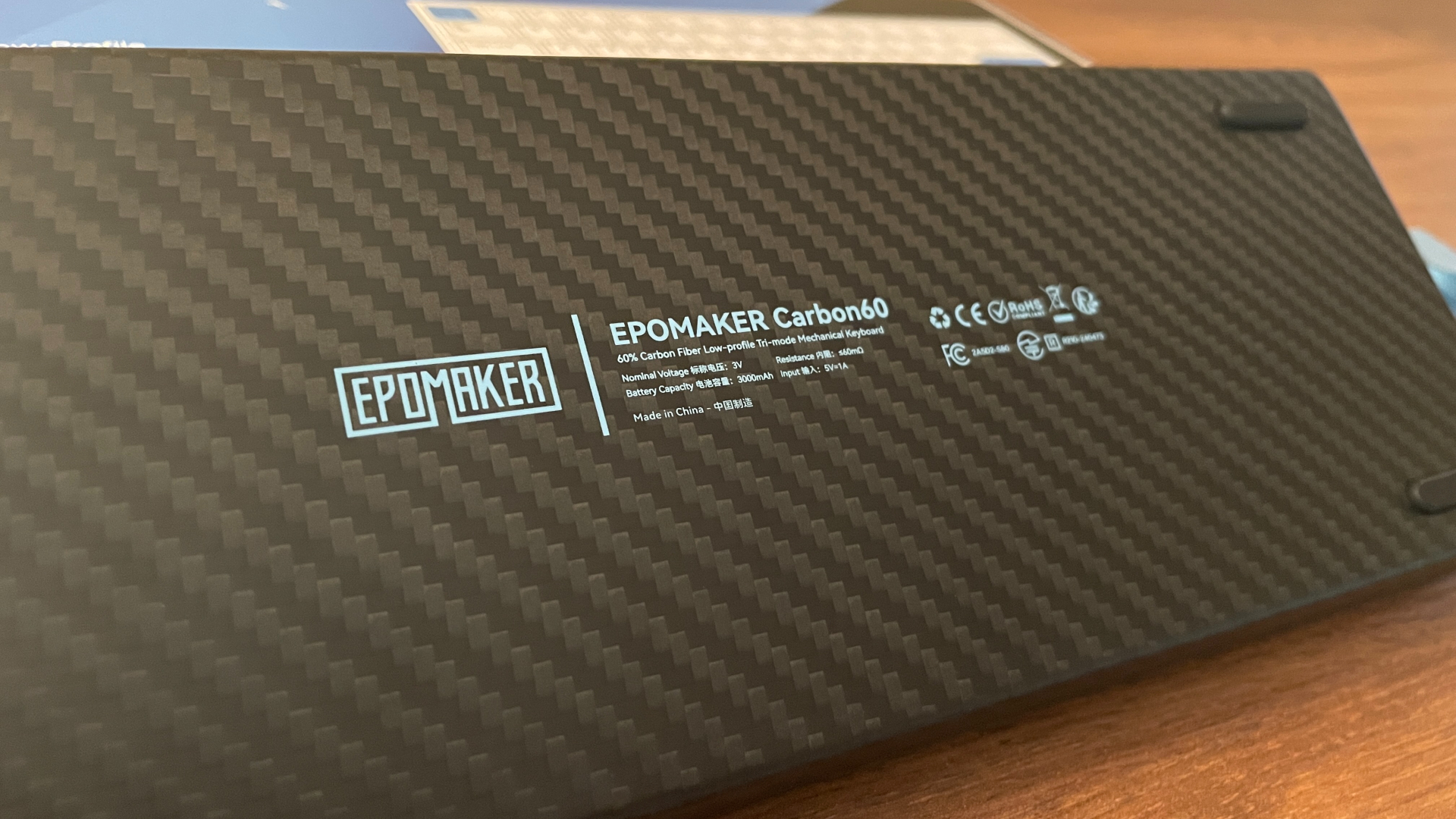
Additionally, the surface of the carbon fiber case feels exceptionally smooth to the touch – even smoother than anodized aluminum. It gives the Carbon60 a very different tactile character from most boards I’ve handled.
As for build quality, despite its very low weight, the Carbon60 never feels fragile. Everything is put together well, with no loose parts, rattles, or anything else that would make the keyboard feel cheap. There’s a tiny bit of flex if I deliberately try to twist or bend the board, but I wouldn’t take that as a sign of weakness – it’s just how carbon fiber works, bending slightly under load while staying remarkably resistant to snapping. Compared to many plastic keyboards, though, the Carbon60 flexes noticeably less. Also, getting it to flex requires a level of force I can’t imagine anyone actually applying during normal use.
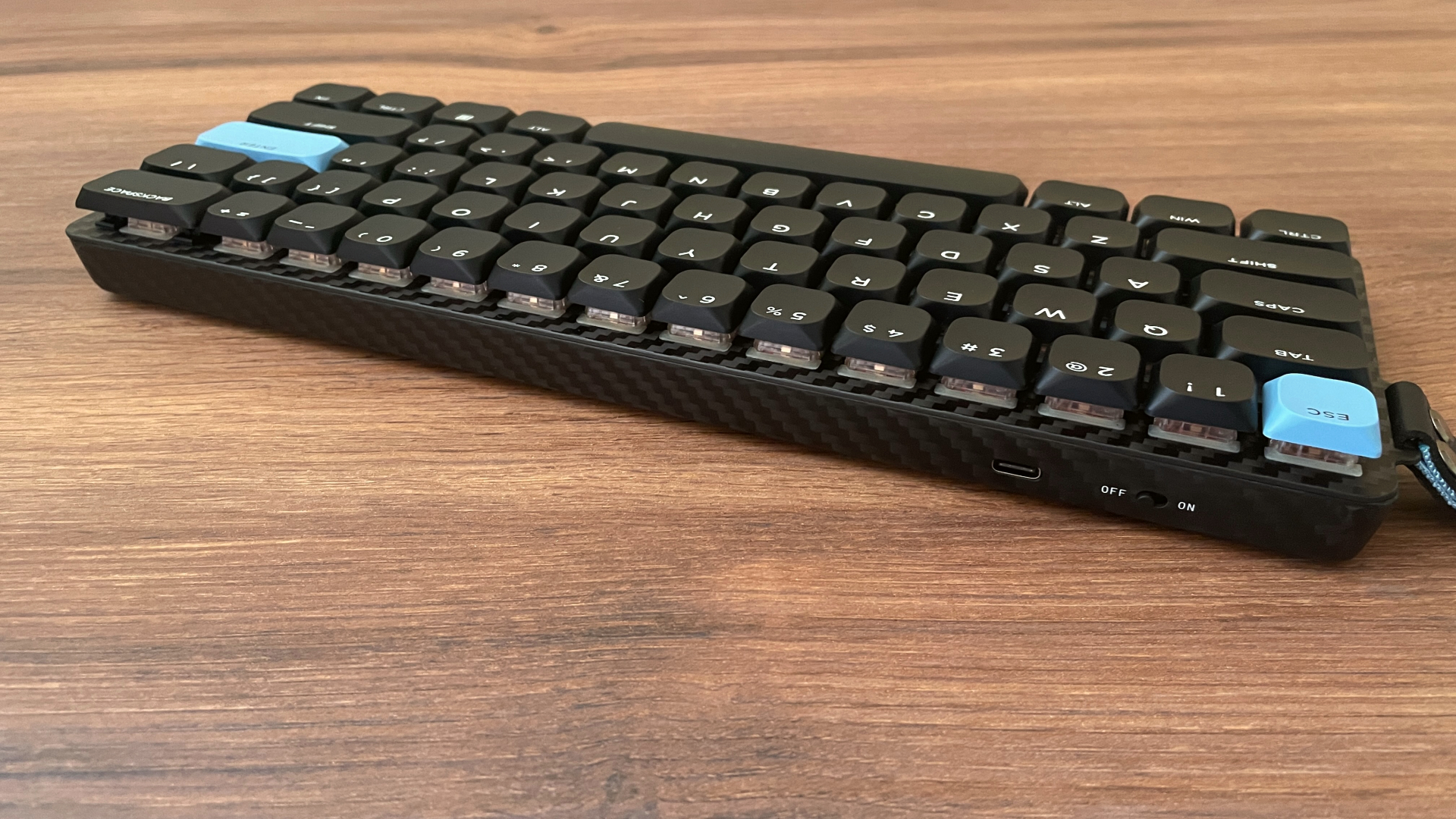
Design-wise, the Carbon60 is pretty understated. There are no overly flashy elements here – just a clean, low-key look. Out of the box, it comes with two blue accent keycaps that add a bit of character to the otherwise restrained look, but if you prefer something even more subtle, you can easily swap them out for the extra black ones included in the box.
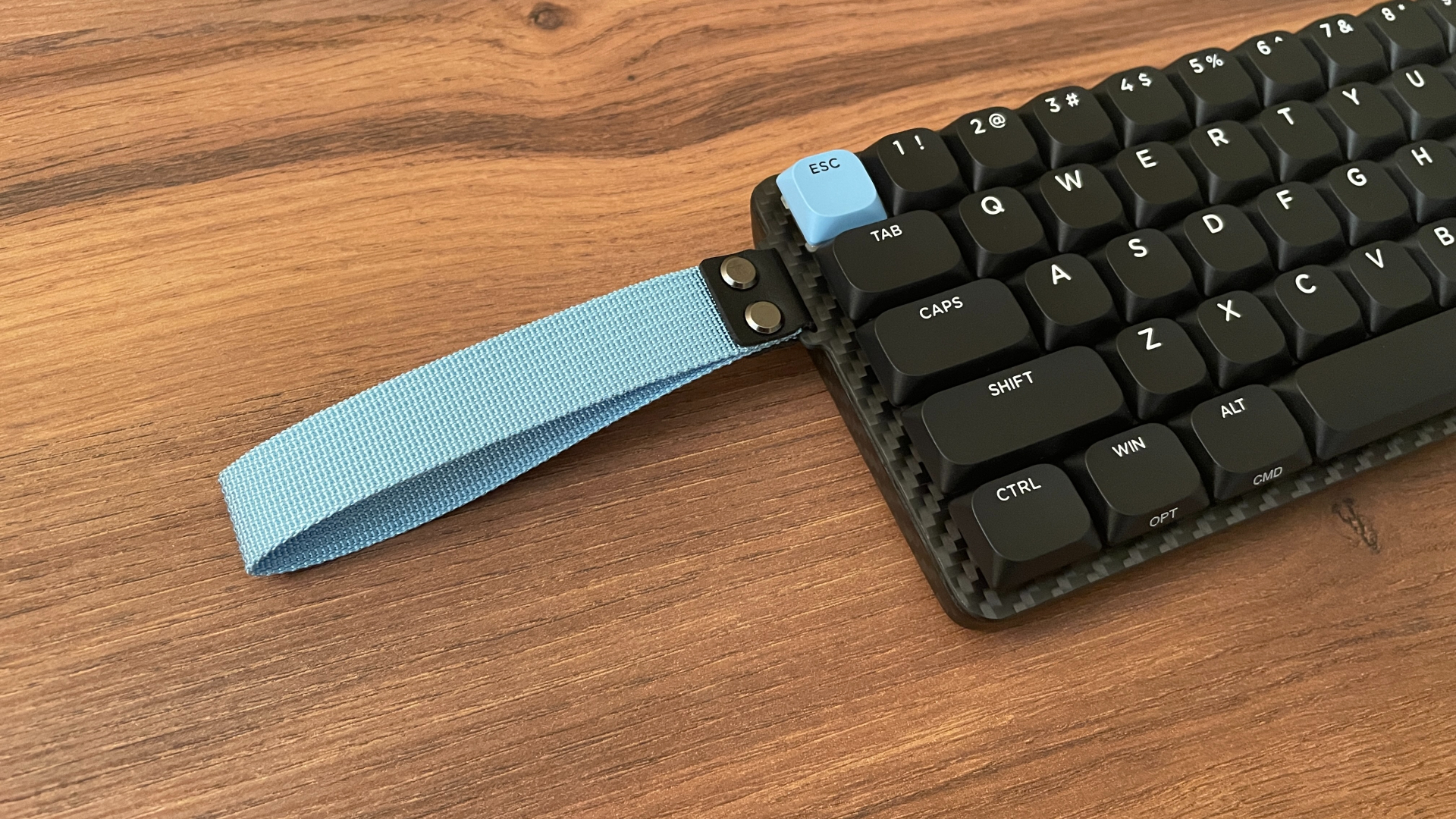
Probably the most eye-catching detail is the blue strap attached to the left side, which hints at the keyboard’s portable nature. I’m generally not a fan of straps on keyboards, but here I actually like how it matches the blue keycaps and breaks up the darker aesthetic. But if it’s not your thing, you can always just remove it.
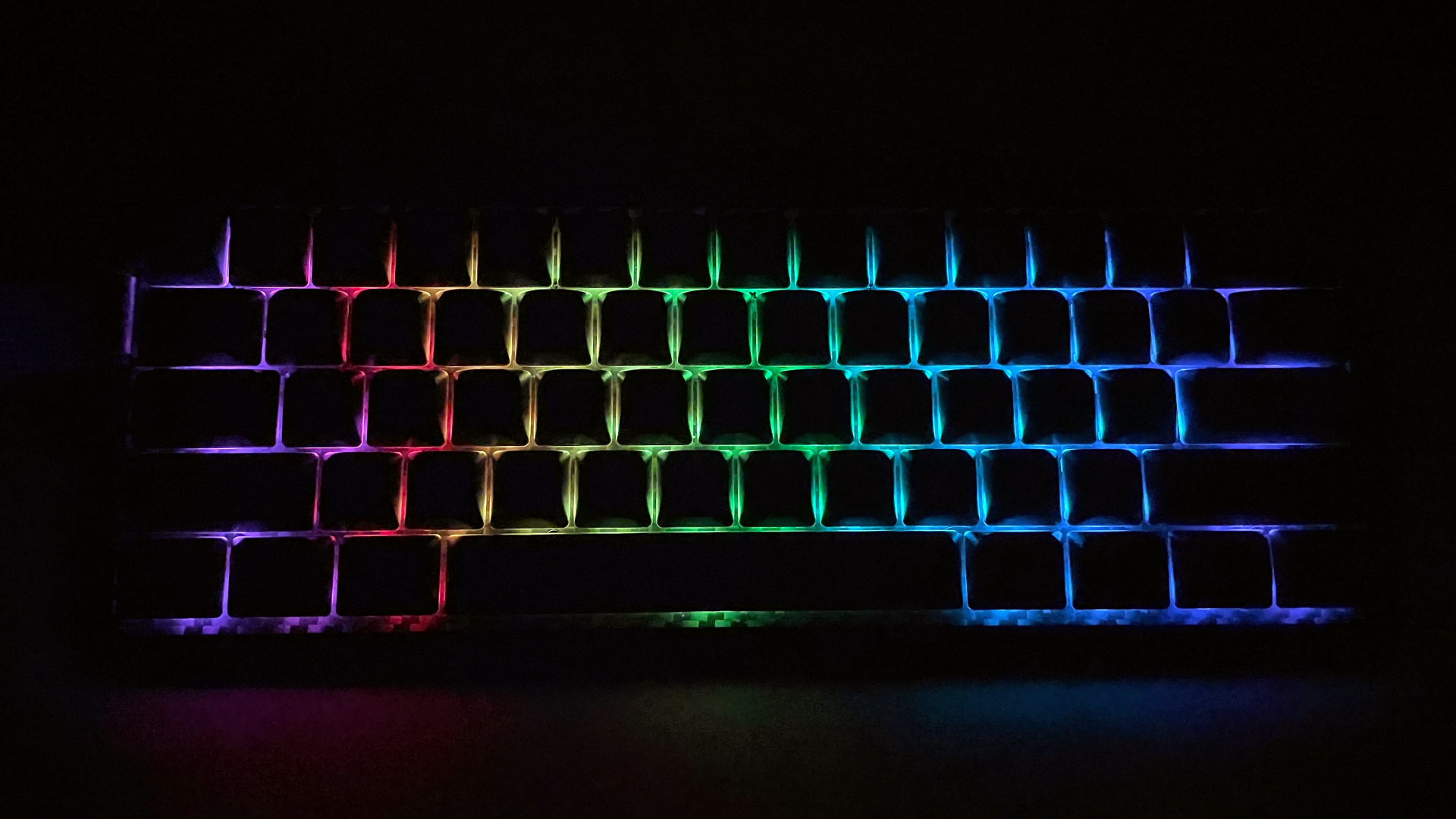
Moving on to the RGB backlighting, it’s fairly bright, but not to the point where it becomes distracting or uncomfortable in a darker room. The colors look vivid and well saturated, and I did not notice any visible PWM flicker at any brightness level, which is especially important for people who are sensitive to flickering LEDs, as it can lead to eye strain or discomfort.
Connectivity and Battery
When it comes to connectivity, the Carbon60 features tri-mode support: wired USB-C, 2.4 GHz wireless, and Bluetooth. Bluetooth gives you three separate channels, making it easy to keep the keyboard paired with multiple devices and switch between them when needed.
Both wired and 2.4 GHz modes run at a 1000 Hz polling rate, while Bluetooth operates at the standard 125 Hz. For gaming or anything where responsiveness matters most, wired or 2.4 GHz are obviously the better choices. But considering that this is a portable keyboard, Bluetooth makes a lot of sense as a handy power-saving mode, since it consumes considerably less power, which is especially useful for a keyboard that may not always be sitting next to a USB port.
One detail I particularly like is the physical On/Off toggle on the back of the keyboard. There is no hidden switch underneath a keycap to power the board down. If you want to throw the Carbon60 into a backpack without worrying about accidental key presses waking it up or draining the battery, you can switch it off in a second. It’s a small thing, but it makes the keyboard noticeably more convenient to carry around.
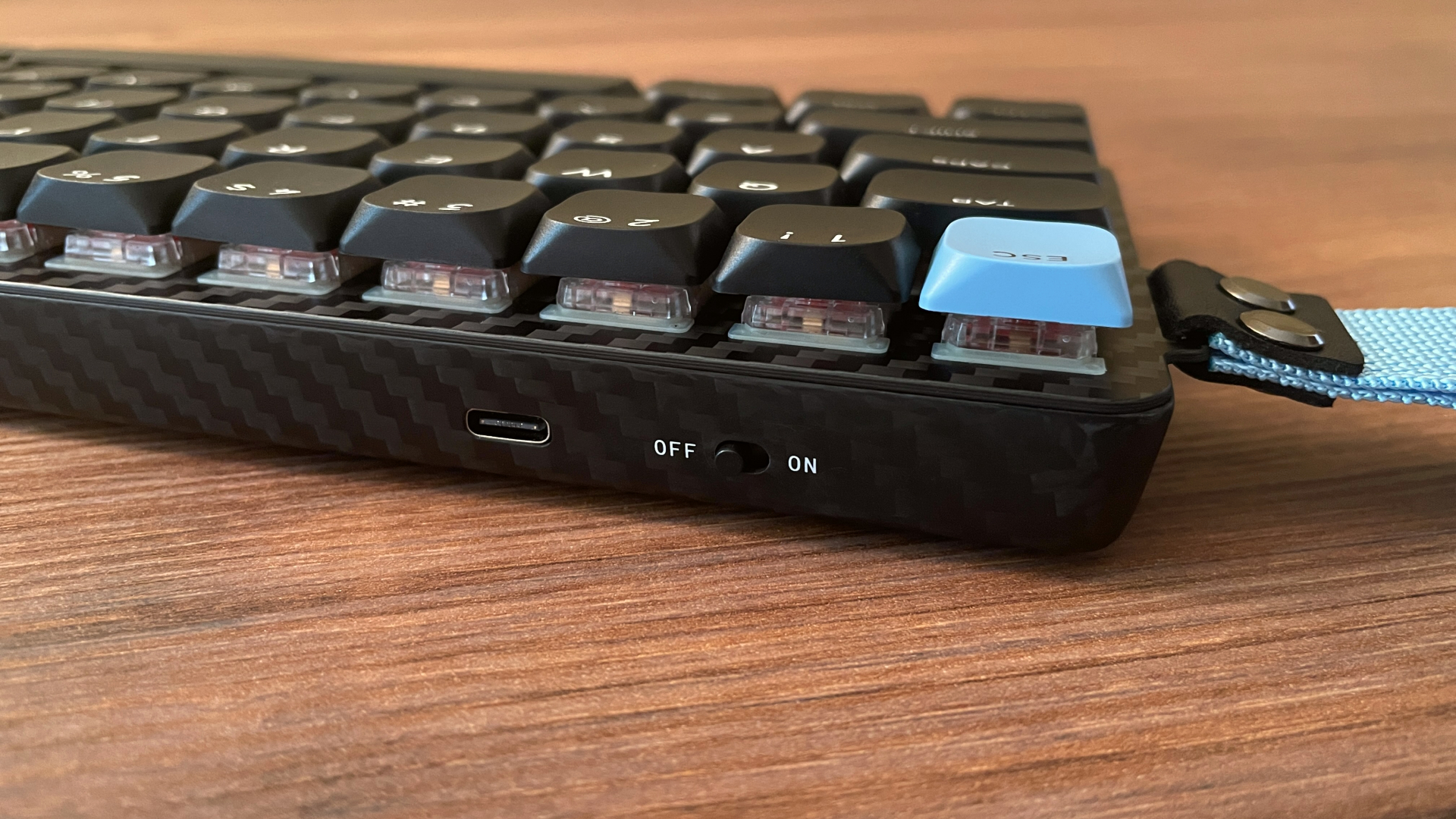
To use the Carbon60 wirelessly, simply move the back toggle to the On position. Switching between the available wireless modes is then handled through keyboard shortcuts:
- Fn + Q/W/E = Bluetooth channel 1/2/3
- Fn + R = 2.4 GHz
To use the Carbon60 in wired mode, simply move the back toggle to the Off position and connect the keyboard via USB-C.
I used the Carbon60 in all three connection modes, and the connection remained stable throughout. I didn’t run into any dropouts, random disconnects, or other connectivity issues.
As for battery life, the Carbon60 packs a 3000 mAh battery, which is a pretty respectable capacity considering how small and thin the keyboard is. With the RGB lighting turned off, I got roughly five days of use over 2.4 GHz, which is a pretty solid result. On Bluetooth, you can expect even longer runtime. Naturally, keeping the RGB on will reduce battery life quite noticeably.
To save power, the board goes into sleep mode after some time of inactivity. Waking it up is instant and doesn’t miss your first keypress, which is always nice to see. It also features a deep sleep mode after extended idle time, so if the keyboard mostly stays on your desk, you don’t even need to bother flipping the power toggle off every time you step away.
To check the battery level, press Fn + P. The keys from 1 to 0 will light up to indicate the battery percentage. For example, if keys 1 through 7 light up, it means the battery is at 70%.
VIA Web-Based Configurator
The Carbon60 is configured through VIA, which is good news for those who prefer using an established and well-known configuration tool instead of proprietary software.
Not familiar with VIA yet? Here’s a quick breakdown:
VIA is essentially web-based software for keyboards running QMK firmware. It allows you to remap keys on the fly, configure layers, create and assign macros, and change preset lighting effects – all without needing to install any extra software. VIA works directly in your browser, whether you’re on Windows, Linux, or macOS. It’s very convenient and user-friendly.
For enthusiasts and power users, VIA offers a wide range of advanced keycodes powered by QMK firmware, with options that go far beyond standard key remapping, allowing you to build highly customized multi-layer setups, create complex key combinations, define unique key behavior, and more. For example, QMK supports Tap-Hold functionality, where tapping a key performs one action, while holding the key triggers a different action, effectively expanding the functionality of a single key without switching between layers.
Mod-Tap and Layer-Tap are good examples of how deep this customization can go. Mod-Tap lets a single key act as a regular keycode – like a letter, number or function key – when tapped, and as a modifier, such as Shift or Ctrl, when held. Layer-Tap works similarly: tap for a regular keycode, but hold it and a secondary layer activates for as long as you keep the key pressed, giving you instant access to arrows, media controls, or whatever you’ve mapped there. The moment you release, you’re back to your base layer.
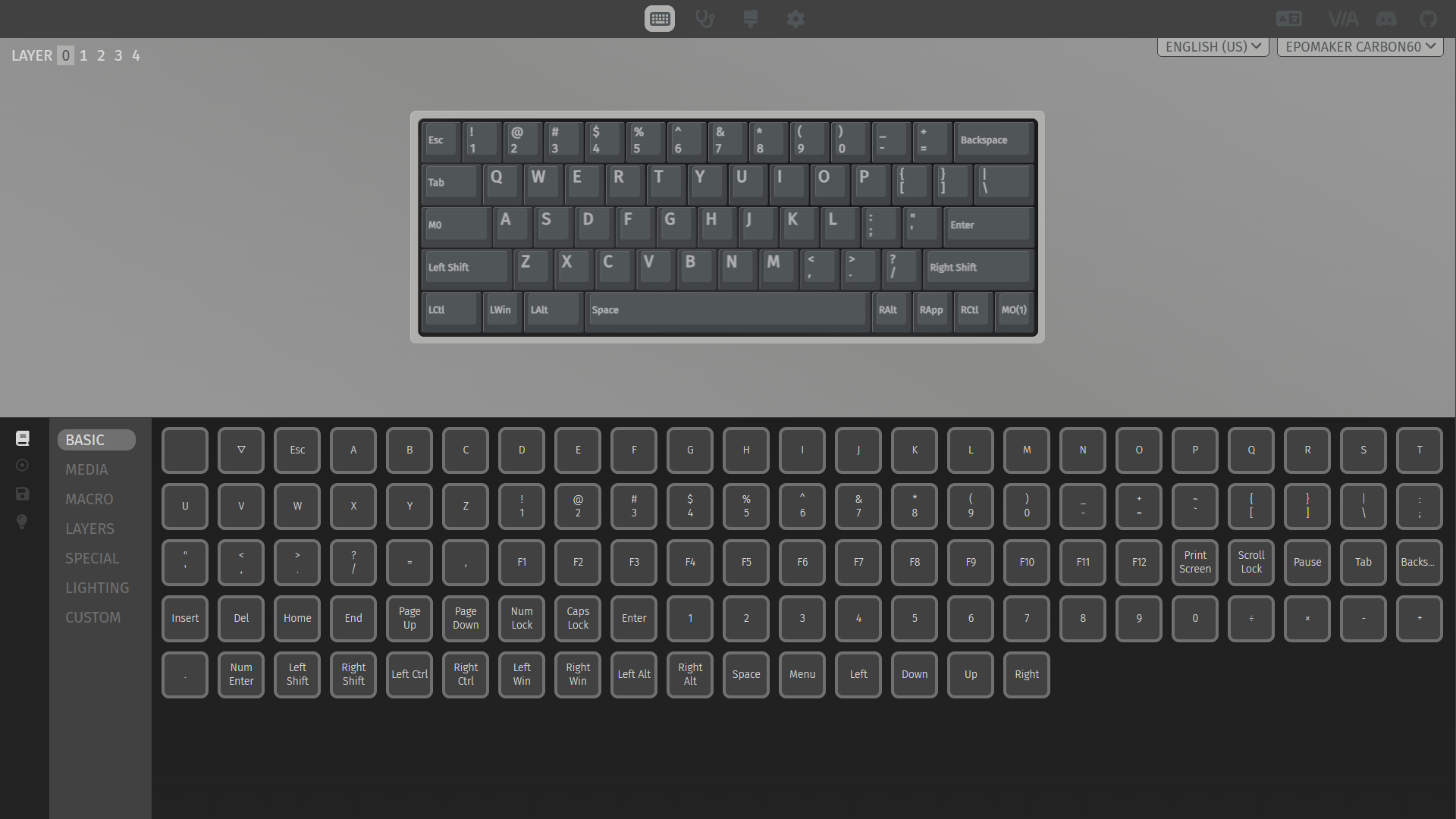
For most users, VIA provides everything they need to customize the keyboard to their liking, from simple key remapping to building a comfortable, personalized layout. And for those who want to go further, Epomaker has released the Carbon60 firmware source code on its GitHub, so more experienced users with the right skillset can build their own custom firmware and implement features that go beyond what VIA offers out of the box.
Keep in mind that VIA needs the keyboard to be connected in wired mode in order to detect it. The first time you connect it to VIA, you’ll also need to upload a JSON configuration file, which you can find on Epomaker’s website.
When it comes to the Carbon60 specifically, it offers five fully programmable layers, which should be enough for most users who want to go beyond the default layer configuration and set up a few custom layers. The advanced QMK functions mentioned above work properly here as well. I tested Mod-Tap, Layer-Tap, One Shot Layer, One Shot Modifier and Tap-Toggle, and everything worked as expected, without any strange behavior.
Keycaps
The Carbon60 comes with double-shot ABS keycaps in a profile Epomaker refers to as low-profile DSA. In practice, I found this profile quite comfortable to type on, and it did not require any real adjustment period. The spacing between the keys is wide enough that I never found myself accidentally catching neighboring keys with my fingers, which can sometimes be an issue with low-profile keycaps.
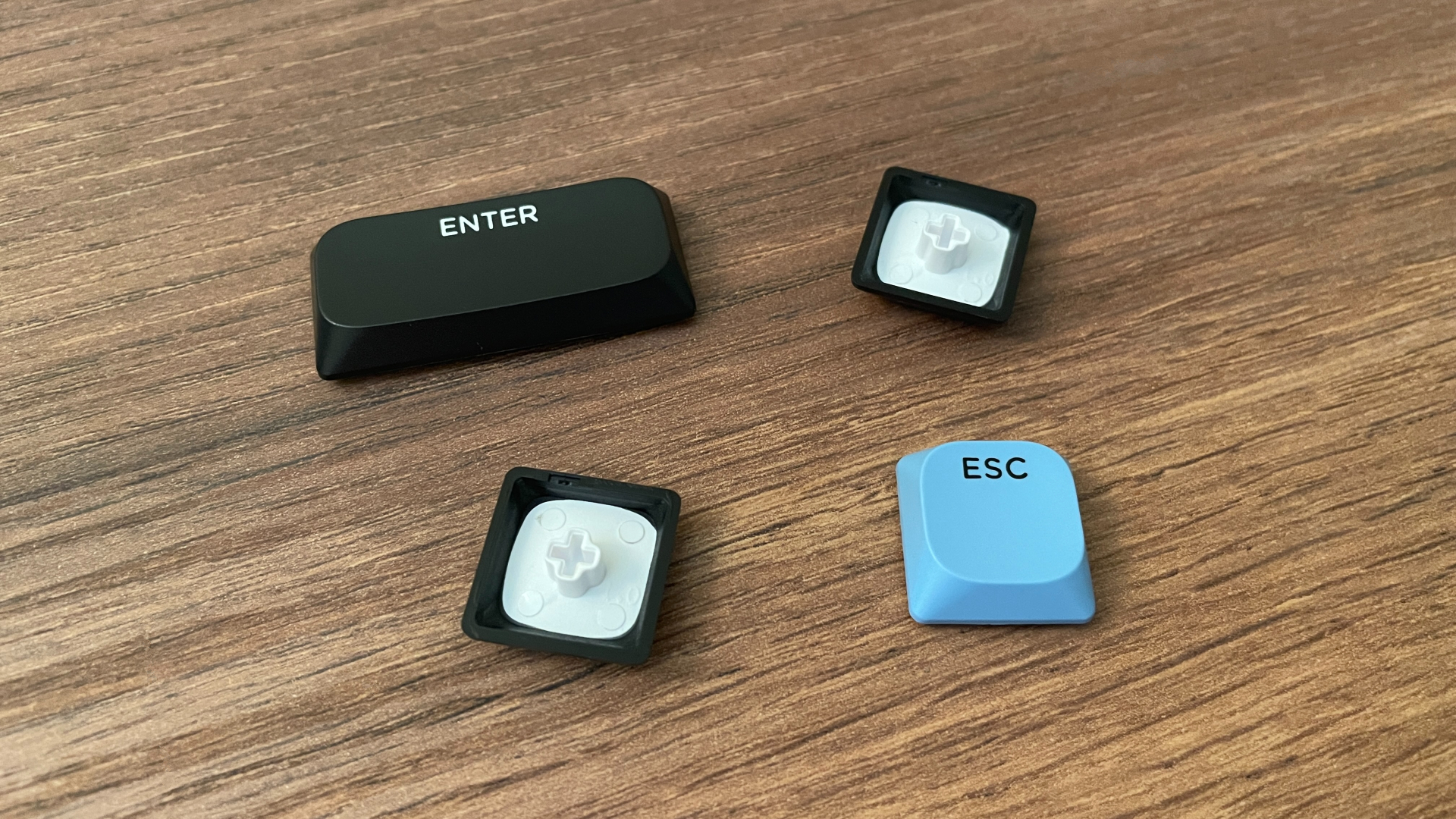
According to my measurements, the keycaps are around 1.3 mm thick. Their surface has a pleasant slightly rough texture that keeps them from feeling slippery under the fingers.
The legends are double-shot molded, meaning the characters are formed from a separate layer of plastic rather than simply printed on the surface. As a result, they should not fade or wear away with use. The legends themselves are large, crisp, and very easy to read, so no complaints here.
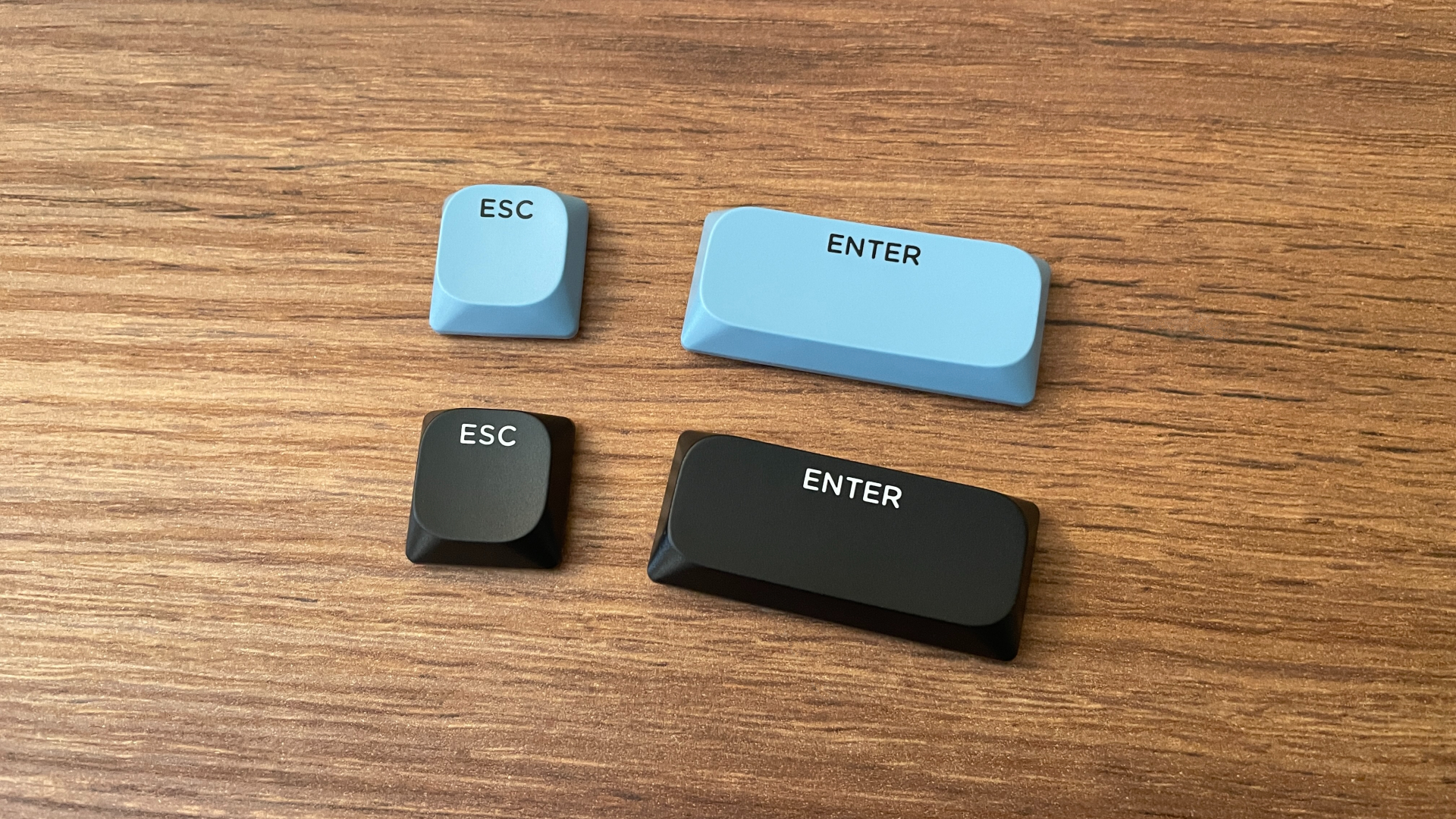
Some of the keycaps also have secondary Mac legends printed on the front-facing side. Personally, I’m not particularly keen on this choice, as I think it takes away a little from the otherwise understated look of the keyboard. That is largely a matter of taste, though, and if you regularly switch between Windows and macOS, having those secondary legends can actually be useful.
My only real complaint here is the choice of ABS rather than the more wear-resistant PBT.
Gateron Red Low-Profile Switches
The Carbon60 is available with two Gateron low-profile switch options: Red or Brown. I went with the Red switches, so those are the ones I’ll be focusing on here. You can check out the full technical specs in the table below, along with the full official name Gateron gives them (yes, I know Gateron’s naming can get complicated sometimes).
As you would expect from the Red in the name, these are linear switches. They feature a POM stem, a material known for its low-friction properties, and come pre-lubed from the factory. Out of the box, they feel quite smooth, with no noticeable scratchiness or spring ping, although I do think some additional lubrication could make them feel even better. The upper housing is transparent, which helps the RGB lighting shine through. Stem wobble is average.
They are rated at 40 gf initial force, 50 gf actuation force, and 60 gf bottom-out force, which puts them a bit on the heavier side. Paired with a two-stage spring, they feel noticeably springy under the fingers, with a very snappy, responsive rebound.
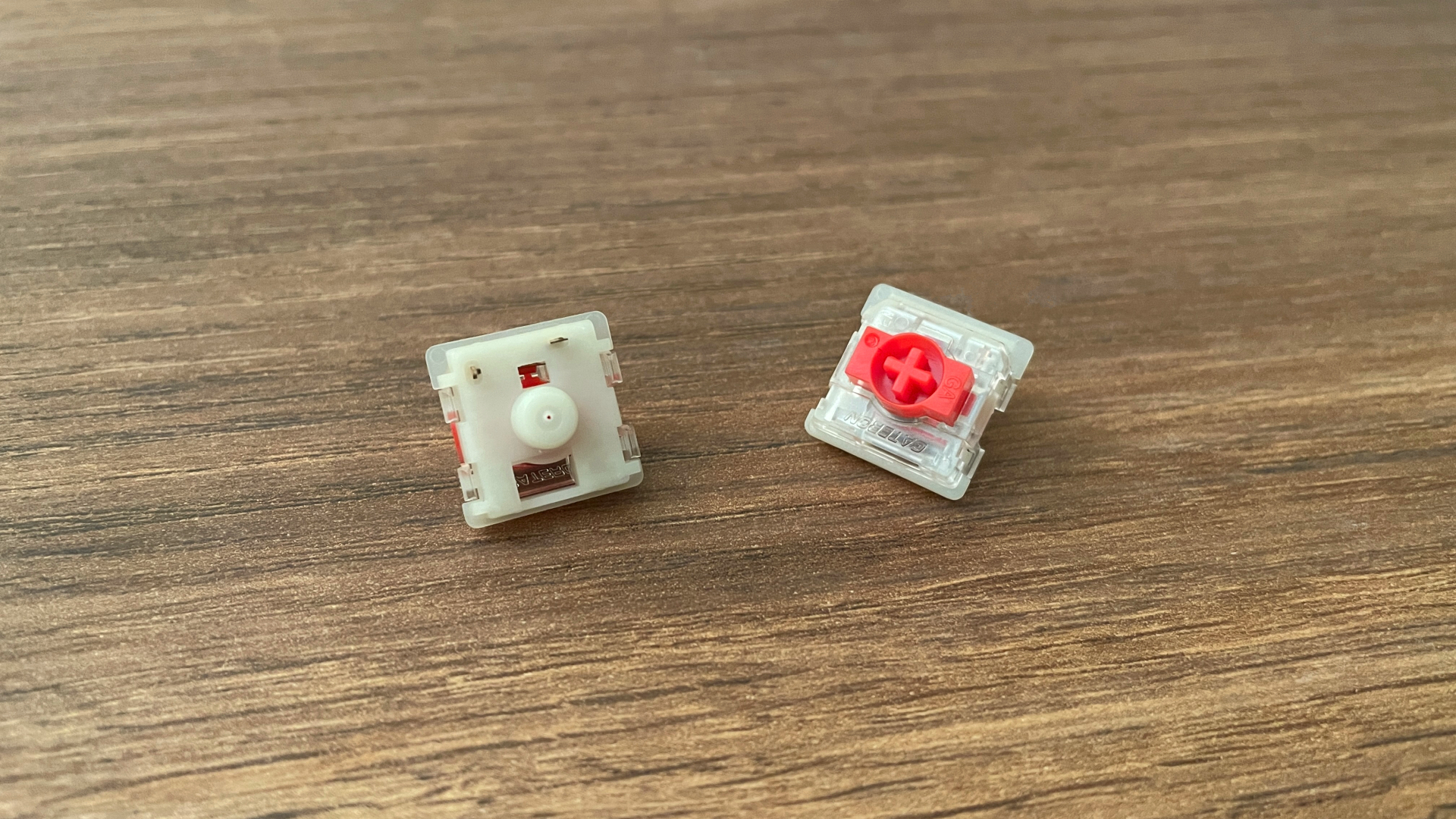
Of course, the Carbon60 is hot-swappable, so if you ever want to experiment with other switches, you can simply pull the old ones out and drop new ones in without touching a soldering iron. Just keep in mind that the PCB specifically supports Gateron KS-33 (2.0) low-profile switches, which are also commonly referred to simply as Gateron Low-Profile 2.0 switches.
The stabilizers are factory-lubed as well, and overall they left a good impression. I didn’t notice any rattling or ticking from the larger keys, and each press feels smooth and consistent. That is particularly nice to see on a low-profile keyboard, where stabilizers can sometimes be a weak point. So I don’t see any real need for additional tuning.
Structure and Mounting
When it comes to the board’s structure, the first thing that stands out is the floating keys design. Visually, this is one of those choices you will either like or dislike, and that mostly comes down to personal preferences, but it definitely allows the case to stay as thin as possible – which looks impressive on an already low-profile board.
It also comes with a very practical benefit: cleaning the keyboard is ridiculously easy, and crumbs or dust can’t really get trapped inside since the internals of the board are completely enclosed.
The plate effectively forms the upper section of the case and, like the rest of the case, is made from carbon fiber. This construction also dictates the mounting style – the Carbon60 is tray-mounted. Directly under the plate are two layers of dampening material:
- Sandwich Pad
- Switch Pad
Below those sits a 1.2 mm PCB. One detail I was glad to see here is that the hot-swap sockets are Gateron-branded rather than some cheaper generic alternative. It is a small detail, but good-quality sockets matter on a hot-swap keyboard, especially if you plan to change switches more than once.
Under the PCB is another layer of dampening material:
- Bottom Foam
So, there are three layers of dampening material in total. That may not sound like a lot, but considering the Carbon60’s low-profile nature combined with a case structure that has very little empty space, three layers do the job just fine.
Typing Feel and Sound
In terms of typing feel, the Carbon60 is on the firmer and more direct side. The low-profile design keeps the key travel short, so each press feels quick and immediate. Slightly heavier switches with two-stage springs give the board a very crisp, springy feel under the fingers that makes typing quite lively.
Sound-wise, the Carbon60 has a somewhat unusual profile. It leans firmly toward a clacky sound signature, but it’s surprisingly muted compared to what you’d normally expect from a clacky board. That’s likely down to the carbon fiber body. Also, the board does not sound hollow, and I didn’t notice any unwanted reverb or other unpleasant resonance from the case, so those internal dampening layers are clearly doing their job.
Pros and Cons
Final Verdict
The Epomaker Carbon60 is definitely one of the more unique low-profile keyboards on the market right now, courtesy of its carbon fiber case. But there’s plenty to like beyond the case material, too. You get VIA support, hot-swap sockets, solid battery life, well-tuned stabilizers, and a typing experience that feels crisp and lively without becoming harsh.
However, first and foremost, it shines as a portable keyboard. The combination of a compact 60% layout, low-profile design and low weight makes it exceptionally well suited for carrying around. And thanks to the strength of the carbon fiber case, it doesn’t feel like portability came at the expense of durability.
And then there is the design itself. If you really like the look of carbon fiber, or you are putting together a setup built around a carbon fiber theme, there are not many keyboards out there that can offer real carbon fiber rather than simply mimicking the look. That leaves the Carbon60 as one of the few genuine choices on the market.
So, if that’s the vibe you’re going for, you can pick up the Carbon60 directly from Epomaker’s official store for $129.99.

Controller and mechanical keyboard enthusiast. Tech reviewer, regularly sharing thoughts about gadgets and computer peripherals.