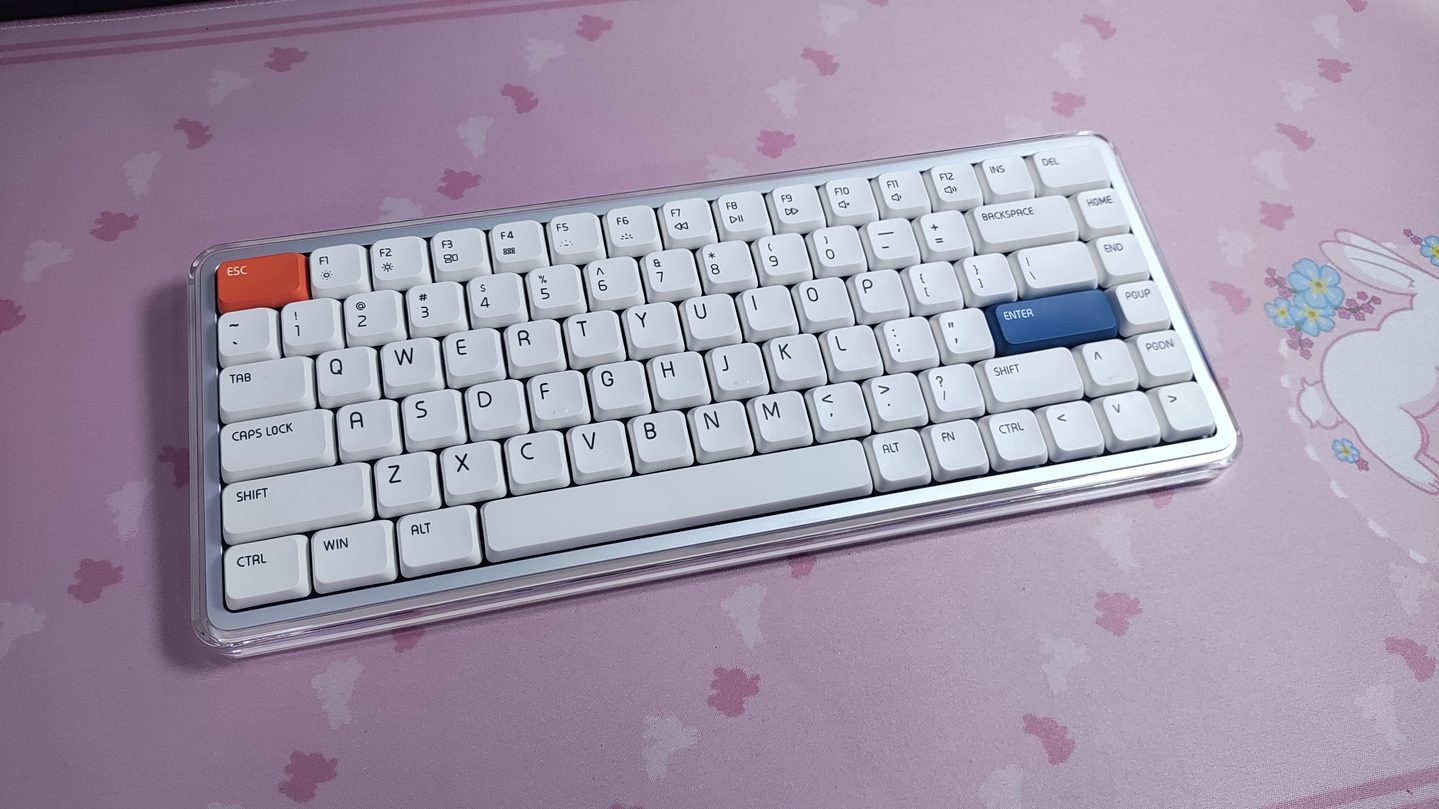
Low Profile keyboards have always been an interesting product category to me. I enjoy typing on them, plus they offer real-world benefits that matter and affect your daily life. While regular Mechanical keyboards have reached an excellent point in terms of price-to-performance (you can get some nice keyboards at very affordable prices), low profile keyboards aren’t quite there yet. Which is why I find it very interesting to look at how this keyboard space is progressing.
So today, we’re looking at a pretty interesting low profile keyboard from Melgeek, the O2. Geared towards Mac users, wireless with support for up to 10 simultaneous connections, and a crispy typing experience, this keyboard seems to had a lot of interesting features that we shall look at in this review.
Unboxing and Accessories
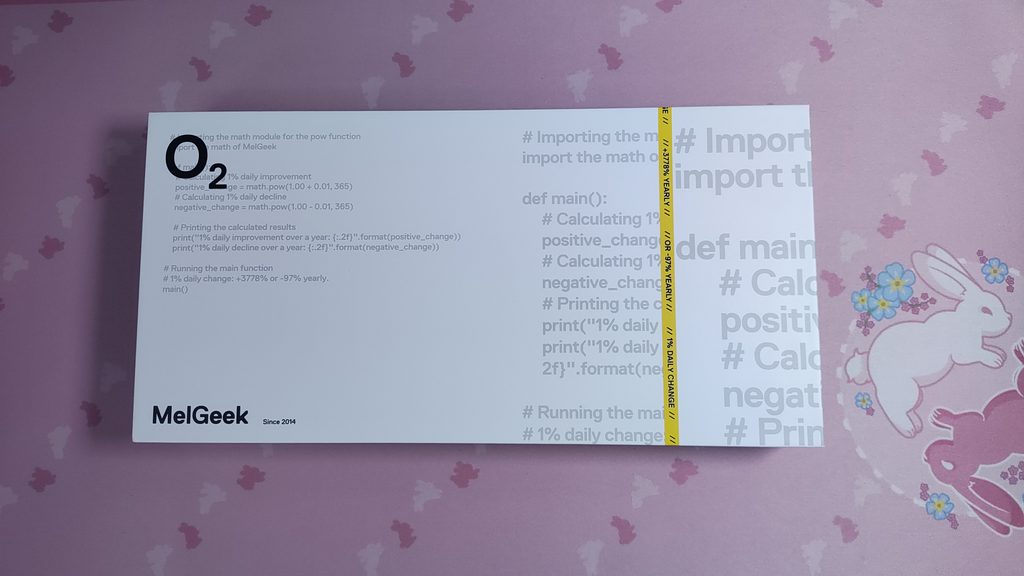
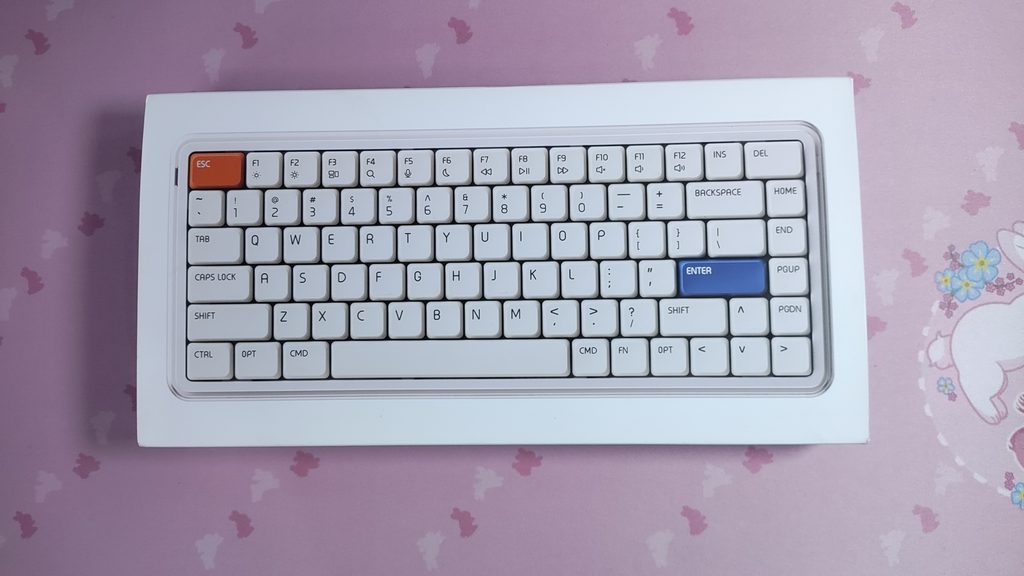
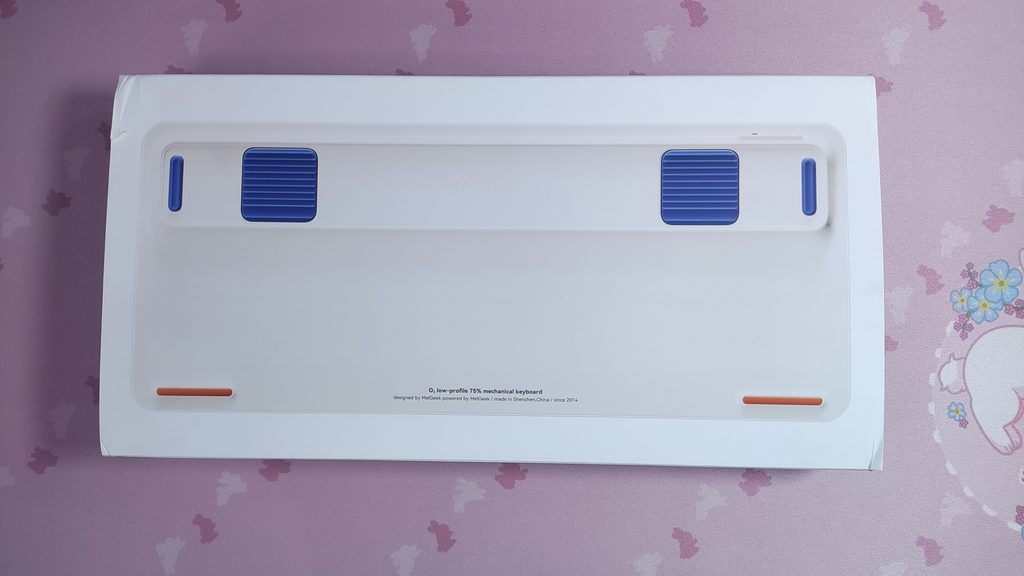
The box is nice and is reminiscent of an Apple product unboxing. (This will be a theme throughout this review). Inside the box, you will find :
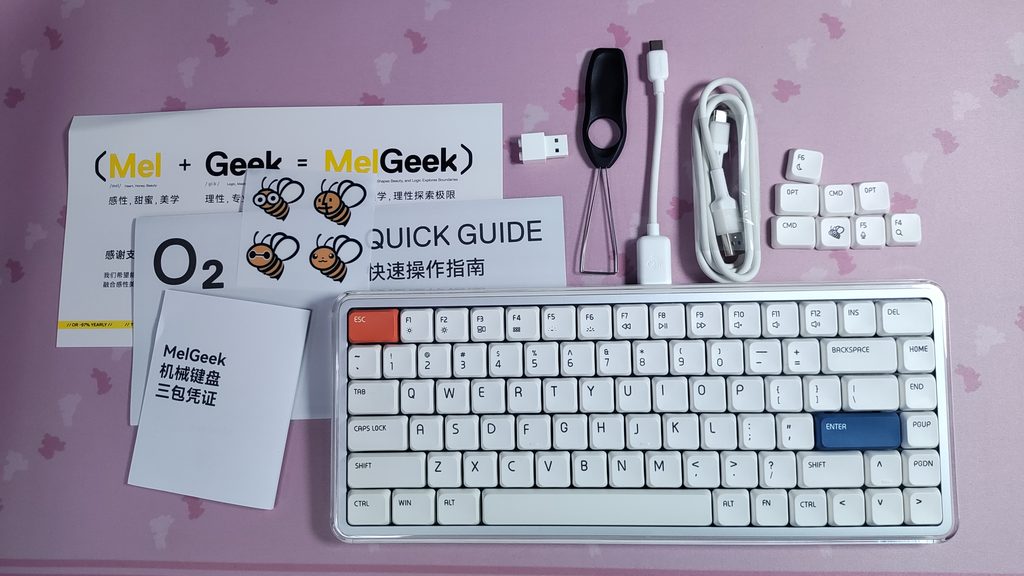
- The Melgeek O2 keyboard
- A pretty nice USB-A to USB-C cable
- A 2.4GHz Dongle
- A USB-C male to USB-A female adapter
- A Keycap puller
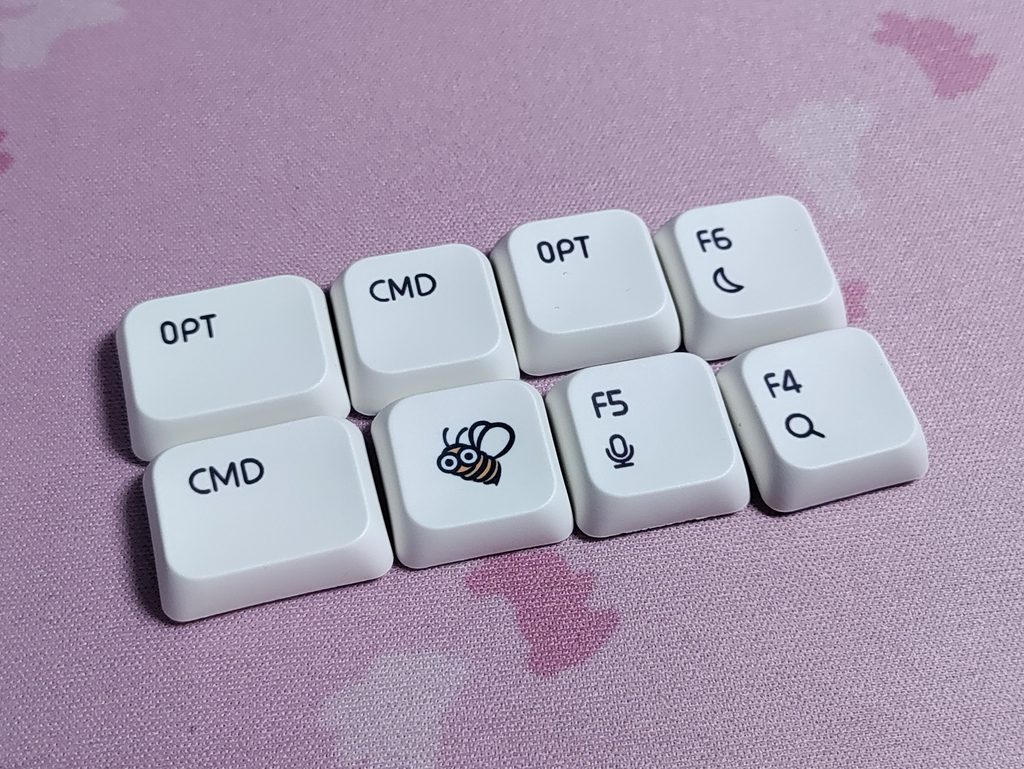
- Extra Windows keycaps + a bee keycap
- User Manual
- 4 Bee stickers
A couple of interesting observations :
- The 2.4G dongle is uhhh… compatible with a particular brick toy brand’s brick…
- The cable is a basic rubber material and has text on the ends saying “Good Typing” and “Chicken Dinner”. The USB-C adapter has a Bee inscribed on the adapter end, and the text “Melgeek” on the USB-C end.
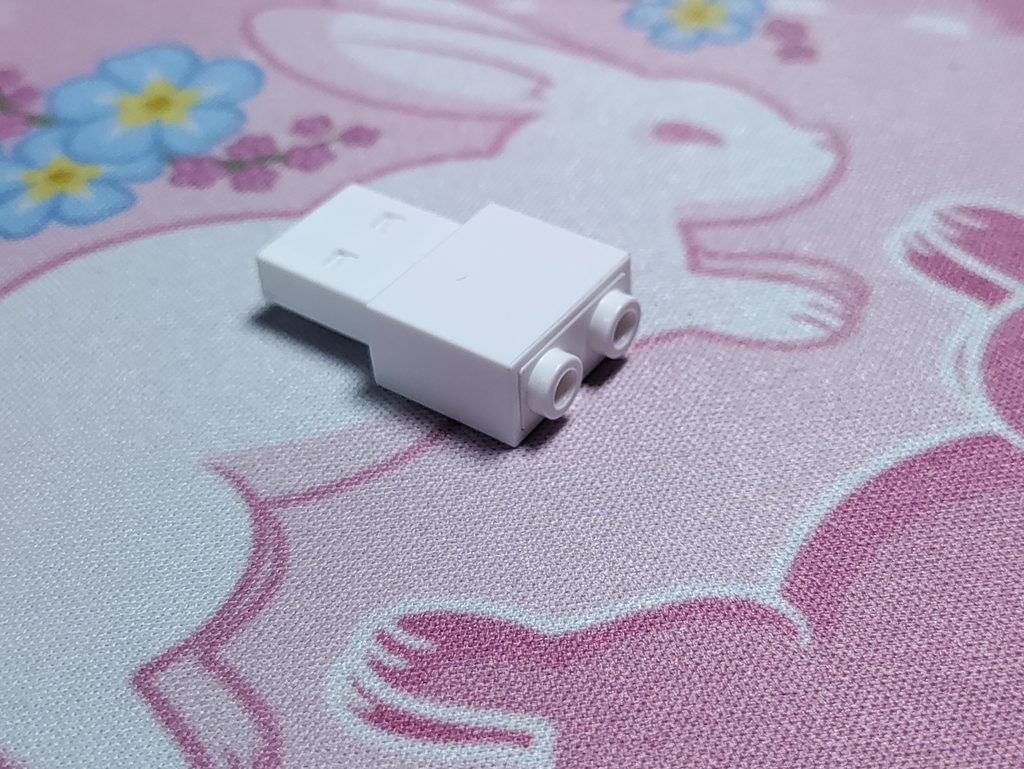
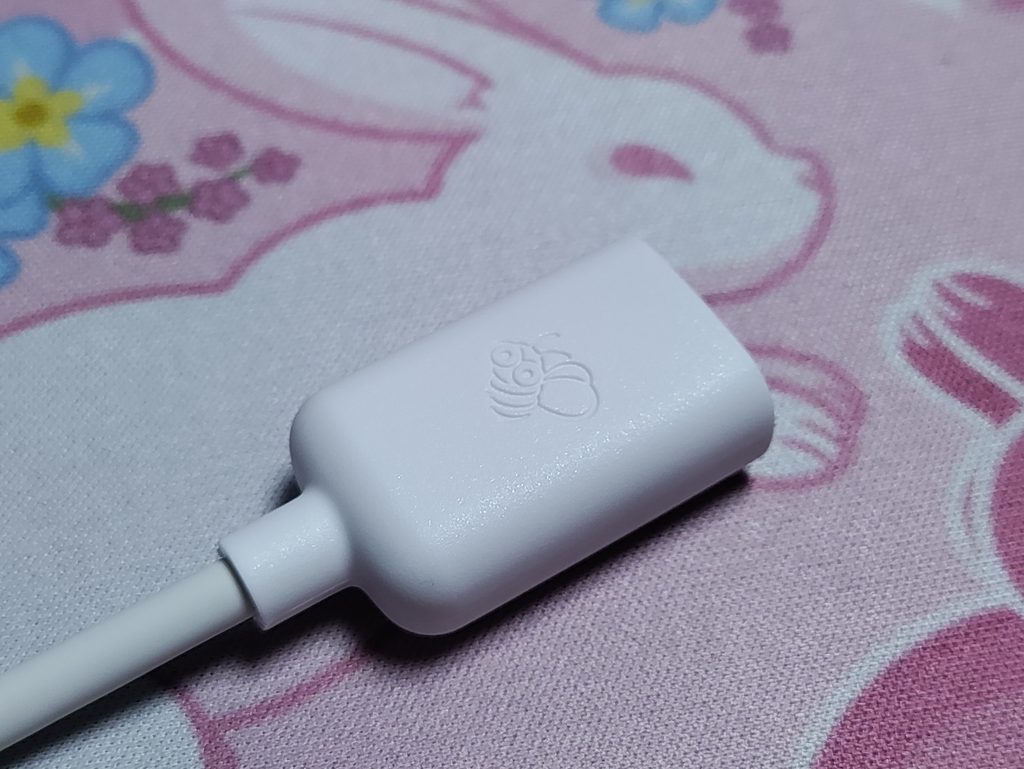
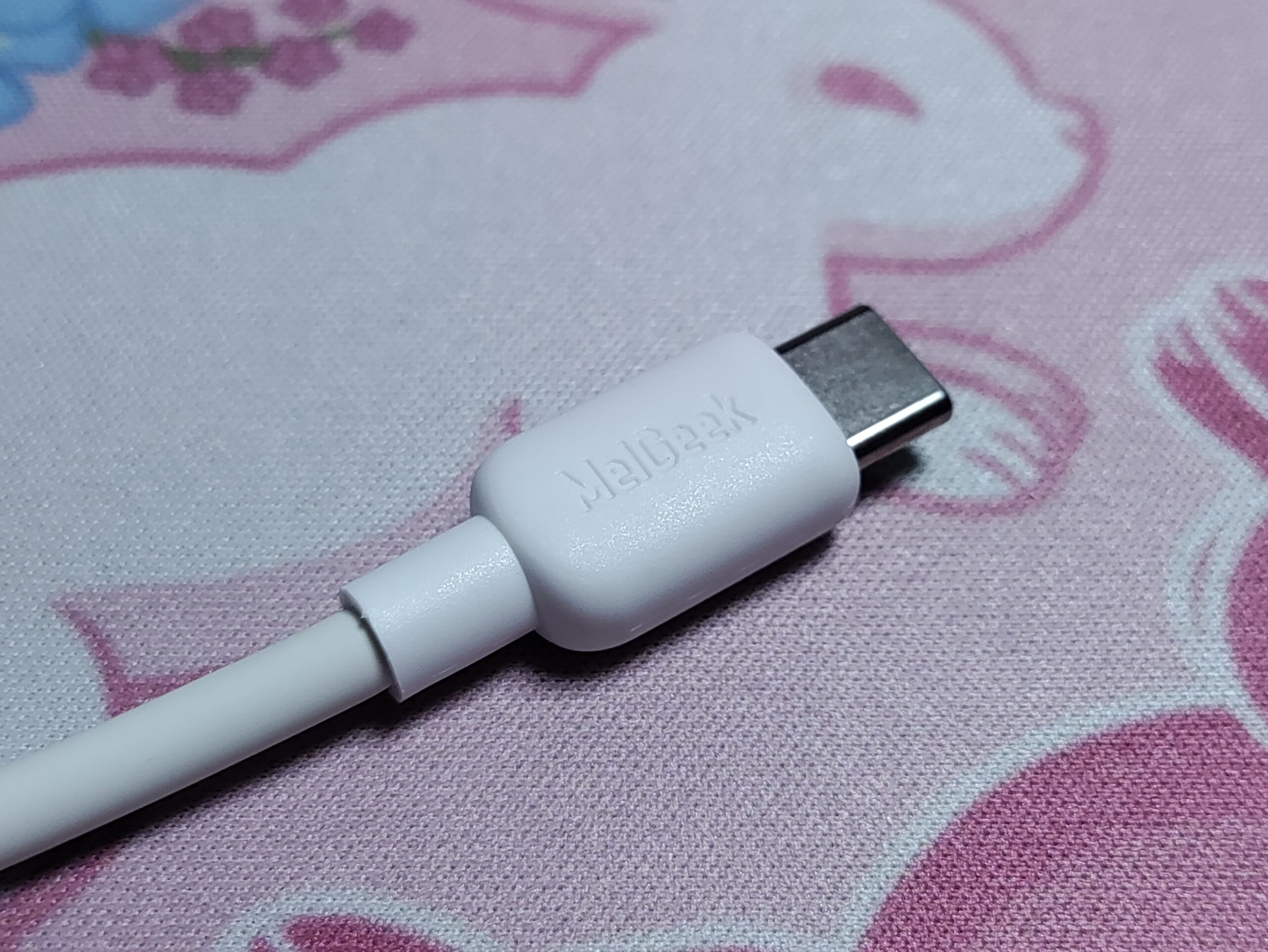
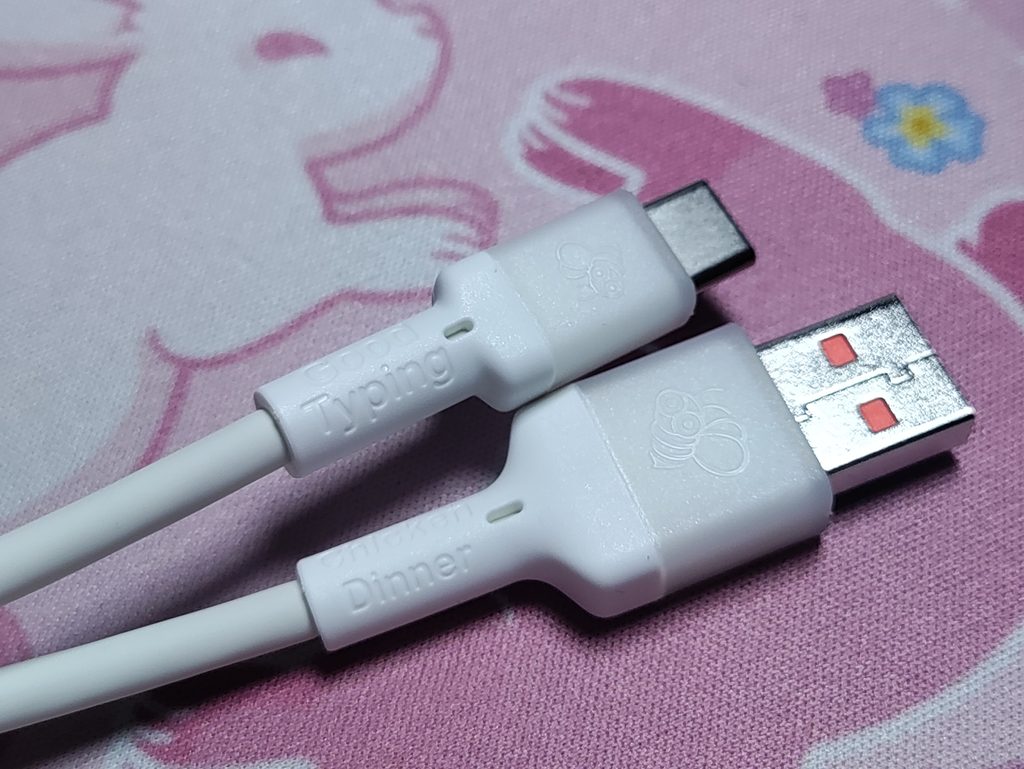
Cute details that I thought show Melgeeks attention to detail, so I mentioned it here.
Aesthetics and Build Quality
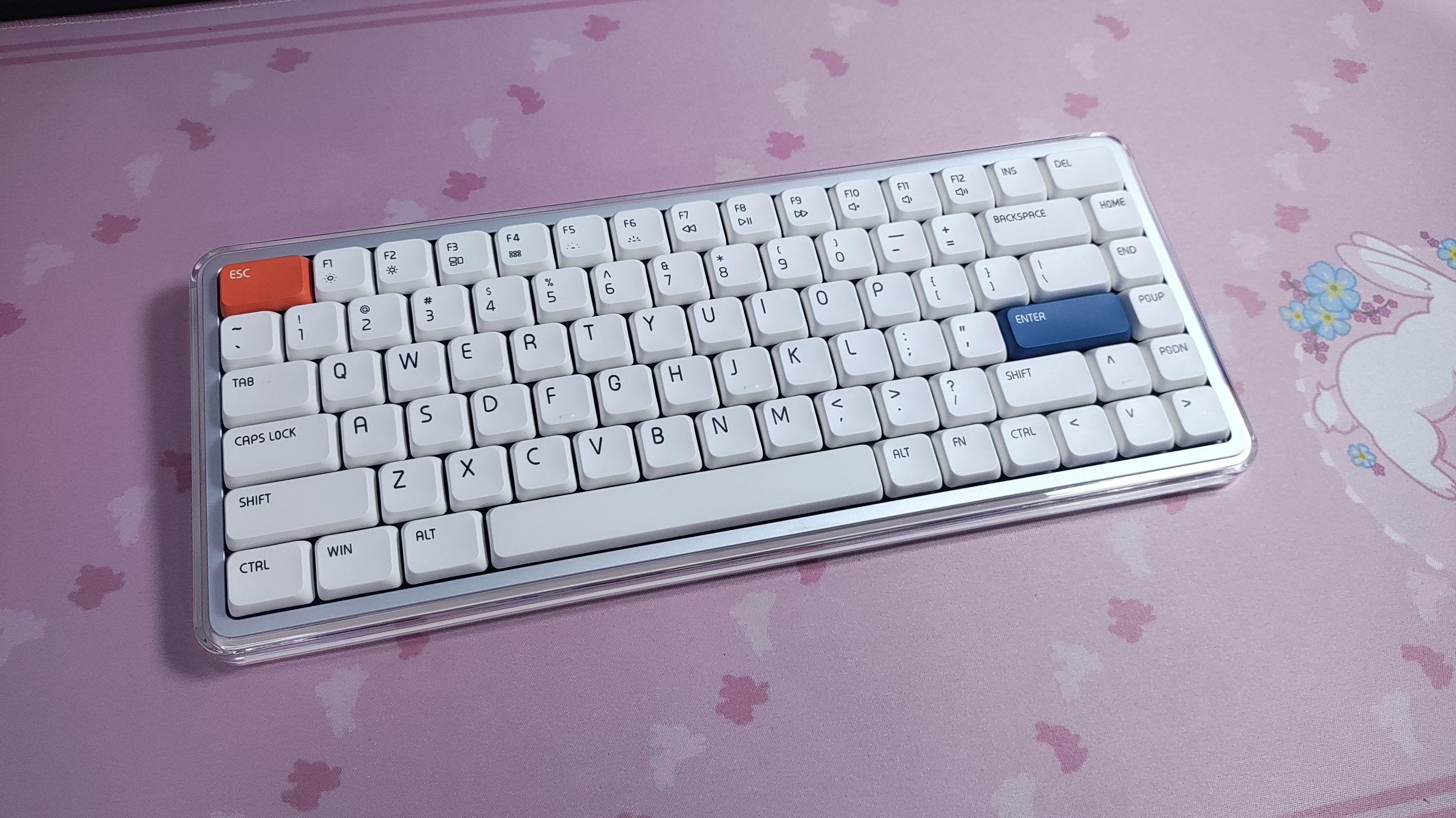
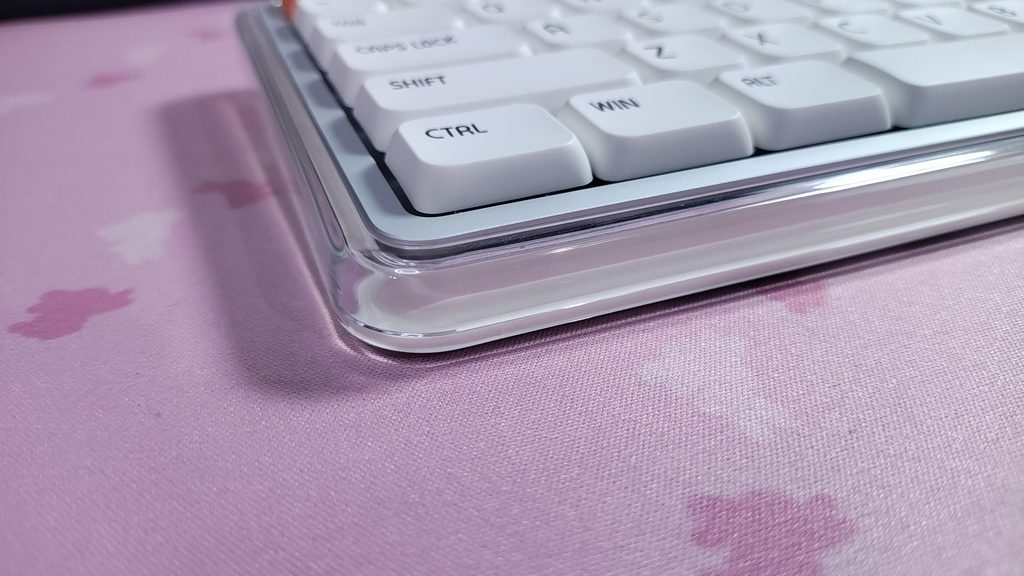
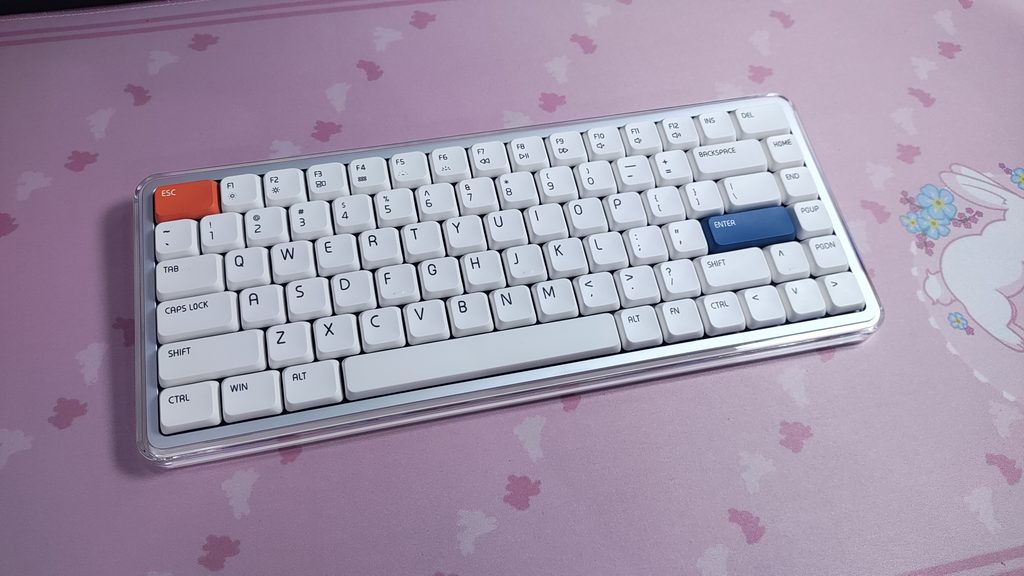
The Melgeek O2 only comes in one colour and size option: a white 75% layout. I think it looks great with its transparent PC top cover. I would have loved to see more colourways available for this keyboard, like a nice cool light blue or a peach/pink colour. But I suppose they’re going for the Apple look since this is geared primarily towards Mac users.
The build quality is quite good. The inner frame is made of an aluminium alloy, which is then covered with a transparent PC housing. It is mostly plastic, utilizing a PBT case for the bottom, which makes the board light, portable, and sturdy. It does make it a bit of a fingerprint magnet, but that’s not really something you’ll see much of since it’s the underside.
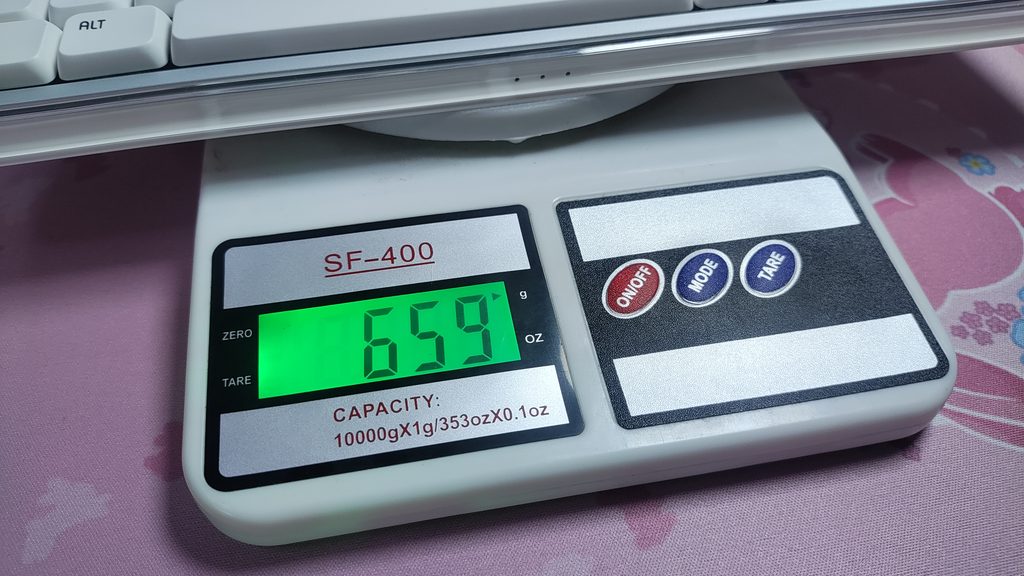
Weight-wise, it hits a great middle ground – it’s not so heavy that carrying it in your backpack is cumbersome, nor is it so light that it moves around on your desk with the slightest nudge. The Aluminium Frame makes it very sturdy and immune to flex (which I cannot say is the case for all the low profile keyboards that I’ve used). It feels solid on the desk. I’ve also been using it as the keyboard for my sim rig and it stays planted even at a slight incline due to its rubber feet.
The one downside of this sturdy construction is that you literally cannot open the keyboard up without damaging some of the clips. This isn’t a big deal in my opinion, because aside from us enthusiasts and reviewers, most people aren’t opening their keyboards. It’s kind of fitting that this keyboard is as unrepairable as the Apple products it aims to be used alongside XD. But you do have access to the removing the keycaps and switches, which are hotswappable.
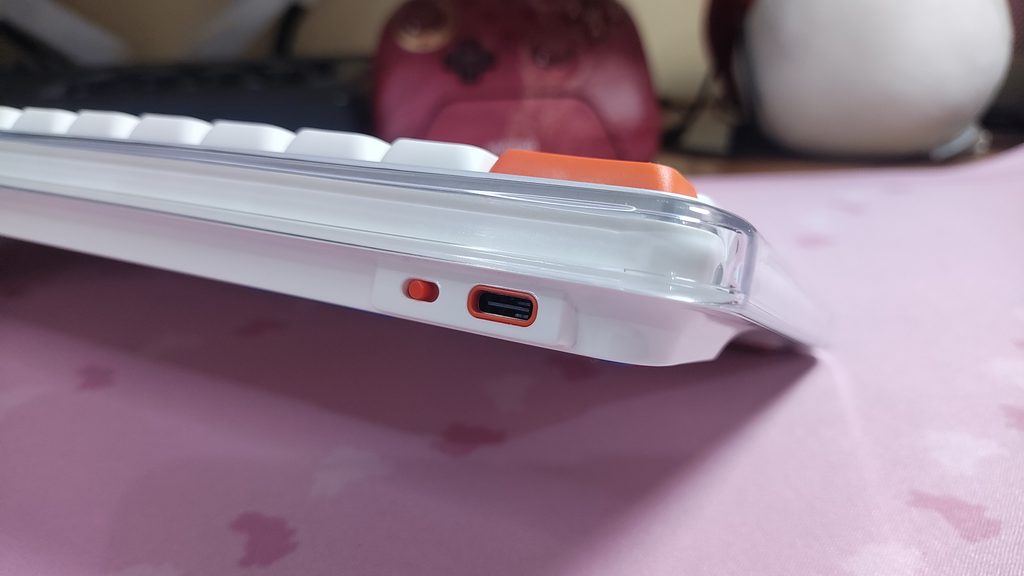
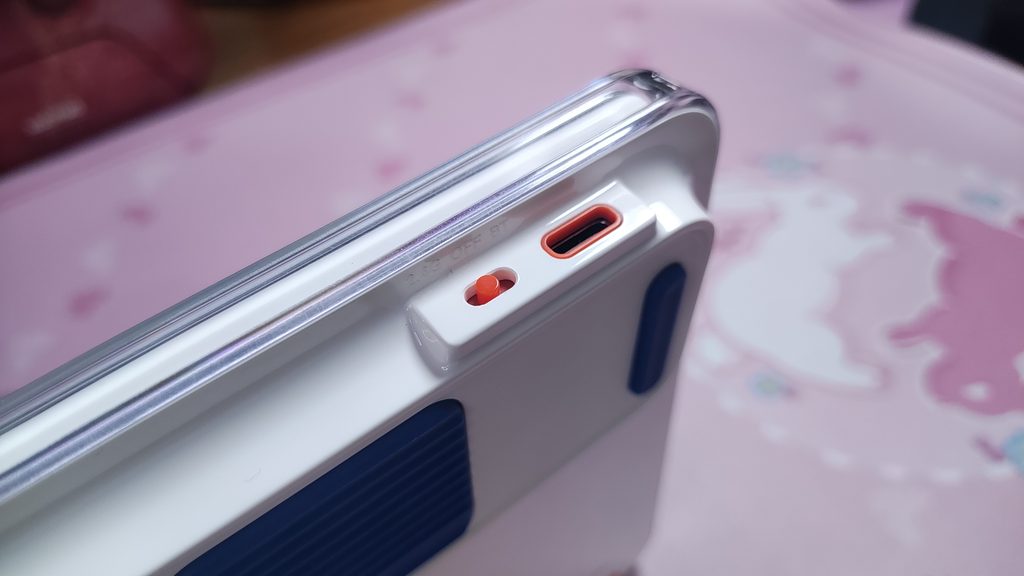
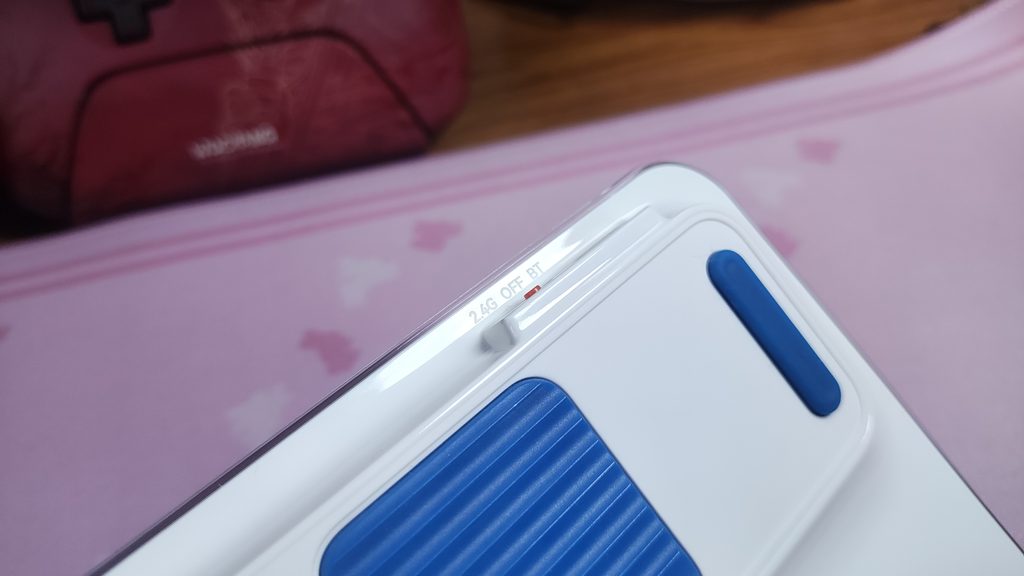
There are also a couple of… strange choices made on the design front. The mode toggle switch on the back is placed in such a manner that you have to jam your finger underneath the plastic lip to flip it, and the font labelling it is practically unreadable. White text on white plastic, and also it’s on the underside of the plastic lip. It seems like Melgeek expects us to flip the keyboard over onto it’s back to switch modes. All this is a minor inconvenience, and I don’t mind it much. Just figured I’d mention it. Again, this switch placement is reminiscent of the Mac Mini’s awkward to reach power button placed on the underside of the device (probably not an intentional choice)
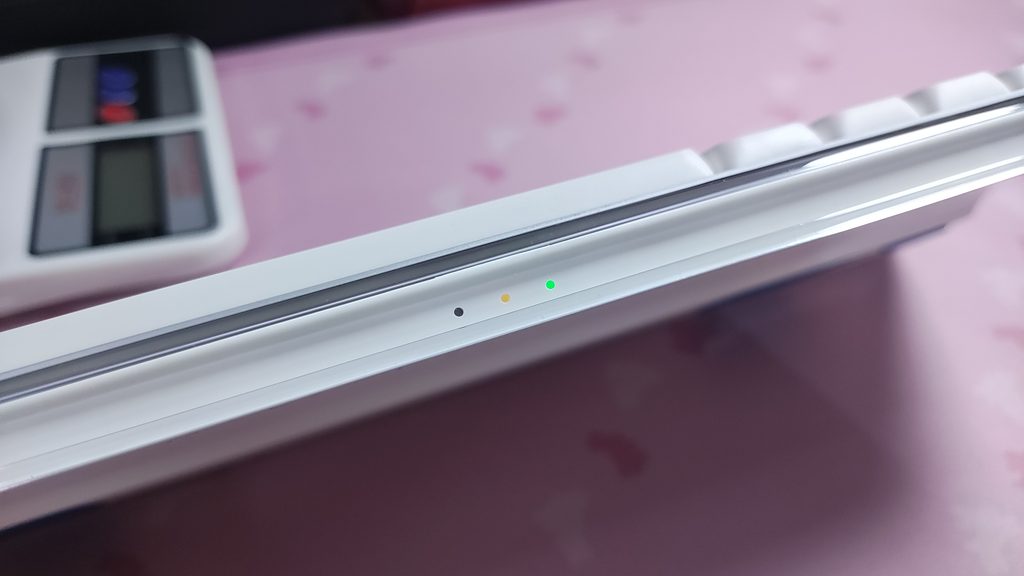
Additionally, there are 3 indicator LEDs at the front and centre of the keyboard. The left one is a Caps Lock indicator, the middle one is charging/battery indicator, and the rightmost one is a mode indicator (2.4G, Bluetooth, wired). Personally, I’m not a fan of the indicator light location on the front centre of the keyboard. It doesn’t add to the aesthetic and arguably breaks the “clean” look of the front. That’s just my subjective opinion though.
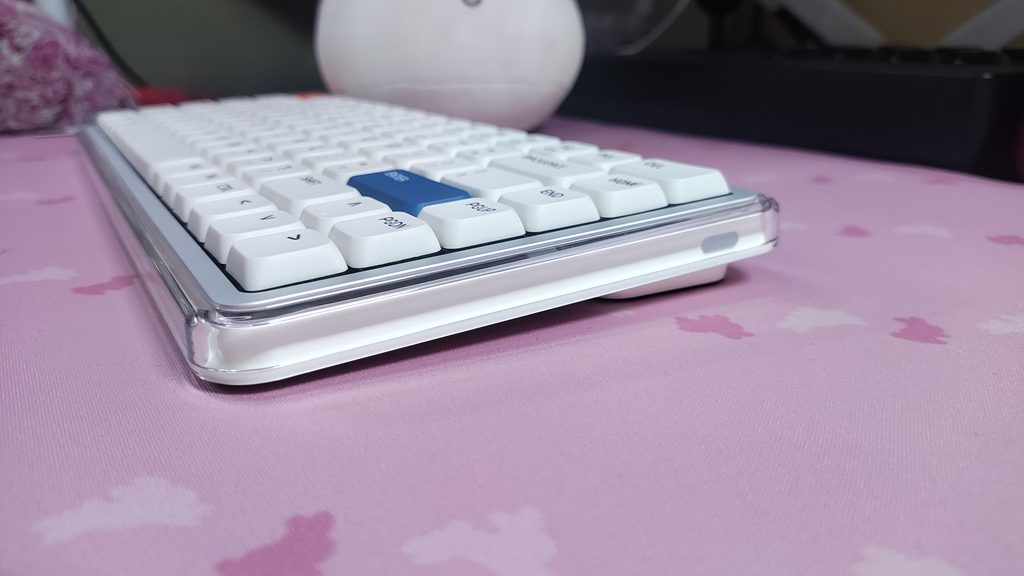
The front height is quite low at just 12.5mm, and the back isn’t very lifted. It sits at 22mm with the feet on. You can take off the large rubber feet in the back to make it even lower and flatter, making it incredibly comfortable to type on without needing a wrist rest. Swapping the feet around, you can adjust the typing angle from 3.5 degrees to 5 degrees. This is a true low profile keyboard.
General Features
The Melgeek O2 features a compact 75% layout. There’s the O2 for Mac, and the regular O2. I got the regular one. The O2 for Mac comes with slight layout differences that line up with standard apple keyboards like the magic keyboard or the MacBook’s built-in keyboard. The regular O2 has a standard windows layout, but comes with Mac keycaps installed by default. You’ll have to install the included Windows keycaps using the included keycap puller.
It’s a gasket-mounted keyboard, and surprisingly for a board this thin, the gasket mount actually works well. It gives the board a nice, bouncy feel under the fingers. You can even see the gasket flex when you press the centre of the board.
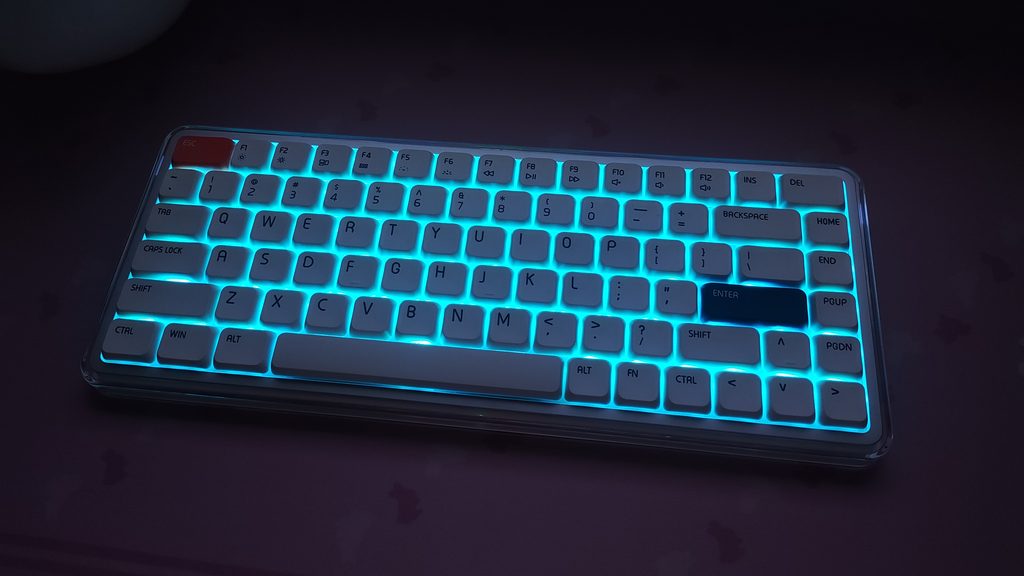
I like the RGB backlight. It emits a soft, pleasant glow between the keycaps. Due to the keycaps being low profile, the light gives it almost a foggy, ethereal look. Especially with the cyan colour. But unfortunately, the keycaps aren’t shine-through, so the backlight isn’ really functional. If you do find shinethrough keycaps for this, it would work. The RGB here is north facing.

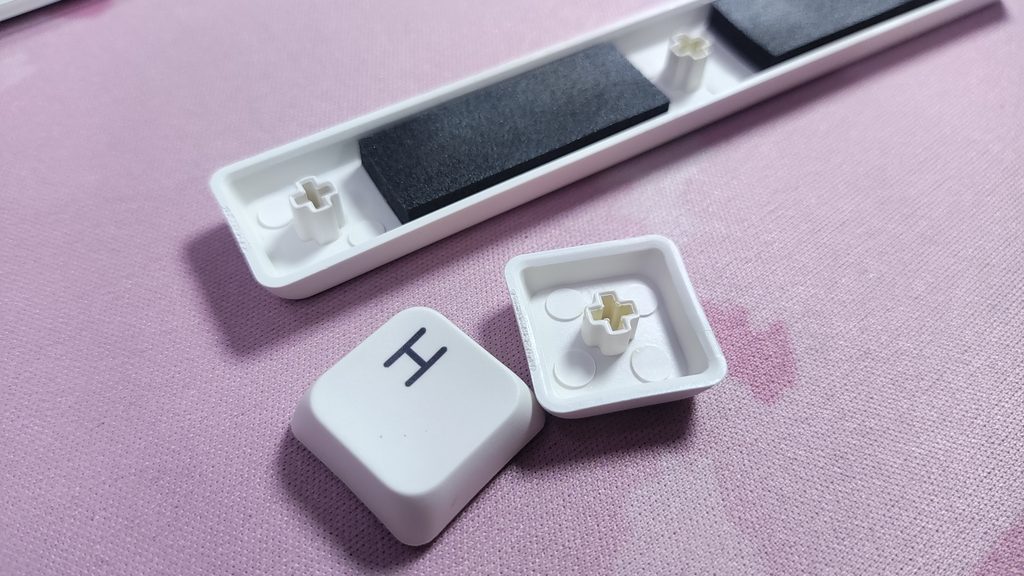
Speaking of the keycaps, they are PBT Dye-Sub. They are durable, and they feature a nice, soft white colour. It’s not a bright white, but it’s not dull or off-white either. Looks like enamel almost. And I quite like the font that they went with.
For connectivity, you get tri-mode wireless(Wired, Bluetooth 5.0, and 2.4gHz). The board natively supports Windows + Mac. The 2.4GHz pairing is usually hassle free in most keyboards, but in the Melgeek O2’s case, even the bluetooth pairing is seamless. I never thought I’d be happy with a keyboard’s pairing process, but here we are. It supports connecting to up to 8 devices simultaneously via bluetooth (as in, you can be paired to all devices and switch quickly with keyboard shortcut Fn + 1-8). This is a lot more than the standard 3 devices that I’m used to.
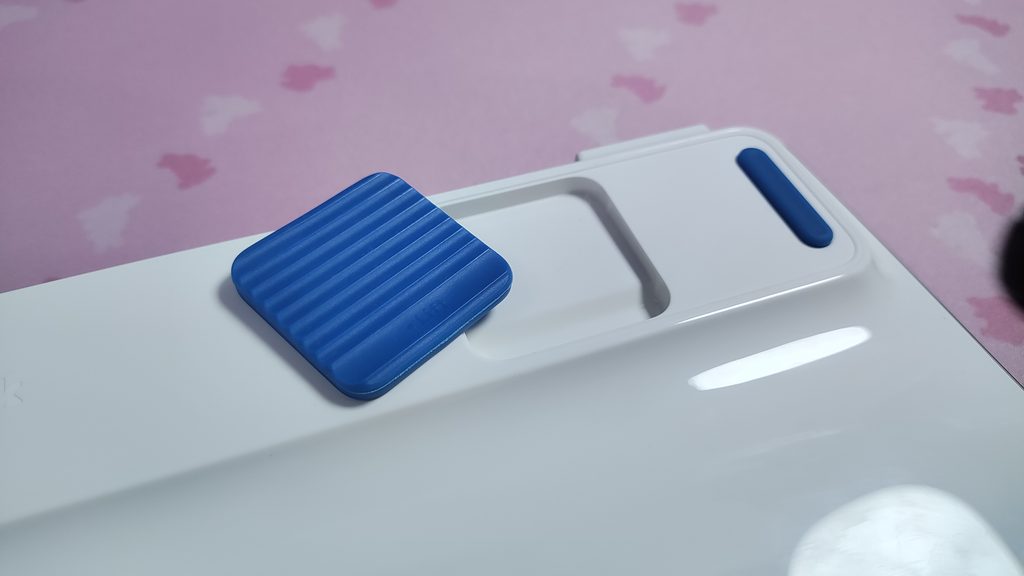
I also really like the feet on this keyboard. Instead of standard plastic kickstands, the O2 uses magnetic snap-on silicone pads to adjust the typing angle (between 3.5 and 5 degrees). It’s a pretty elegant solution.
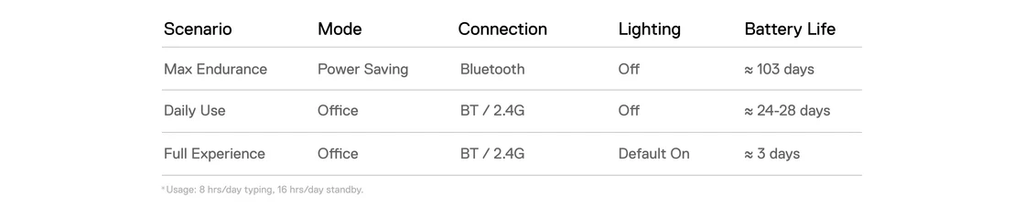
The Melgeek O2 comes with a 2500mAh battery. This can last up to 2150 hours if used in ideal situations. I also tested it with the RGB at full brightness and the keyboard lasted about 2 days of heavy use. I wouldn’t recommend doing this unless you’re using the board plugged in. Here is there official battery life explanation depending on usage.
Finally, the software. Customization is handled by the Melgeek Hive 2.0 web app, and it is decent. It gets the job done for basic remapping and lighting without forcing you to download a heavy or sketchy software.
Typing Experience
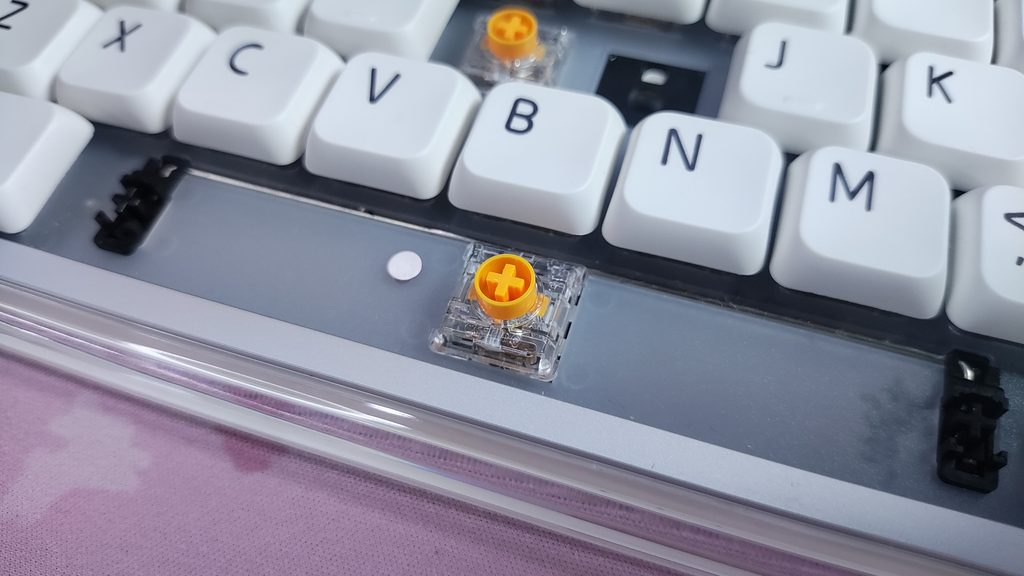
Typing on the Melgeek O2 is a refined and relaxing experience. Out of the box, you get Kailh Sunlight linear switches. These switches are feel soft and quiet, and the only noise you’ll hear is the bottom out, which is a nice deep clack. It’s almost thocky even. The typing feel is also quite nice – they are slightly heavier than other stock low-profile switches that I’ve tried, which gives it a nice, deliberate feel to type on.
The O2 has some pretty good stabilizers that don’t rattle. The spacebar is a joy to use, and due to the low noise level of the keyboard and its low profile, the spacebar sounds quite similar to the other keys. I’m sure the included spacebar foam helps to achieve this.
The PBT keycaps have a slight concavity which cradle your fingers comfortably as you type, and help you subconsciously centre your fingers while typing. Me likey.
Concluding Thoughts
The Melgeek O2 comes in at $129. At that price point, it’s neither too expensive nor too cheap for a low profile keyboard. You can also use code HLPLANET for 3% off on Melgeek’s store.
It is a fantastic option for someone who wants an ultra-comfortable, quiet keyboard that easily slips into a backpack for office use or travel. The low front height and the Kailh Sunlight switches combine for a fatigue-free experience. The only real downside with the Melgeek O2 is the lack of shinethrough keycaps.
While it is great for Windows users, it is also an excellent companion to Mac users. It features a layout comfortable for Mac keyboard users with the extended escape and delete key, and the long enter key. The “for Mac” variant even matches the bottom row properly.
I like this keyboard. The Melgeek O2 is a highly capable low-profile keyboard that absolutely nails the typing feel and sound. It goes above and beyond in portability and comfort. I can safely recommend the Melgeek O2 if you think a low-profile board might be right for you.

Hello! 🥰 I'm Fang.
I like gaming and related tech. I enjoy learning more, and sharing my experiences through my review videos and blog posts. Have fun! 💖