Most gaming mice these days seem to be chasing the same goal – higher polling rates, lower latency, and another gram shaved off the shell. The Epomaker Nex Pro takes a slightly different approach. Rather than trying to impress with numbers alone, it aims to strike a balance between gaming performance and everyday comfort. So, did Epomaker get that balance right? Let’s find out.
Unboxing: What’s Inside?
The Nex Pro comes with a fairly complete accessory bundle that covers everything you’ll need to get started.

Inside the box, you’ll find:
- Nex Pro Mouse
- Charging Dock (with a Built-in 2.4 GHz Receiver)
- Braided USB-C to USB-A Cable
- 2 Sets of Grip Tape
- Spare Set of Skates
- Manual
The braided cable feels well made and is perfectly suitable for both charging and wired use. Epomaker also includes a spare set of skates in case the originals eventually wear out, along with two sets of grip tape if you prefer a bit more grip or simply have sweaty hands. These are thoughtful additions that make the overall package feel more complete. More importantly, you won’t have to start looking for compatible replacement skates or grip tape if you decide you want them later.
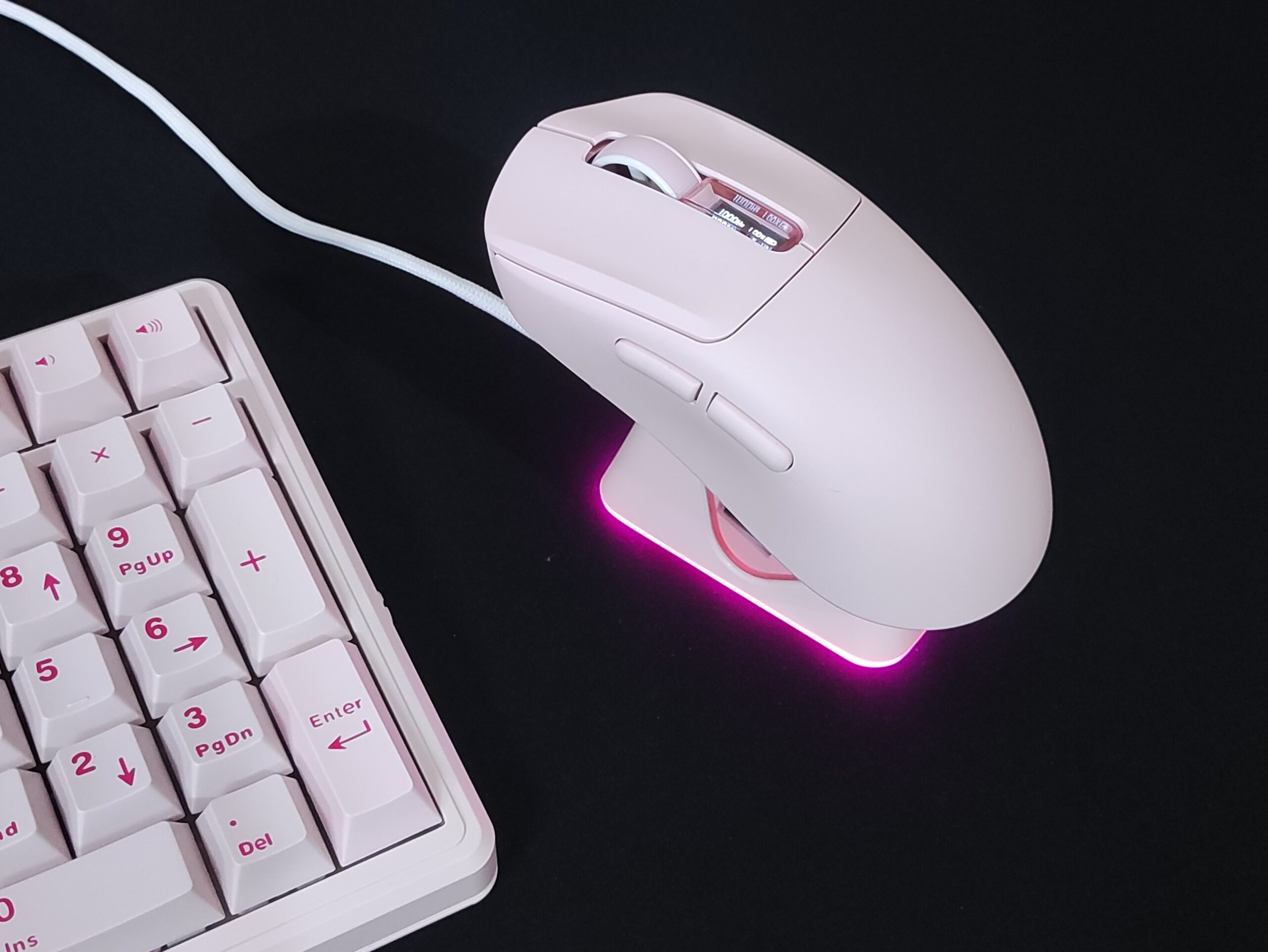
The charging dock is easily the highlight of the accessory bundle. It feels solid, stays firmly in place thanks to a full-perimeter anti-slip rubber pad on the bottom, and features a built-in 2.4 GHz receiver, so there’s no separate USB dongle to keep track of. The mouse is held in place by magnets and feels secure once docked, with no tendency to slide or fall off.

The charging dock also features RGB lighting that runs around its perimeter. There are several lighting effects to choose from, or you can turn the lighting off completely.

The front of the dock doubles as a touch-sensitive control surface, although there are no markings to indicate this. Simply tap the front panel to cycle through the available lighting effects, or touch and hold it for about three seconds to switch the lighting off entirely.

Feel & Look
The Nex Pro features an ABS plastic shell with a traditional non-perforated design. The surface has a slightly grippy texture that feels comfortable in the hand, and I never had any issues with the mouse slipping during use. It also doesn’t pick up fingerprints, and like most plastic mice, any dirt or smudges can be wiped off easily.

The mouse has a clean, understated design. It is available only in a silver colorway. To break up the monochrome look, the scroll wheel and side buttons are finished in black, providing just enough contrast without drawing unnecessary attention. There is no RGB lighting or other flashy elements, which helps maintain the mouse’s clean appearance. The only visual accent is the small Epomaker logo insert positioned between the main buttons, just below the scroll wheel.

By the way, this silver colorway pairs especially well with silver aluminum keyboards, creating a cohesive look between the two devices. Since silver is one of the most common colors for aluminum keyboard cases, there’s a good chance the Nex Pro will naturally fit into your existing setup. And if you’re still building your desk setup from scratch, finding a matching keyboard to complete the look shouldn’t be difficult either.

At 65 grams, the Nex Pro isn’t considered an ultralight mouse by today’s standards, but it certainly isn’t heavy either. Instead, it sits somewhere in the middle. If ultralight mice aren’t your preference, this weight strikes a nice balance. It’s light enough to feel agile during fast movements, while still retaining enough weight to avoid that “hollow” or “cheap” feeling some people dislike. That said, for a fairly large ergonomic mouse with a 500 mAh battery, 65g is still a respectable number.

In terms of build quality, the Nex Pro feels very well put together. Nothing rattles when I shake the mouse, and applying reasonable pressure to the sides doesn’t cause any flex or creaking. The sensor sits properly in place with no lens rattle. The bottom of the shell is flat and even, ensuring proper contact with the mouse pad and preventing any unwanted friction during use.
The Nex Pro comes with three black, relatively large PTFE skates and a PTFE ring around the sensor. They provide a balanced glide that isn’t overly fast but also doesn’t feel scratchy or rough. The result is a smooth and predictable glide that works well for both everyday use and gaming.

Shape & Ergonomics
The Nex Pro features an asymmetrical ergonomic shape designed for right-handed users. Its hump is positioned near the center of the mouse, with gradual slopes towards both the front and the rear. While the hump isn’t particularly tall, it still provides enough palm support.

Compared to the Carbonis, another ergonomic mouse from Epomaker I reviewed recently, the Nex Pro has a slightly lower hump.

The left side is mostly flat with only a subtle inward curve. Around the thumb area, there’s also a small groove that helps your thumb rest in a more natural and comfortable position. Both the front and rear flares on this side are fairly restrained, giving the mouse a clean and unobtrusive profile.
The right side is shaped a little differently. It starts off relatively flat with very little inward curvature at the front, then gradually transitions into a more pronounced outward curve and rear flare. This provides a bit more support for your ring and little finger without making the mouse feel overly aggressive or forcing your grip into a specific position.
Although the Nex Pro is unmistakably an ergonomic mouse, its curves aren’t very pronounced. Instead, it takes a more subtle approach, sitting somewhere between a classic symmetrical shape and a more aggressively contoured ergonomic one.

The Nex Pro is best suited for users with medium to large hands. What I particularly like about its shape is that the curves are subtle enough that the mouse doesn’t lock your hand into one specific position, yet they’re still noticeable enough to provide the extra comfort that a symmetrical shape can’t offer. With my medium-sized hands, I found both palm grip and fingertip grip to be very comfortable. I also don’t see claw grip users having any issues with this shape.

The Nex Pro handles weight distribution in a classic but correct way – the center of mass sits directly above the sensor, which is positioned roughly in line with where your thumb rests. This matters because it helps keep tracking stable and reduces rotational drift during fast flicks. From a handling, standpoint it also just feels natural: the Nex Pro never feels noticeably front-heavy or rear-heavy, it simply sits where your hand expects it to.
Buttons & Wheel
The Nex Pro features a standard button layout consisting of two main buttons, two side buttons, and a clickable scroll wheel. On the bottom of the mouse, you’ll also find a DPI button, which doubles as the pairing button when held down, alongside a dedicated toggle for switching between connection modes.
The main buttons use Omron optical switches and are well implemented overall. There is a small amount of both pre-travel and post-travel, but neither is excessive or noticeable during use. Side travel is minimal and well within the range I’d expect from plastic buttons.

The clicks feel fast, crisp, and highly responsive, making them particularly well suited for spam clicking in games. In terms of sound, they fall somewhere in the middle – neither on the quiet side nor excessively loud. If you’ve used Omron optical switches before, you’ll probably recognize their distinctive sound signature. Compared to traditional mechanical switches, they have a slightly metallic character. Both main buttons also sound and feel very consistent, without any major difference between the left and right clicks.
Beyond their feel and sound, optical switches also offer a practical long-term advantage. Unlike traditional mechanical switches, which rely on physical electrical contacts to register inputs, optical switches use a light beam instead. This eliminates the contact wear that can eventually lead to unintended double-clicks, making them immune to this common issue.
Moving on to the side buttons, their placement is very comfortable, sitting directly above where my thumb naturally rests. I only need to move my thumb slightly upward to reach both buttons, without having to stretch or adjust my grip. Their rounded shape also feels comfortable under the thumb and makes them easy to locate without looking.

They use mechanical microswitches and have a small amount of pre-travel, followed by a more noticeable post-travel. However, the latter only becomes apparent when pressing the buttons with excessive force and isn’t noticeable during normal use. There is also virtually no button wobble. The actuation force falls within the average range, making the buttons easy to press without feeling too sensitive. They are only slightly louder than the main buttons, but overall, I wouldn’t consider them noisy.
The scroll wheel features a rubberized surface with a pleasant textured pattern. The ridges provide enough grip without feeling overly aggressive or uncomfortable during longer use. It uses a TTC Gold Dustproof encoder, which is considered one of the better scroll encoders currently available.

Scrolling feels smooth and consistent, with no squeaks or unwanted noises. The steps are clearly defined and tactile, but not overly pronounced, making the wheel comfortable to use for both precise scrolling and quick adjustments. In addition to its smooth and consistent feel, the dustproof construction is designed to improve long-term reliability by protecting the internal mechanism from dust and debris. The middle click feels crisp and responsive, with an actuation force that falls within the average range. In terms of sound, it is roughly as loud as the main buttons.
Connectivity & Battery
The Nex Pro supports three connectivity modes: wired USB-C, 2.4 GHz wireless, and Bluetooth, making it easy to use with everything from a gaming PC to a laptop or tablet. When connected via USB or the 2.4 GHz wireless mode, the mouse supports a polling rate of up to 8000 Hz, allowing you to take full advantage of its high-performance hardware.
I also verified the polling rate in 2.4 GHz mode, and the mouse consistently delivered the advertised 8000 Hz polling rate.

One interesting design choice is the absence of a separate 2.4 GHz dongle. Instead, the charging dock features a built-in 2.4 GHz receiver. On the one hand, this approach has several practical advantages. Since the dock stays on your desk, the receiver also remains much closer to the mouse than it would if it were plugged into the back of a PC. This helps reduce the chance of interference and maintain a more stable wireless connection. It also means there’s no separate receiver to keep track of or accidentally misplace. On the other hand, some users may still prefer having a standalone 2.4 GHz receiver, particularly if they don’t plan on using the charging dock regularly.
Throughout my time using the Nex Pro, the wireless connection remained completely stable. I didn’t experience any signal dropouts, unexpected disconnects, noticeable interference, or polling inconsistencies. Whether using the mouse for everyday work or fast-paced gaming, the connection was consistently reliable.
The Nex Pro is equipped with a 500 mAh battery, which is noticeably larger than the 300 mAh batteries commonly found in many ultralight mice. Combined with good power efficiency, this translates into excellent battery life, even when using the higher polling rate modes.
The included charging dock makes the experience even more convenient. Instead of keeping an eye on the remaining battery percentage or remembering to plug in a cable, you can simply place the mouse on the dock whenever you’re done using it. Since the dock naturally becomes part of your desk setup, charging the mouse quickly becomes part of your routine, so it’s unlikely you’ll ever pick it up only to find the battery empty.
Epomaker Hub Web Software
The Nex Pro is configured through Epomaker Hub, a web-based driver that runs directly in your browser. I generally prefer this approach over traditional desktop software, as there’s nothing to install, it works across different operating systems, and you can access your settings from virtually any computer with just a few clicks.
In terms of functionality, the software includes all the core features you’d expect from a modern gaming mouse. One particularly welcome addition is support for four onboard profiles, allowing you to store different configurations directly on the mouse. It also supports keyboard key remapping, giving you more flexibility when assigning functions to the mouse buttons.
The interface is clean, intuitive, and organized into several tabs.
The first one, Key Mapping, lets you reassign mouse buttons, adjust macro-related settings, and configure the Fire Key feature, which allows you to assign a specific number of presses to a single button or repeatedly trigger it while it is held down.

The Pointer tab is used to configure DPI settings. It also lets you customize the LED indicator located on the bottom of the mouse next to the DPI button. You can assign a different color to each DPI level, enable a breathing effect, or disable the indicator entirely.
The Performance tab contains all the core performance-related settings, including polling rate, debounce time, sleep timer, and many other settings, as shown in the screenshot below.

The Macro tab is dedicated to creating and managing macros.
Finally, the Other Settings tab lets you check the firmware versions of both the mouse and receiver, re-pair the mouse with the receiver if needed, and restore the mouse to factory settings.
One thing I would have liked to see is the ability to remap the DPI button located on the bottom of the mouse. For example, assigning it to profile switching would make it more useful for quickly switching between a gaming profile with 8000 Hz polling and a specific DPI setting, and a work profile with a lower polling rate and a different DPI setting.
Performance
The Nex Pro is built around flagship hardware, combining the PixArt PAW3950 sensor with the Nordic 54L15 MCU. At the moment, this combination is among the best you can find in a gaming mouse.
Throughout my time using the mouse, tracking remained consistently accurate and predictable. Whether making small, precise adjustments or fast flicks across the mouse pad, I never experienced any sensor spin-outs, tracking inconsistencies, or unexpected behavior. Every movement was translated naturally and exactly as intended. I also didn’t notice any smoothing, jitter, or angle snapping.
Combined with the 8000 Hz polling rate, the Nex Pro feels exceptionally responsive in everyday use and gaming alike. Overall, the mouse performed exactly as I’d expect from a flagship-level gaming mouse, without giving me a single reason to question its performance.
Pros and Cons
Final Verdict
Epomaker doesn’t try to reinvent the wheel with the Nex Pro, but instead focuses on getting the fundamentals right. The hardware is flagship-level, the build is solid, and the charging dock is one of those additions that seems minor until you realize you barely think about battery life anymore. What I especially like is that the ergonomic shape remains relatively subtle, making the mouse comfortable without forcing your hand into one specific grip position.
If you’re looking for a wireless ergonomic mouse and don’t need it to be ultra-light, the Nex Pro offers a great balance between comfort, performance, and features, making it a very compelling option at a reasonable price.
Additional products featured in this review: Epomaker Luma40

Controller and mechanical keyboard enthusiast. Tech reviewer, regularly sharing thoughts about gadgets and computer peripherals.