Dynamic Keystroke (DKS) is a versatile feature allowing users to execute multiple (usually up to 4) actions with a single keystroke on their keyboard. Similar to macros but without full automation, DKS enables the setup of four different actions at four distinct positions on a keystroke.
Which keyboards support Dynamic Keystroke?
Most magnetic switch keyboards have the DKS feature and these include models such as:
- Wooting keyboards (Wooting 60HE, Wooting Two HE)
- Nuphy Air60 HE, Air75 HE
- Epomaker Magcore 87, and their HE k
- Keydous NJ98-CP
- Mchose Jet75, Yunzii RT75 Pro
- Monsgeek M1 V5 TMR, FUN60 Ultra
What dynamic keystroke actually changes
- Key press and key release can trigger at different depths
- You do not need to bottom out or fully release a key
- Actuation can be very shallow and very fast
- Behavior is still translated to digital input in most PC games
DKS in CS2
Potential benefits
- Easier micro-movement when peeking
- Slightly cleaner counter-strafe timing
- Less finger travel for repeated A/D taps
What it does NOT do
- Does not give true analog movement
- Does not bypass CS2’s digital movement model
- Does not auto-fix bad counter-strafing
Practical value
- Low
- Mostly noticeable to experienced players who already have good movement
DKS in Valorant
Potential benefits
- More consistent stop-before-shoot timing
- Reduced accidental movement when holding angles
- Shallow actuation helps with fast strafes
What it does NOT do
- No native analog keyboard support
- No advantage over good digital timing
Practical value
- Low to medium
- Slightly more forgiving than CS2, but still subtle
DKS in osu!
Potential benefits
- Very shallow actuation improves stamina
- Faster re-triggers due to adjustable release point
- Less finger lift reduces fatigue on long maps
- More control over tapping rhythm at high BPM
What it does NOT do
- Does not improve aim or reading
- Poor tuning can cause accidental double taps
Practical value
- High
- One of the best real-world use cases for magnetic switches
How to use DKS on Wooting
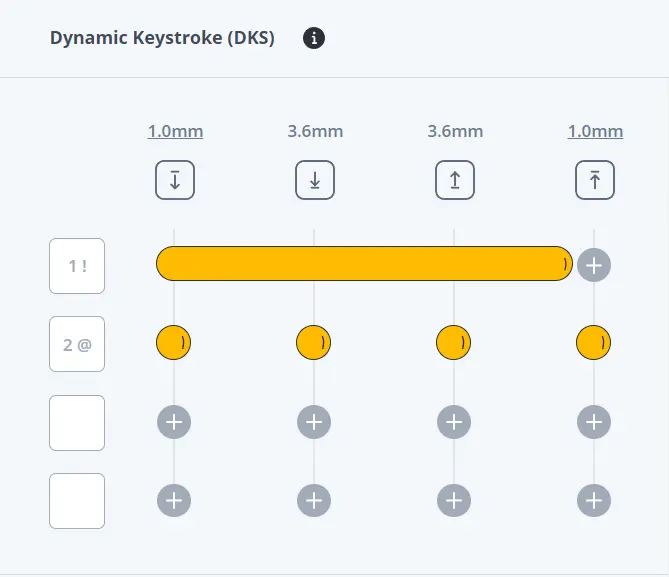
Setting up DKS:
- Visit www.wootility.io and download the app or use the web based version.
- Select the desired keyboard profile for DKS implementation.
- Navigate to the ‘Advanced Keys’ tab at the bottom.
- Hover over a key, revealing a green + button. Click on it.
- Click on the Dynamic Keystroke (DKS) button.
- An orange DKS icon appears on the assigned key, and multiple DKS bindings display with different colors.
- Orange symbol: Represents the currently edited binding.
- White symbol: Represents all active DKS bindings.
Configuring DKS Bindings:
- Utilize the grid view at the bottom to control DKS bindings.
- Columns represent keystroke states (actuation, lowest actuation, key release, highest actuation).
- Rows represent actions; up to four different keybindings can be added.
- Click an input field, press the desired key for the corresponding action.
Pro Tips:
- Right-click in an input field to unbind a key.
- Click + icons in the grid for a one-time action with a specific key at a particular point.
- To simulate holding down a key, drag the circle between two or more points.
Faux-Analog Movement:
- DKS can be used to emulate analog movement in games that don’t inherently support it.
- Example: Create a DKS binding for a key to handle both normal and sprinting speeds, achieving dual actions with one key.
Experimenting with 4 Unique Actions:
- DKS is flexible for various applications.
- Combine single actions with holding down keys to execute up to four distinct actions with a single key press.
How DKS can be useful in games?
In games DKS can be used to simulate different movement speeds, such as slow, normal, or sprint.
For example, pressing the key partially may trigger normal movement, while a full press initiates a different movement, like silent walking or sprinting.
Additionally, you can set up movements to counteract inertia for a quick stop in games when releasing the key to a specific point.
You can also set up quick combos and skill execution using DKS.

I love testing and writing about new tech. I focus on keyboards and controllers. I'm also a gamer and an engineer. Check out my Twitter for keyboard and controller news and reviews.