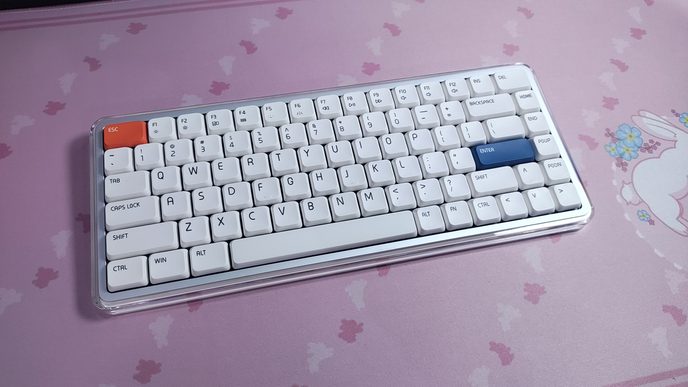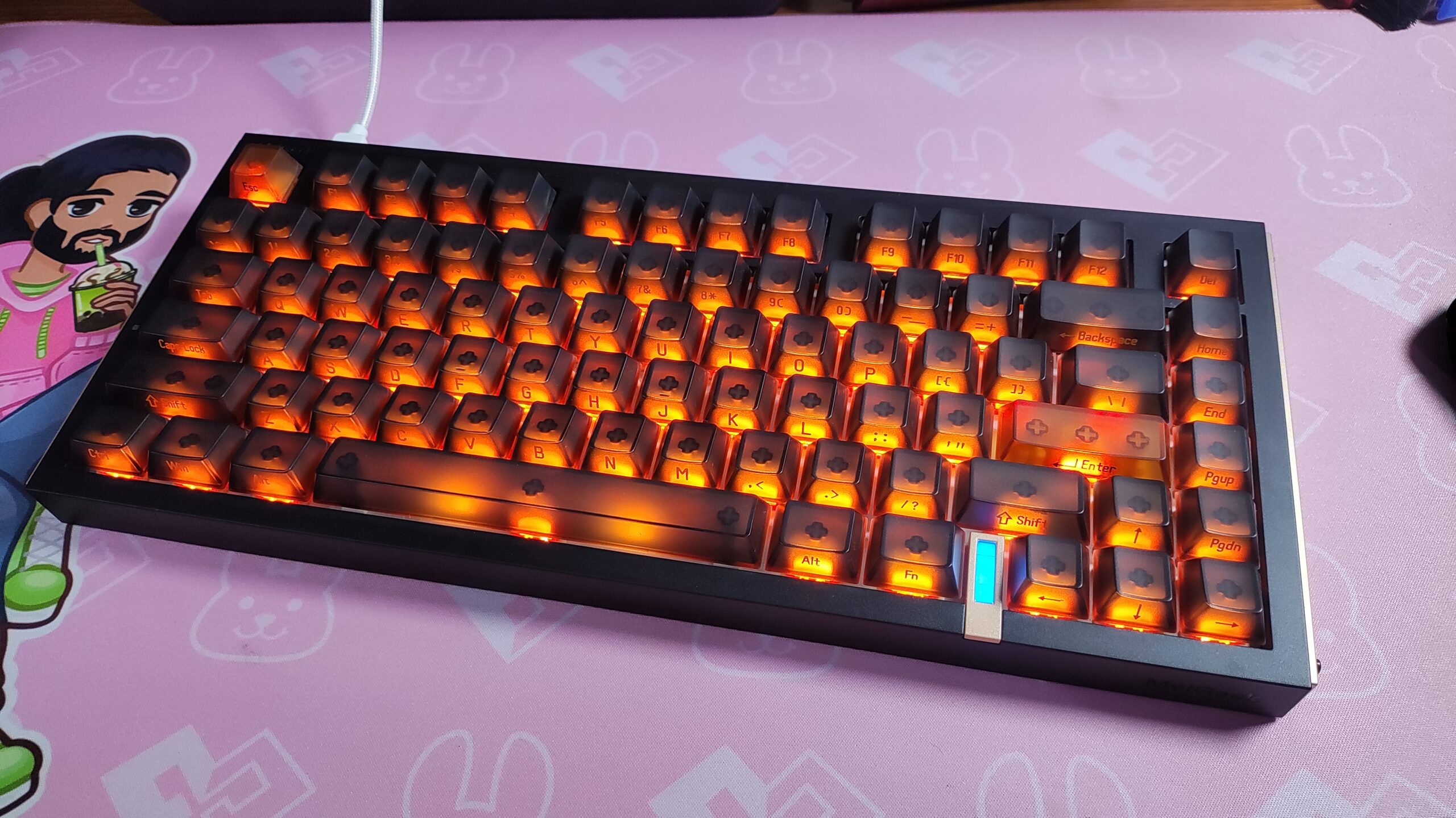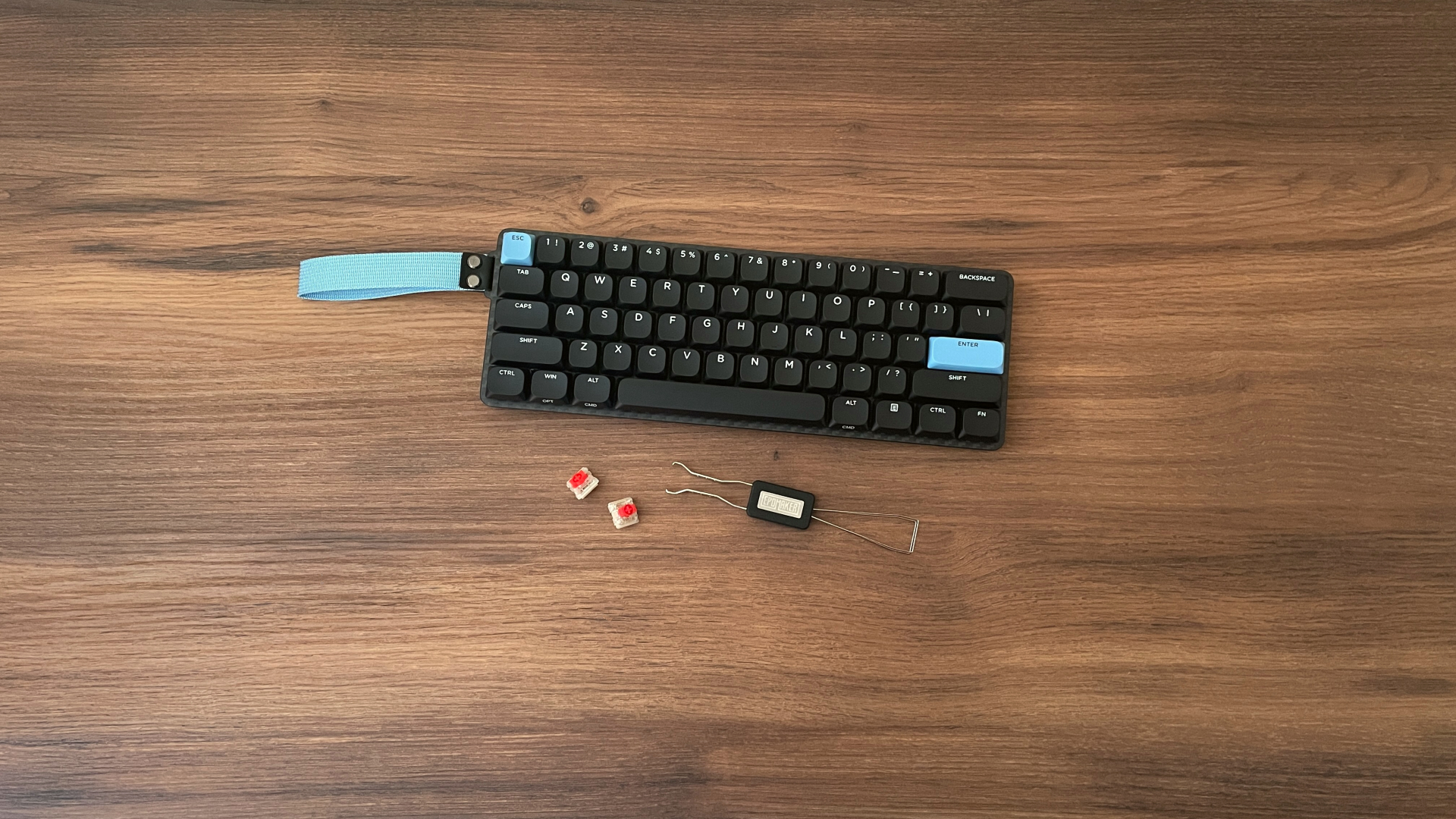
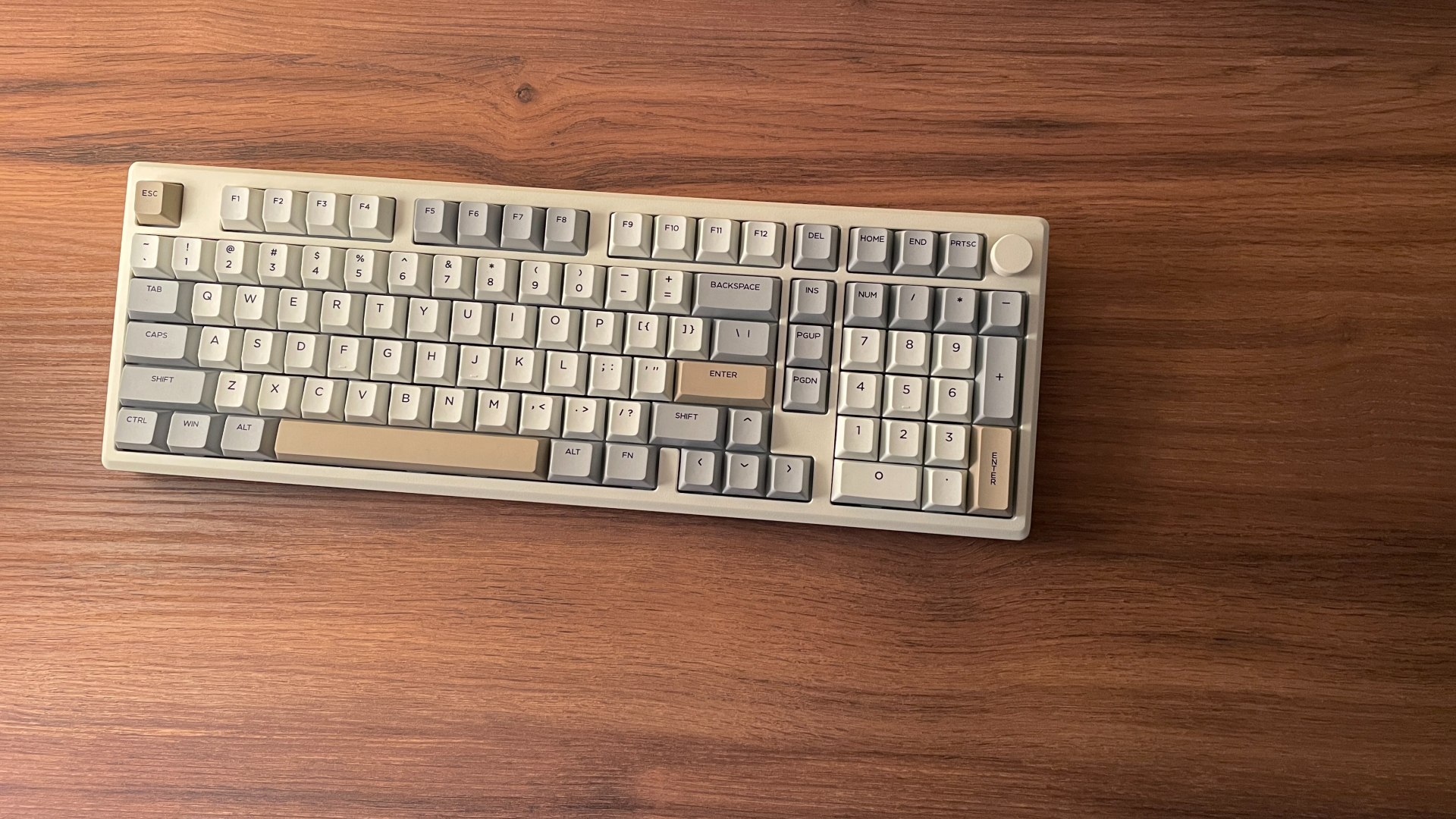

These days, the mechanical keyboard market is heavily focused on more compact layouts like 65% and 75%. For those layouts, you can find just about anything you could ask for, from affordable entry-level boards to enthusiast models packed with features.
Full-size keyboards, on the other hand, don’t get nearly as much attention, especially if you want something better than a basic office keyboard. That’s where the Epomaker Galaxy100 comes in. It features a 98% layout, giving you a numpad and nearly all the functionality of a full-size board, while still offering the things people have come to expect from a modern mechanical keyboard.
So today, we’ll take a closer look at the Galaxy100 and see whether it’s actually a good option for those looking for a capable mechanical keyboard with a numpad.
Unboxing: What’s Inside?
The Epomaker Galaxy100 comes in a sturdy cardboard box. Inside, the keyboard is securely packed in foam, which keeps it well protected during shipping.
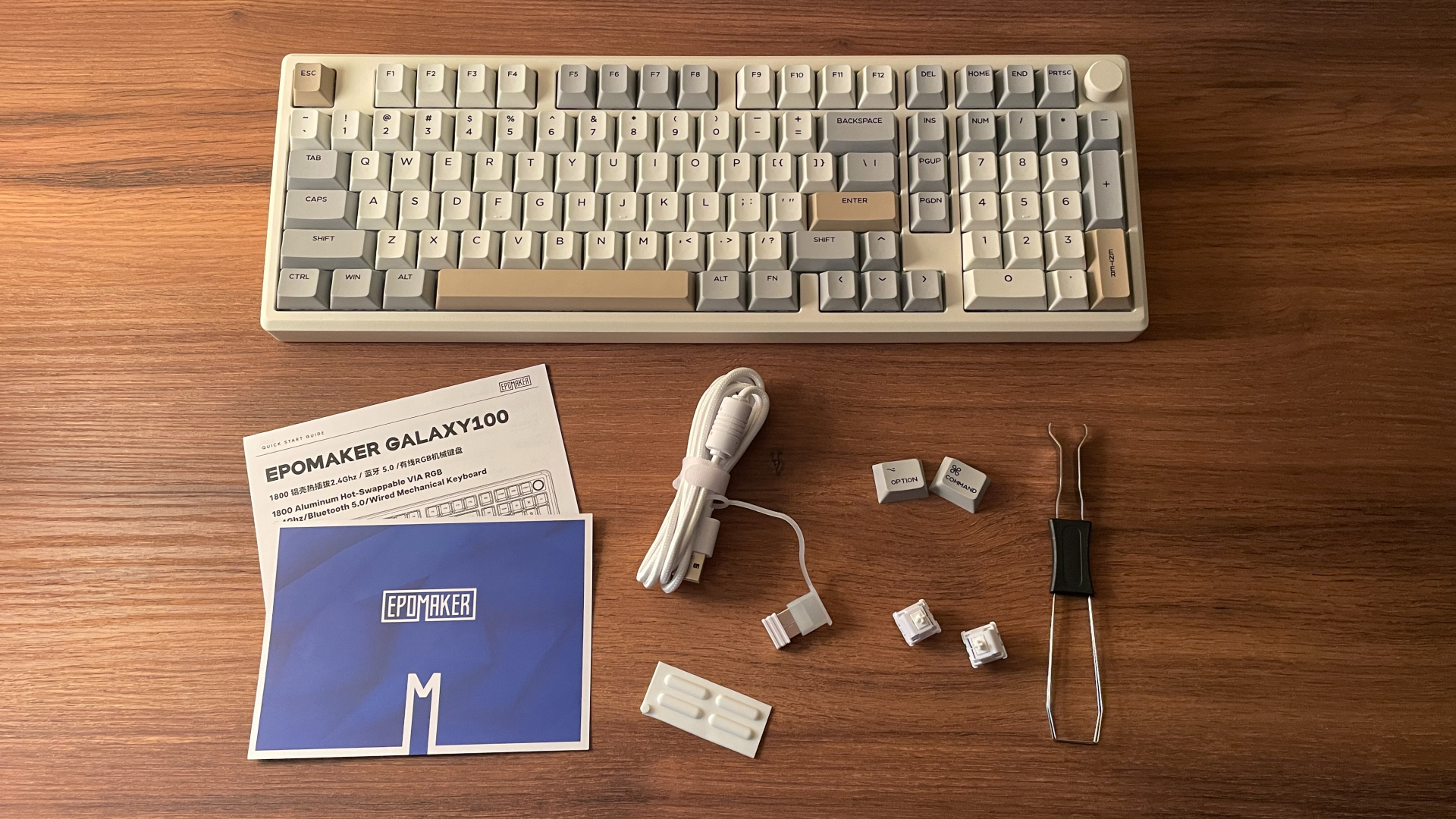
Here’s what you’ll find in the box:
- Galaxy100 Keyboard
- 2.4 GHz Wireless Dongle
- USB-C to USB-A Braided Cable
- 2-in-1 Keycap and Switch Puller
- 2 Spare Switches
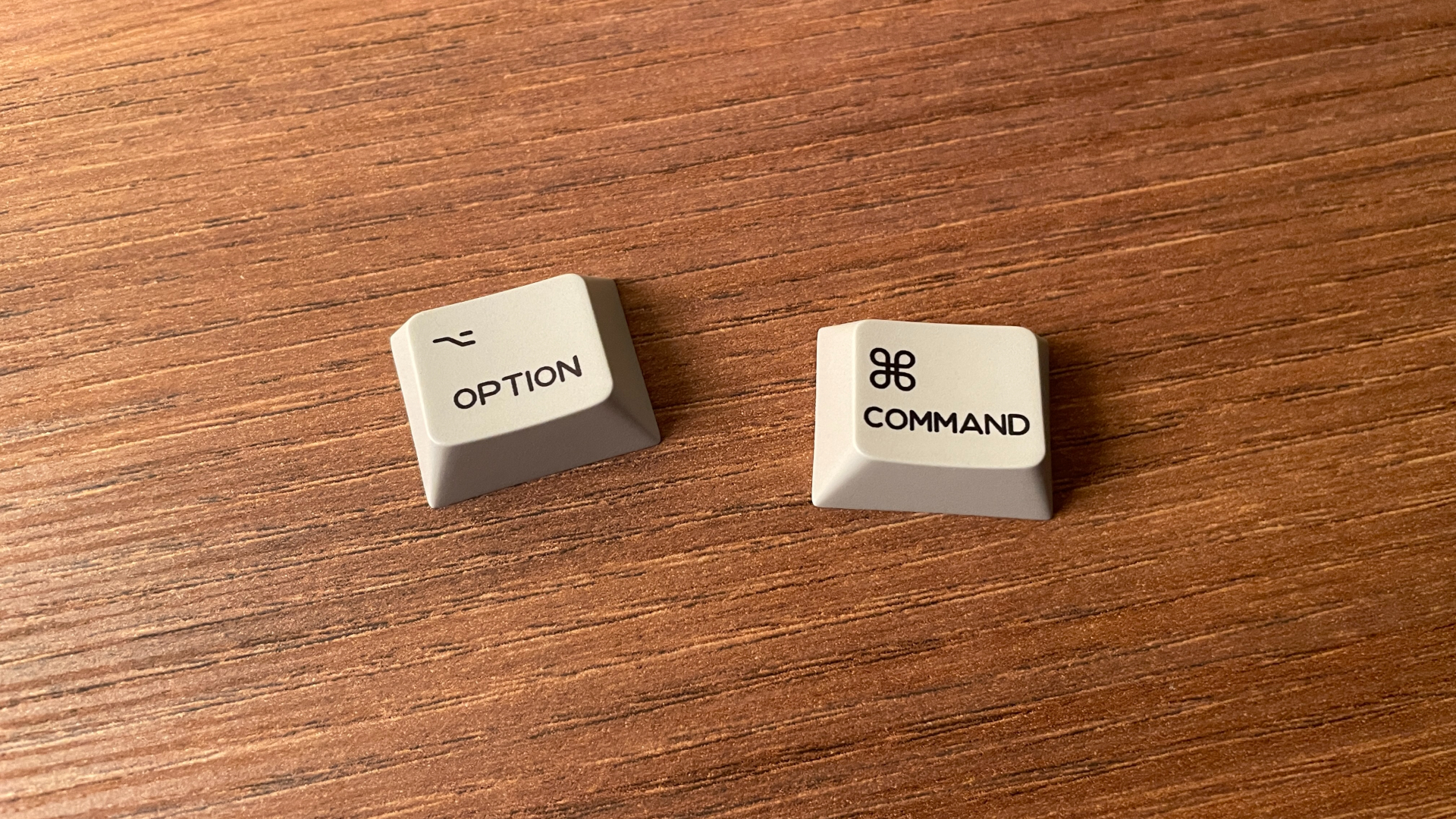
- Additional Mac Modifier Keycaps
- 4 Spare Rubber Feet
- Manual
- Welcome Card
Overall, the bundle is pretty solid. You get all the basic essentials, along with a few nice extras, such as Mac-specific modifier keycaps and a spare set of rubber feet. It’s also nice to see a braided cable included, and it even has a ferrite core to help reduce electromagnetic interference. On top of that, you get two spare switches, which are always a welcome addition in case you ever need a quick replacement.
The only thing I personally miss here is a dust cover, although to be fair, not everyone is going to find one necessary.
A Closer Look
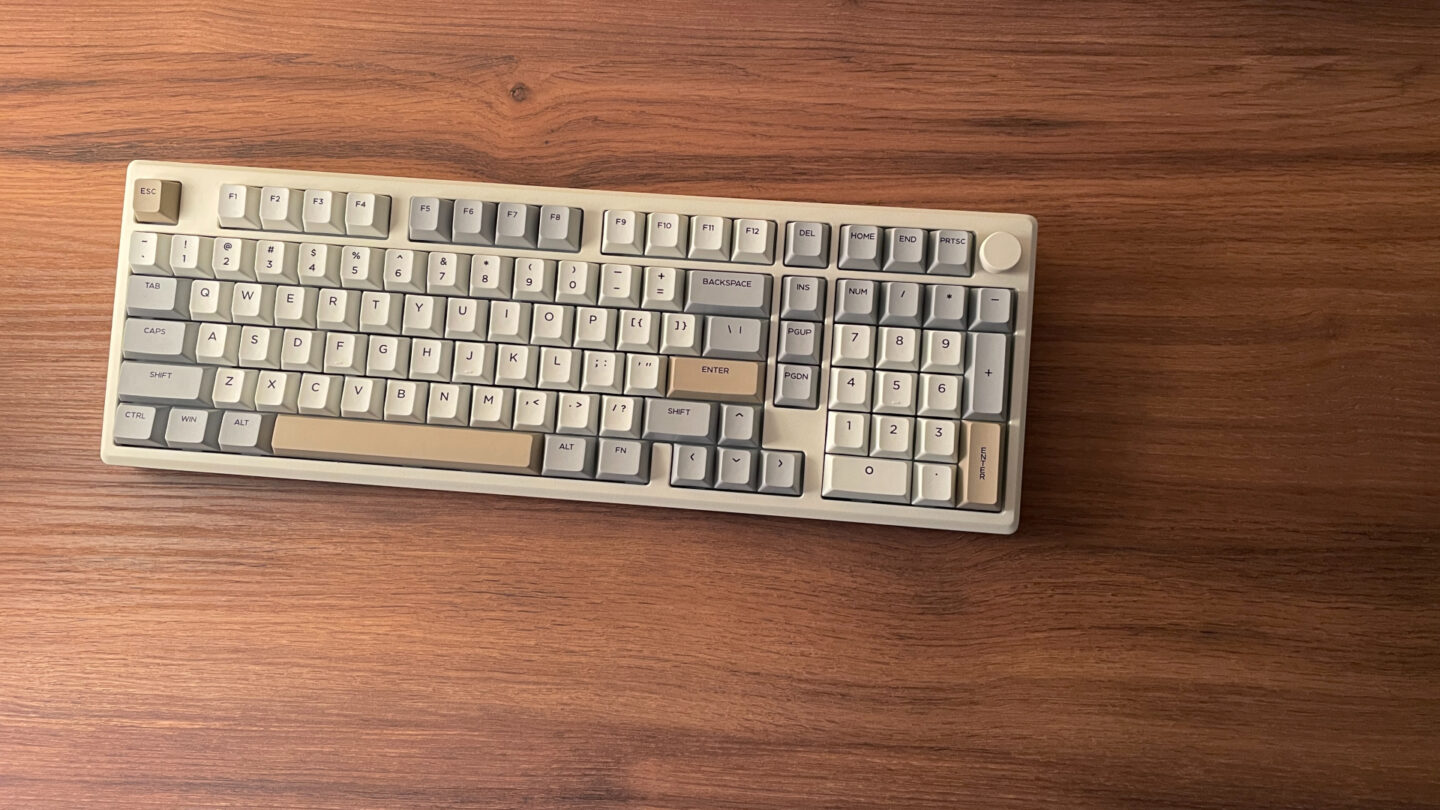
The Epomaker Galaxy100 is a 98% mechanical keyboard with 101 keys in an ANSI layout, plus a rotary knob. It comes with a fixed 7-degree typing angle.
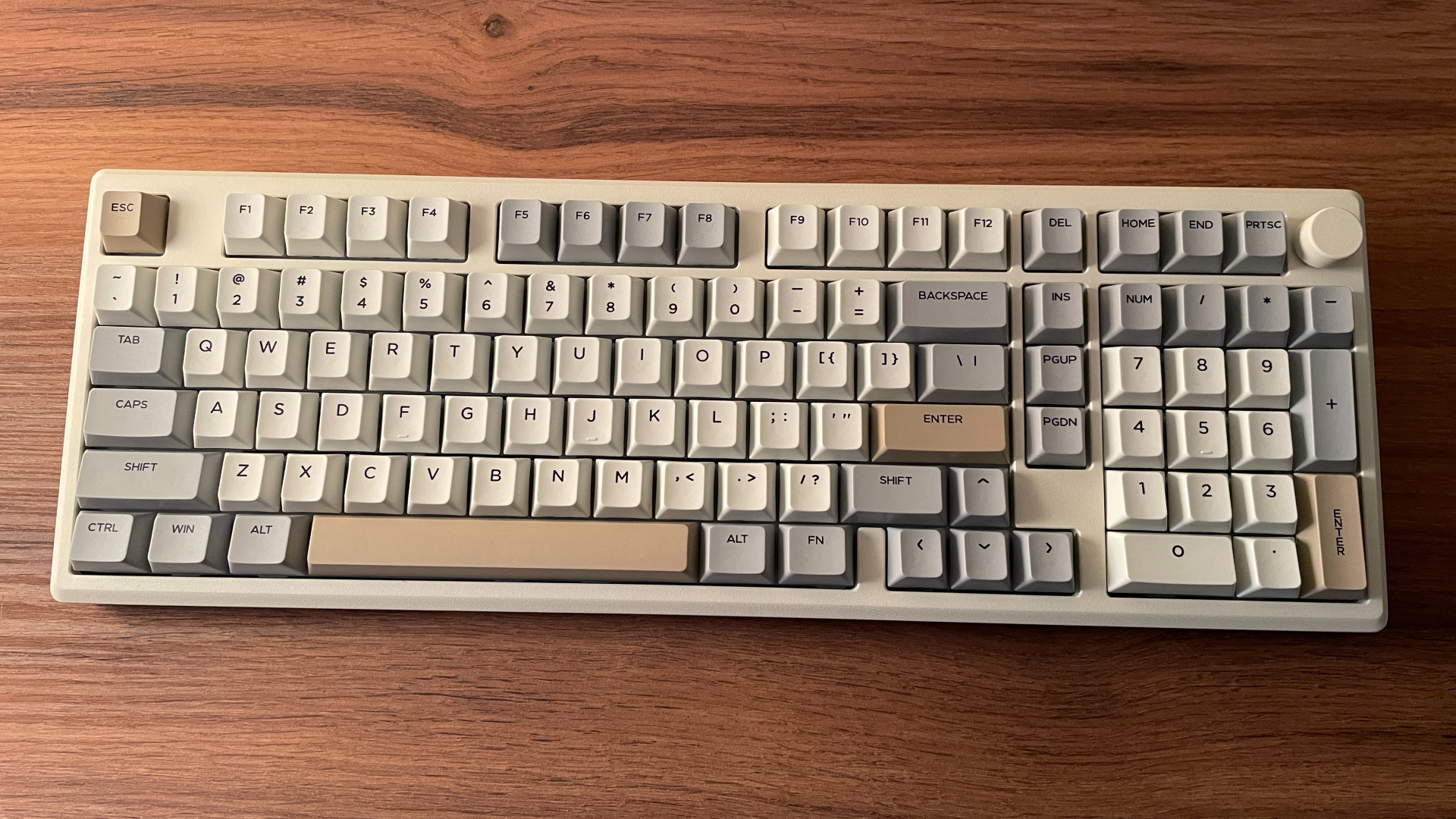
The main appeal of the 98% layout is that you retain almost all the keys of a traditional full-size keyboard, including the numpad, of course, but everything is packed into a slightly smaller footprint. It’s not a dramatic difference in size, but the more compact layout does free up a bit of extra room for your mouse and makes the keyboard feel less bulky on the desk.
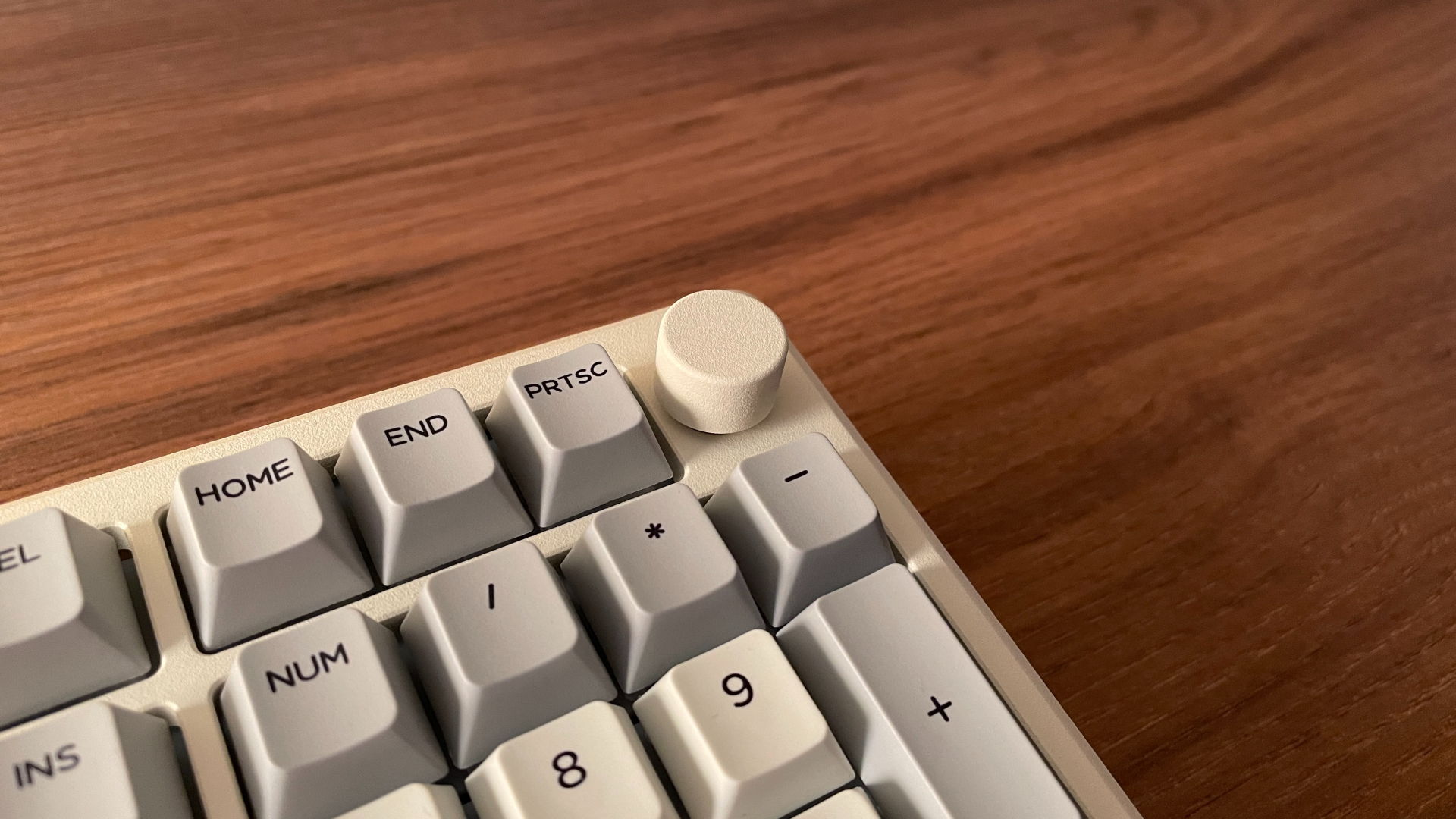
The Galaxy100 also has a rotary knob in the top-right corner. I’m a big fan of knobs on keyboards, so for me this is always a very welcome addition. This one is made of aluminum, turns almost silently, and has clean, well-defined steps that feel satisfyingly tactile.
The case is made from CNC-machined aluminum, and the whole keyboard weighs an impressive 2 kg. This weight gives the Galaxy100 a very substantial feel and keeps it firmly planted, almost immovable, on the desk. If you’re a fan of heavy aluminum keyboards, as I am, you’re going to love this thing. But if you’d prefer something a little lighter, there’s also the Galaxy100 Lite, which comes in at around 1.7 kg.
Build quality is excellent. The keyboard feels genuinely tank-like, with no noticeable flex, creaking, or other signs of weakness anywhere in the case. The powder-coated finish is very well done too. The coating feels smooth and even across the entire surface, with no obvious inconsistencies in texture or thickness.
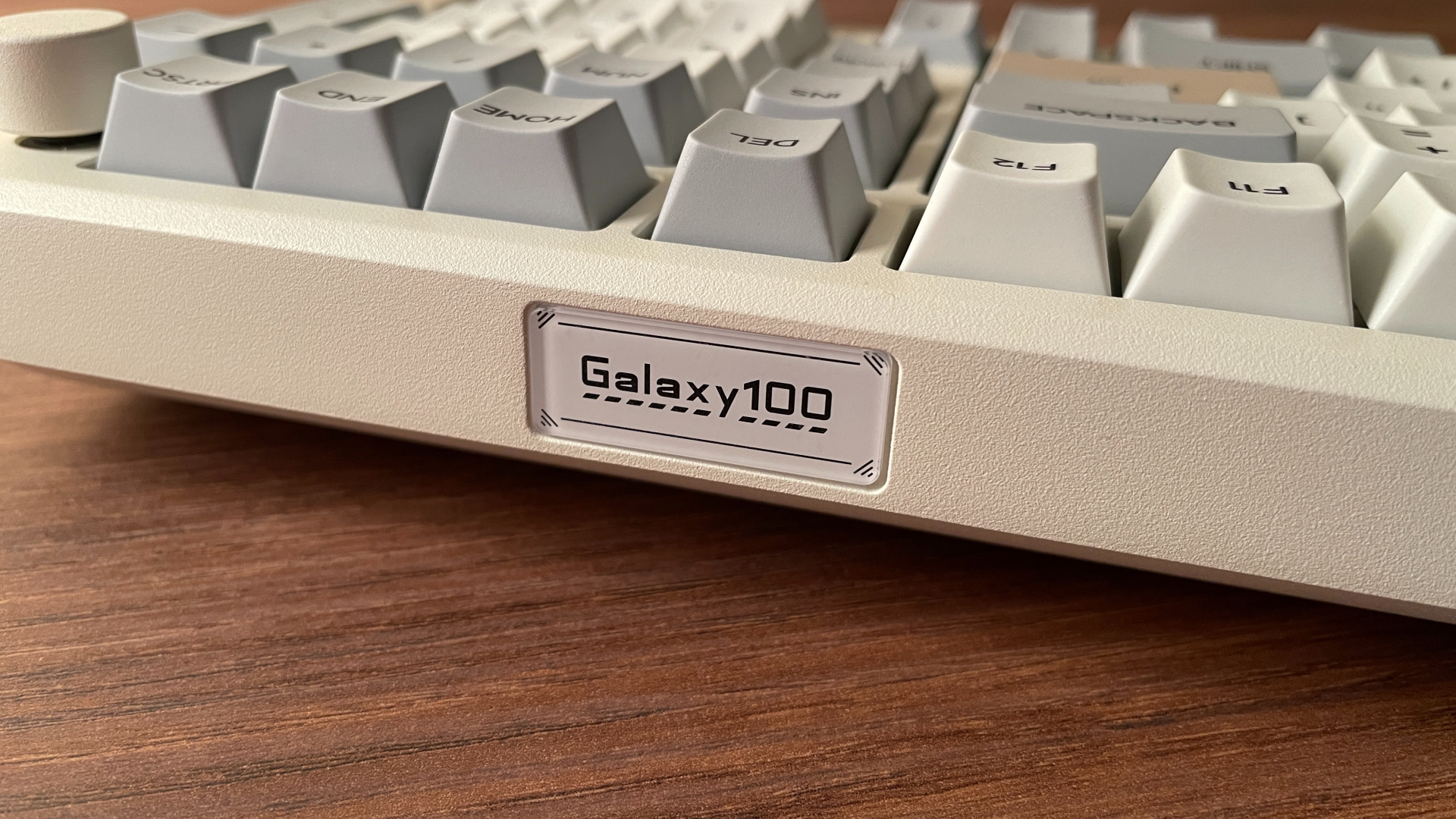
When it comes to design, the Galaxy100 keeps things clean and simple. The aluminum case is fairly restrained, with beveled edges that keep it from looking too plain. There’s also a small accent piece with Galaxy100 branding along the back edge, which adds a little more personality to the overall look.
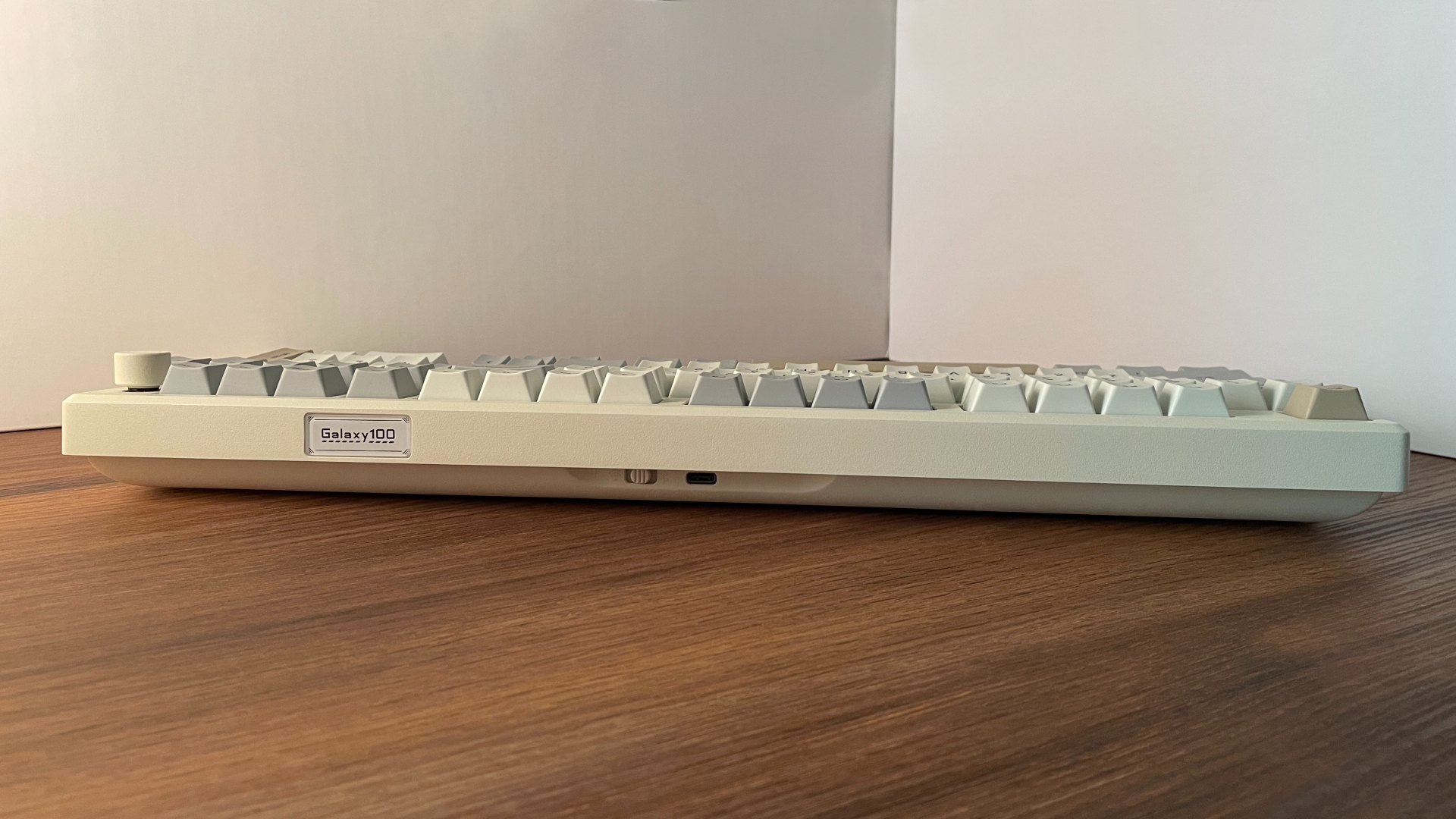
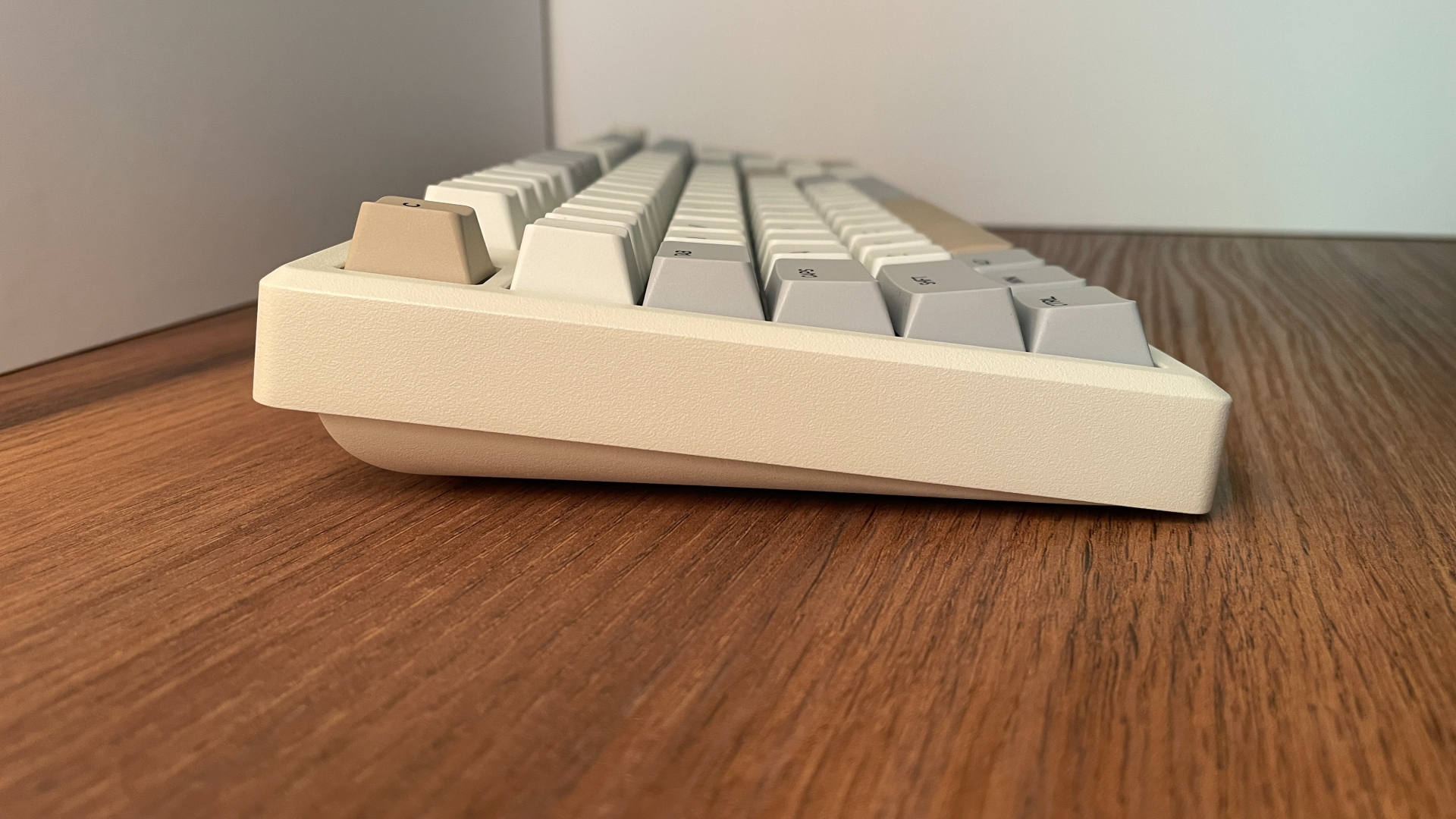
It comes in three color options: Black, Grey and White Purple. I went with the Grey version, though the name is a bit misleading here. It actually looks like a warm off-white, somewhere between beige and cream. This colorway caught my eye right away because of its softer tone and retro vibes. And in person, it looks even better than I expected.
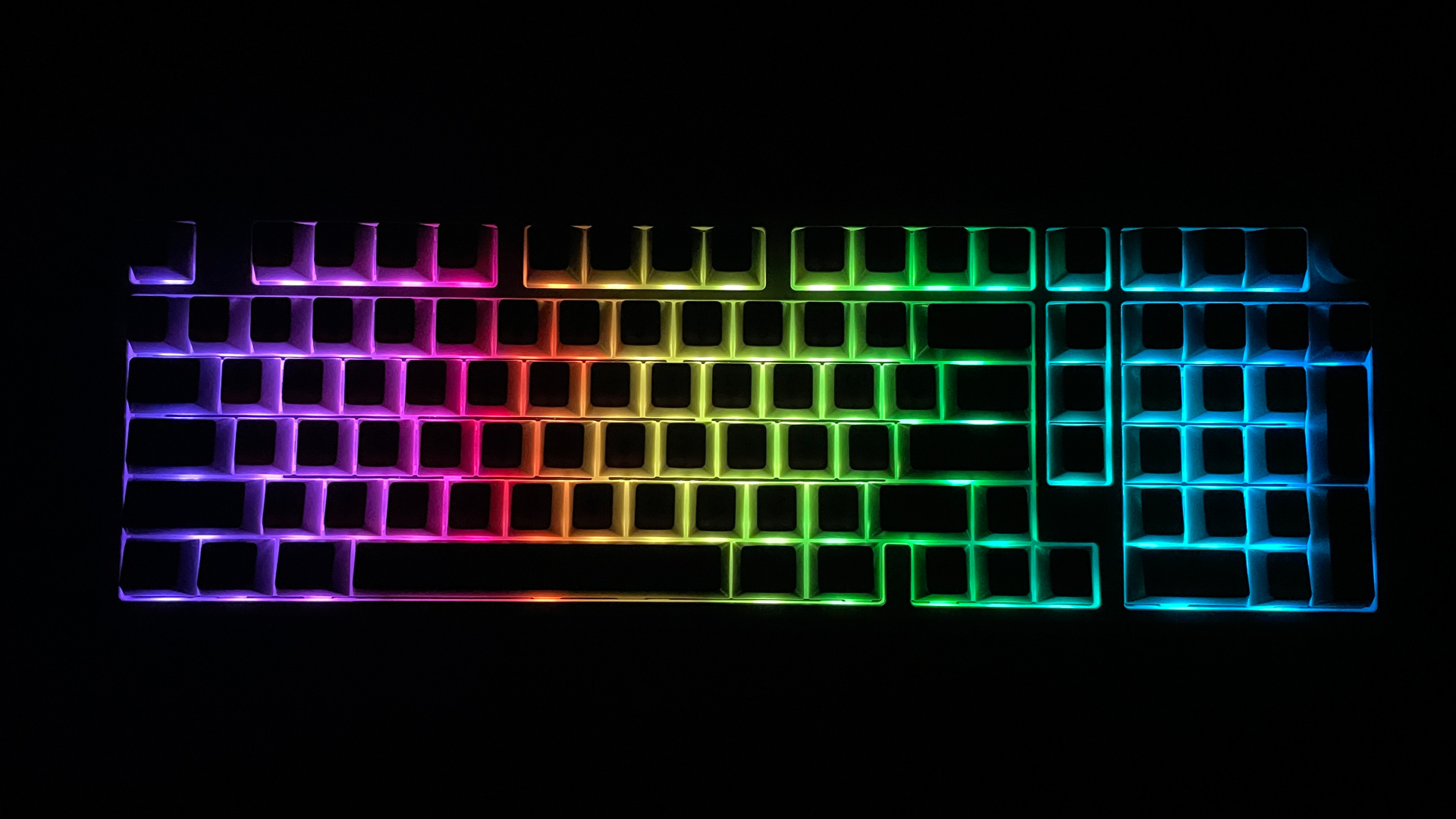
The Galaxy100 has south-facing RGB LEDs, and the backlighting is surprisingly bright and saturated. The colors look vivid, and the lighting does not feel weak or washed out even in a well-lit room. During my time with the keyboard, I did not notice any PWM-related issues, which is important for users who are sensitive to LED flickering, as unstable lighting can cause eye strain or discomfort during extended use.
Connectivity and Battery
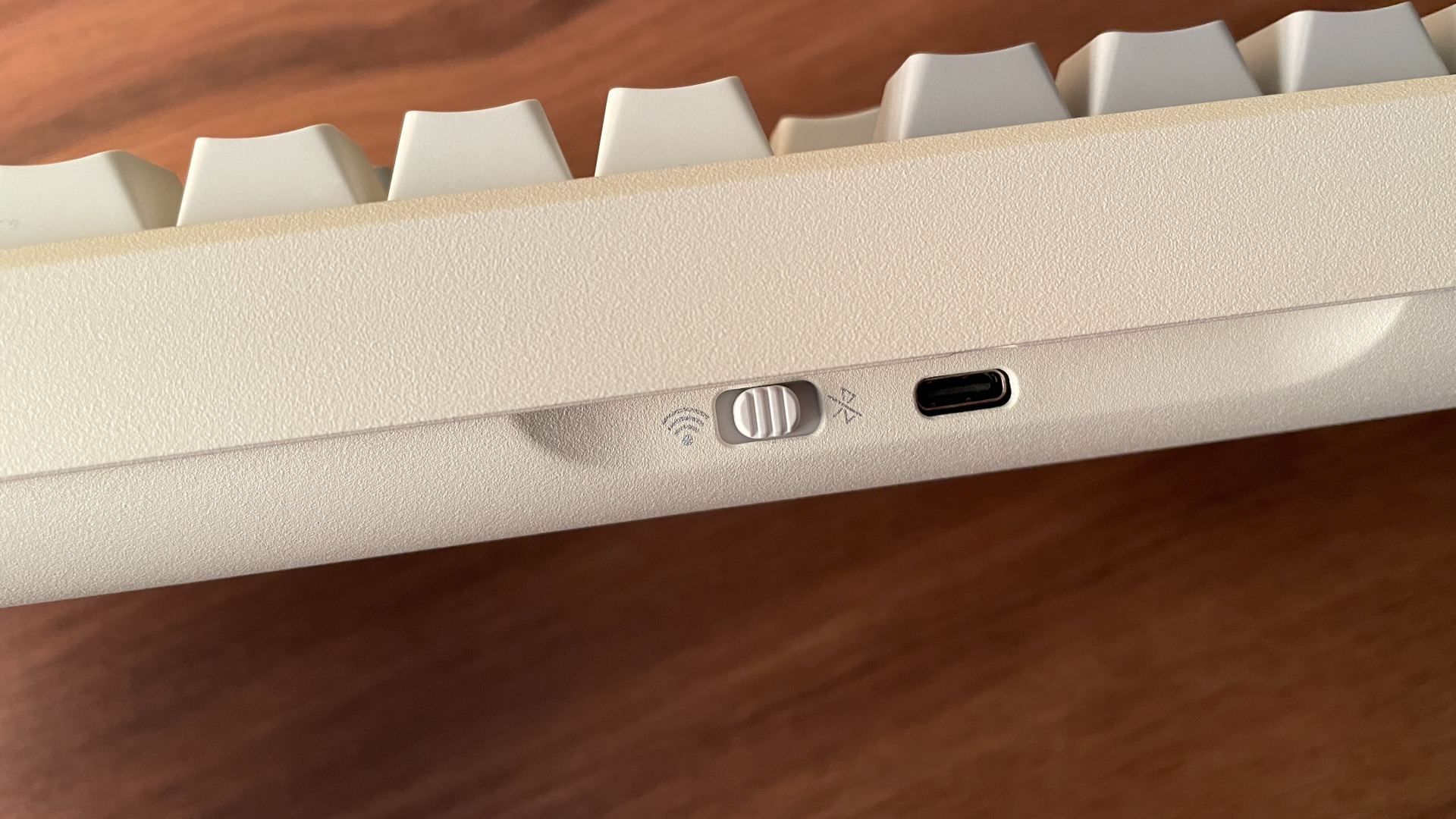
The Epomaker Galaxy100 is a tri-mode keyboard, meaning it supports wired USB-C, 2.4 GHz wireless, and Bluetooth 5.0, so you get the full set of modern connectivity options here. In Bluetooth mode, the keyboard can stay paired with up to three devices at the same time, which is especially useful if you plan to use it with multiple devices.
For polling rate, Bluetooth mode runs at 125 Hz, which is typical for Bluetooth, so I would treat it more as the convenient, battery-friendly mode for multi-device use. Both USB-C and 2.4 GHz wireless operate at a 1000 Hz polling rate, making them the better choices for gaming or any situation where responsiveness matters most.
All three connection modes worked flawlessly for me — I did not run into any dropouts, random disconnects, or noticeable input lag.
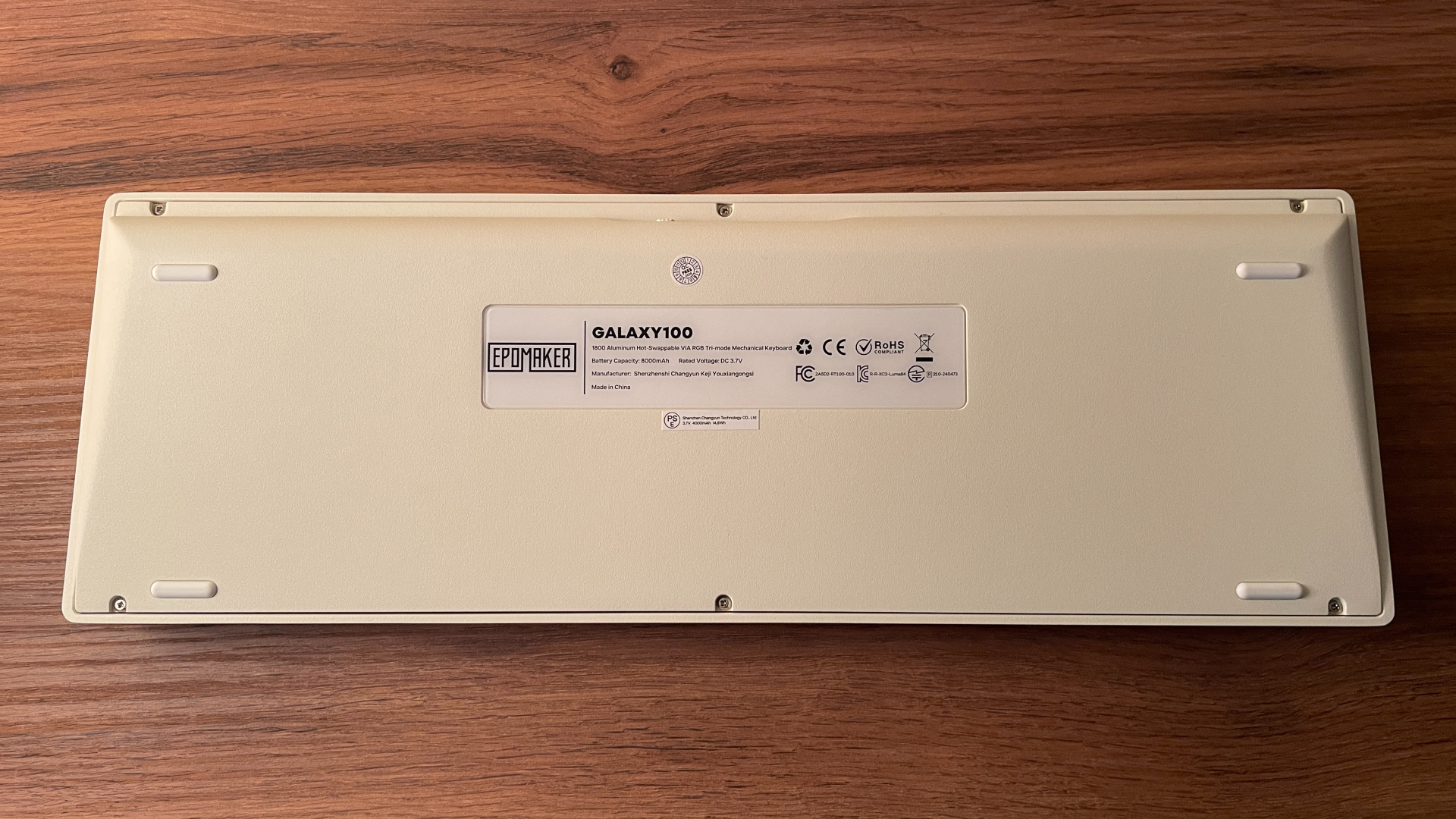
One thing I’m glad to see on the Galaxy100 is a dedicated physical switch for connection modes, placed on the back of the keyboard. You don’t have to remember key combinations or remove a keycap to access some hidden switch underneath, which is still something I occasionally see on wireless keyboards. A dedicated, easy-to-access physical switch is much more convenient, and I’m glad Epomaker keeps using this approach across its products.
Battery life is another strong point of the Galaxy100. The keyboard comes with an 8000 mAh battery, which is roughly twice the capacity you usually get in many wireless mechanical keyboards. On paper, that already gives the Galaxy100 a clear advantage, and in actual use, it holds up well.
With the backlighting set to maximum brightness, the Galaxy100 had no problem lasting me through a full week of use, which is a very respectable result. With the backlighting turned off, you can expect around three to four weeks of battery life, depending on how heavily you use it.
As always, the keyboard has an auto sleep mode that kicks in after some time of inactivity to help preserve battery, but the more important part is how quickly it wakes back up. The Galaxy100 wakes up almost instantly, so you can just start typing without waiting for it to reconnect, unlike some wireless keyboards that take a moment to become responsive after waking up.
To check the battery level, press Fn + Spacebar. The keys from 1 to 0 will light up to indicate the battery percentage. For example, if keys 1 through 8 light up, it means the battery is at 80%.
Dual Software Support
One interesting thing about the Galaxy100 is that it can be configured in two different ways: first through VIA, and second through the Epomaker Hub.
Not familiar with VIA yet? Here’s a quick breakdown:
VIA is essentially web-based software for keyboards running QMK firmware. It allows you to remap keys on the fly, configure layers, create and assign macros, and change preset lighting effects – all without needing to install any extra software. VIA works directly in your browser, whether you’re on Windows, Linux, or macOS.
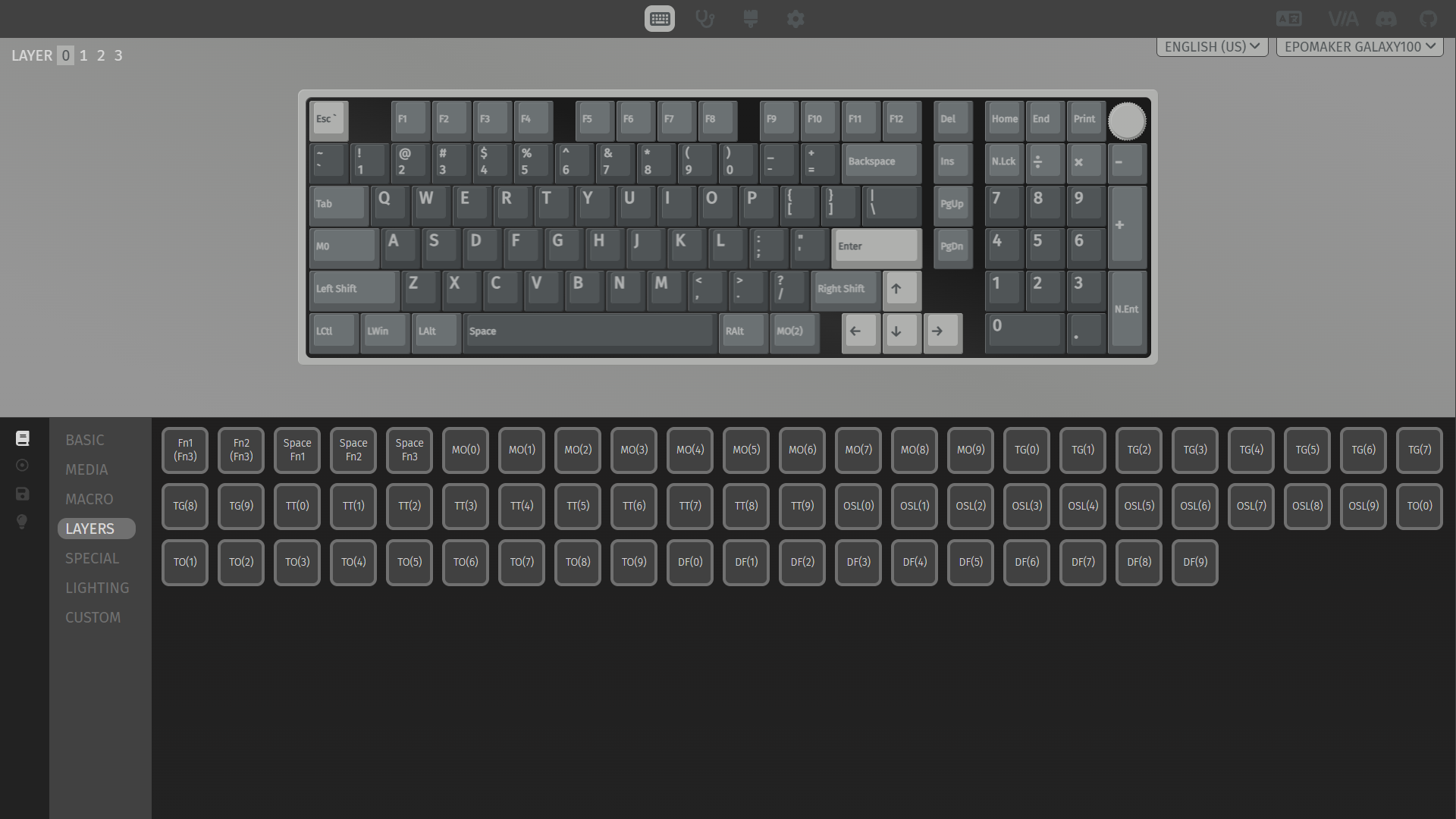
For enthusiasts and power users, VIA offers a wide range of advanced keycodes powered by QMK firmware, with options that go far beyond standard key remapping, allowing you to build highly customized multi-layer setups, create complex key combinations, define unique key behavior, and more. For example, QMK supports Tap-Hold functionality, where tapping a key performs one action, while holding the key triggers a different action, effectively expanding the functionality of a single key without switching between layers.
Mod-Tap and Layer-Tap are good examples of how deep this customization can go. Mod-Tap lets a single key act as a regular keycode – like a letter, number or function key – when tapped, but turn into a modifier, such as Shift or Ctrl, when held. Layer-Tap works similarly: tap for a regular keycode, but hold it and a secondary layer activates for as long as you keep the key pressed, giving you instant access to arrows, media controls, or whatever you’ve mapped there. The moment you release, you’re back to your base layer.
For most users, VIA provides everything they need to customize the keyboard to their liking, from simple key remapping to building a comfortable, personalized layout. And for those who want to go further, Epomaker has released the Galaxy100 firmware source code on its GitHub, so more experienced users with the right skillset can build their own custom firmware and implement features that go beyond what VIA offers out of the box.
Keep in mind that VIA needs the keyboard to be connected in wired mode in order to detect it. The first time you connect it to VIA, you’ll also need to upload a JSON configuration file, which you can find on Epomaker’s website (just make sure to choose the right one, since pre-October 2025 and post-October 2025 boards use different JSON files).
When it comes to the Galaxy100 specifically, it features 4 fully programmable layers to work with, which should be enough for most users who want to go beyond the default layer and set up a few custom layers. I tested Mod-Tap, Layer-Tap, One Shot Layer and Tap-Toggle, and everything worked as expected, without any strange behavior.
Epomaker Hub is the second option, and in terms of functionality, it essentially mirrors VIA. However, I actually find its interface cleaner and more visually appealing. One thing I like is that keycodes, in particular, are better explained here — hovering over one gives you a clear description of what it does, which makes the software much easier to understand compared to VIA, where keycodes often lack proper descriptions and can be confusing for newcomers. It is also more straightforward to get started: there is no need to load a JSON file manually. I only had to connect the Galaxy100 in wired mode, and Epomaker Hub detected it right away.
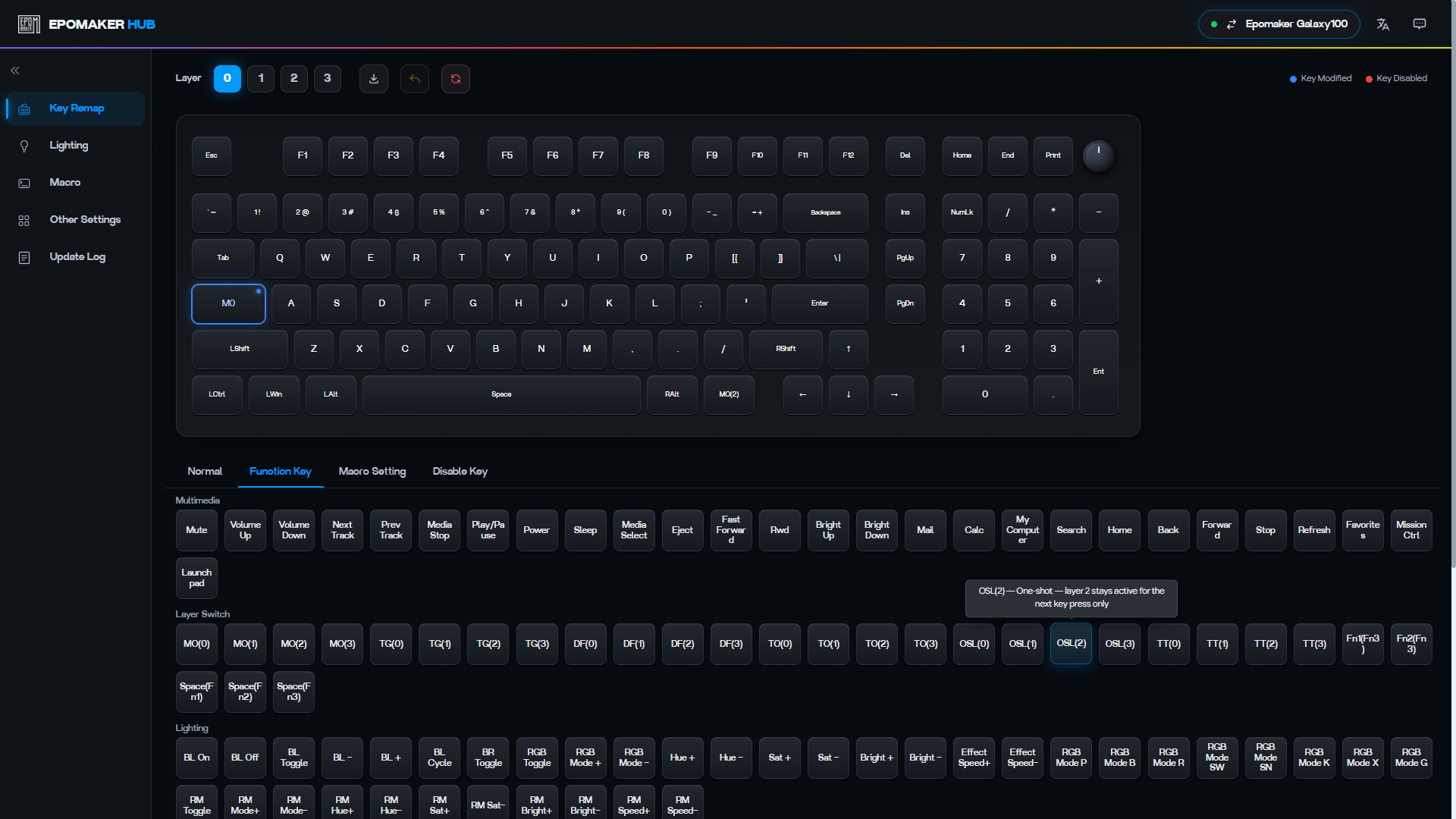
I think I understand why Epomaker went with this approach. VIA support is there for mechanical keyboard enthusiasts and users who already prefer it, since a good number of people will pick a VIA-compatible keyboard over one with proprietary software no matter what, while Epomaker Hub gives users who aren’t familiar with VIA a simpler, more accessible way to configure the keyboard.
And honestly, I think it’s a great strategy. Either way, having two options is better than one. Hopefully, Epomaker continues developing the Hub going forward, eventually adding functionality that VIA doesn’t have and making it a useful complement to it.
Keycaps
My Grey version of the Galaxy100 comes with PBT keycaps in Cherry profile. This is a familiar and comfortable profile, so there is basically no adjustment period here if you have used modern mechanical keyboards before.
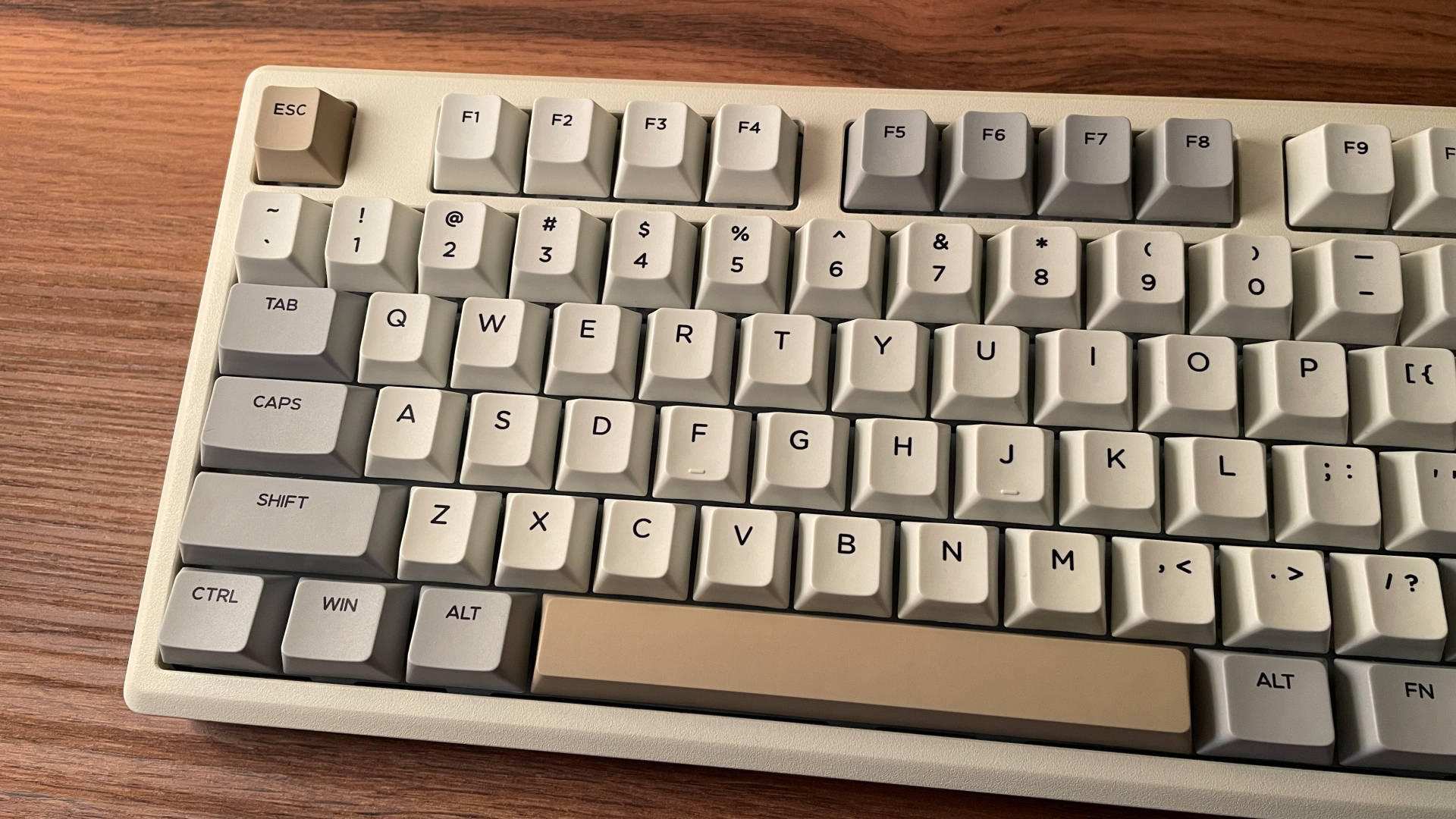
The keycaps themselves are fairly thick — by my measurements, the walls are around 1.5 mm, which is a solid result for a stock keycap set. The surface texture is pleasant to the touch, with that slightly rough feel I like to see on good PBT keycaps.
The legends are dye-sublimated, so they should hold up well over time and be resistant to fading or wearing off. That works especially well with PBT, since the material itself is more resistant to developing those shiny worn spots that you often see on cheaper ABS keycaps after extended use. In terms of execution, everything looks clean: the legends are quite large, sharp, and easy to read. Alignment is consistent across the set, with no obvious issues that stood out to me.
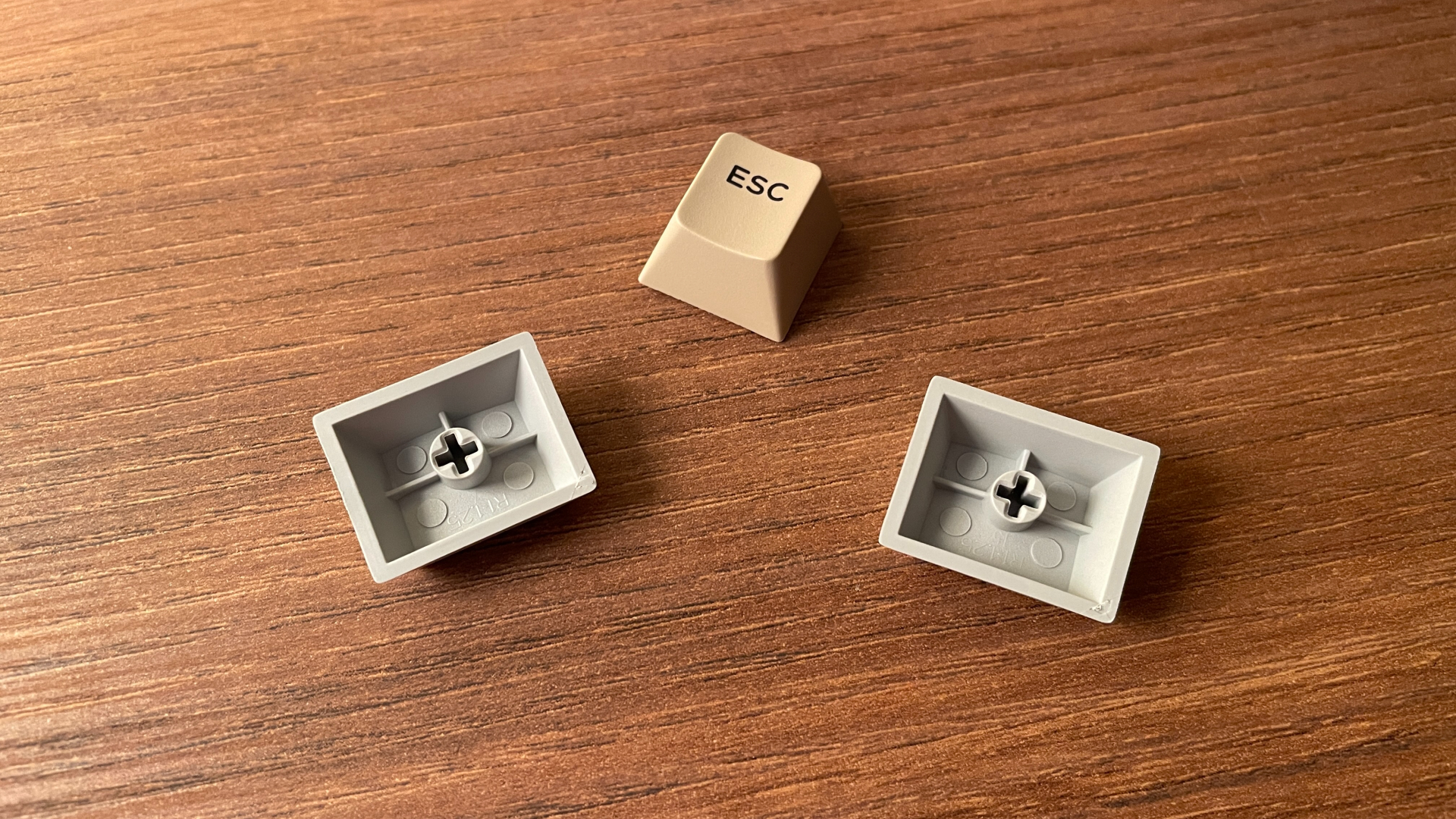
Visually, the keycaps keep the design calm and understated, giving the Galaxy100 a more refined and elegant look. Personally, I really like how nicely they match the Grey version. The colors work really well with the warm off-white tone of the case and play a big part in giving this version its nostalgic retro vibes.
A small but useful extra is the inclusion of Mac modifier keycaps, which will definitely come in handy for anyone planning to use the Galaxy100 with a Mac.
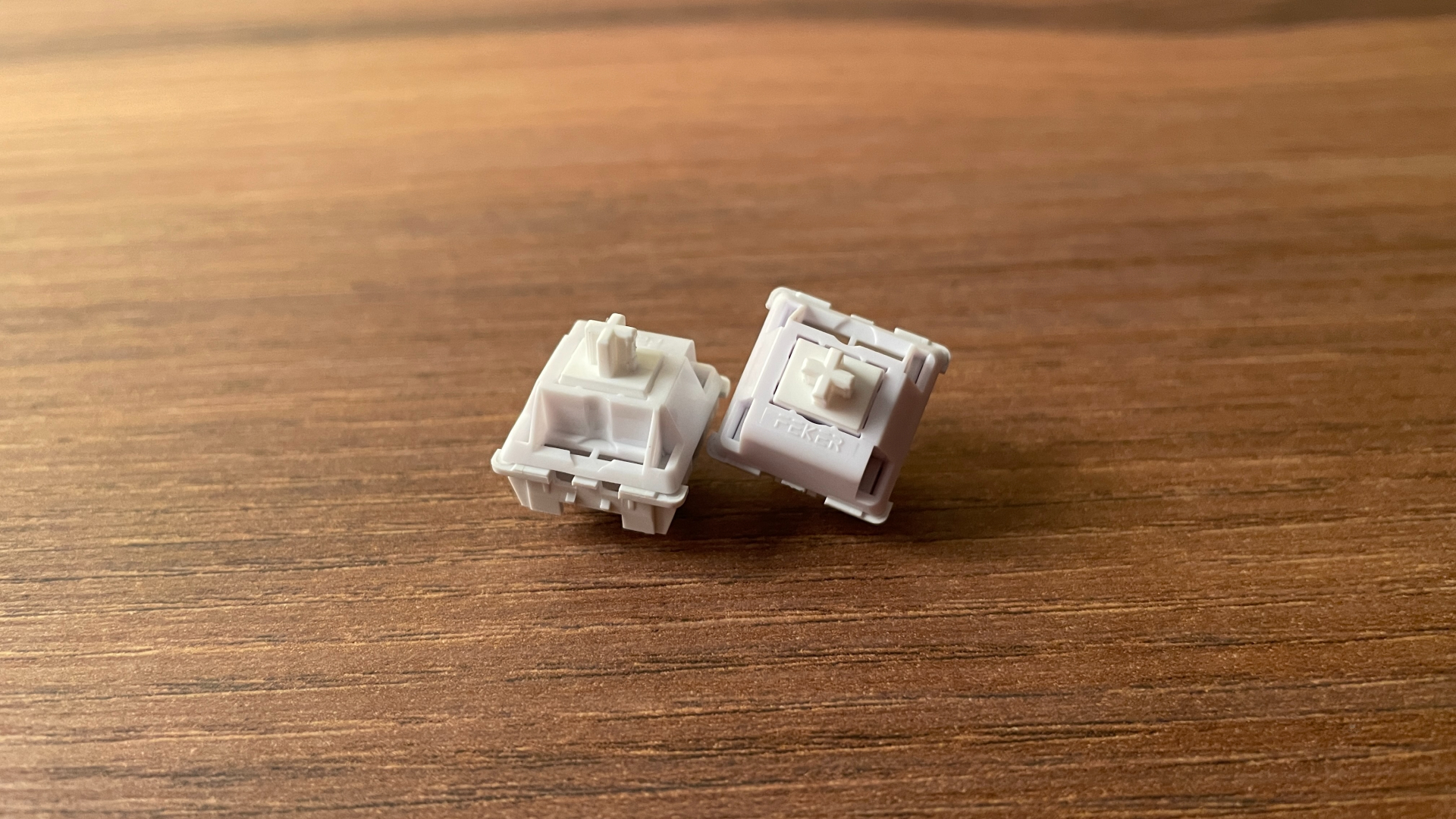
Feker Marble White Switches
My Galaxy100 version came with Feker Marble White switches. These are 5-pin linear switches, and overall, they make a very good first impression. For reference, here are the main specs:
These switches come factory-lubed and use a POM stem, which is one of the reasons they feel as smooth as they do — POM is a low-friction, “self-lubricating” material that holds up well over time, without developing scratchiness the way other materials might. And in practice, the Marble Whites do feel very smooth. I did not notice any scratchiness or spring ping, and stem wobble is kept to a pretty minimal level.
On paper, these are fairly light switches, with an initial force of 30 gf and an actuation force of around 42 gf. In practice, though, they didn’t feel especially light to me — they landed closer to the middle of the force spectrum. The extended 20mm spring likely plays a role here: since it’s slightly pre-compressed inside the switch, each press felt springy and satisfying, with a lively rebound.
I think the Feker Marble White switches work well for both typing and gaming. They are light enough to avoid feeling tiring during longer typing sessions, but the spring gives them enough snap and control to feel responsive in games.
Of course, the Galaxy100 is hot-swappable, so replacing the stock switches is straightforward and simple. It supports both 3-pin and 5-pin mechanical switches if you’d like to customize the typing feel or just experiment with different switches later on.
The stabilizers also come factory-lubed, and overall I have no complaints about them. No noticeable rattle or annoying ticking — they felt consistent and well-tuned right out of the box.
Structure and Mounting
The Galaxy100 is surprisingly easy to take apart, which is a small but still useful plus for anyone who likes modifying their keyboards. To access the internals, all it takes is removing the knob and unscrewing six screws on the bottom of the case. The screws are visible and easy to reach, so there are no hidden screws or other surprises here.
Once the top frame is removed, you get direct access to the plate and PCB assembly. The Galaxy100 uses a gasket-mount structure, meaning the plate and PCB assembly sits on gaskets rather than making direct contact with the case. This adds a bit of shock absorption and helps make the typing feel softer and less rigid.
The plate is especially interesting, because Epomaker went with a PP (Polypropylene) plate here. That is a fairly rare choice in prebuilt mechanical keyboards, where PC or FR4 plates are much more typical. Compared to a PC plate, PP offers a softer, bouncier typing experience with more flex. The plate also has horizontal flex cuts, which should make the typing feel even more cushioned.
Under the plate, there are three sound dampening layers:
- PORON Sandwich Foam
- IXPE Switch Pad
- PET Acoustic Film
Below that sits a 1.2 mm PCB, which also has horizontal flex cuts. Another pleasant surprise is that the PCB supports screw-in stabilizers, giving you more room for customization. Under the PCB, there are two more sound dampening layers:
- Switch Socket Pad
- PET Acoustic Film
At the very bottom of the case, there are two separate battery compartments, each holding a 4000 mAh battery.
Typing Feel and Sound
Typing on the Galaxy100 feels genuinely great. The switches are smooth and responsive, but the keyboard’s character is not defined by the switches alone. The gasket-mount structure, flexible PP plate, and horizontal flex cuts on both the plate and PCB give the Galaxy100 a softer, more cushioned feel under the fingers. Keypresses land with a bit of absorption instead of feeling hard or rigid, which makes longer typing sessions more comfortable. At the same time, the keyboard does not feel overly bouncy, which keeps the typing experience controlled and predictable.
As for the typing sound – it is clean and well-defined, not too loud, but definitely not overly muted either. The Galaxy100 has a crisp, marbly sound profile, and the Feker Marble White switches play a big role in that — the name fits its sound signature perfectly I did not notice any case ping from the aluminum body, so the dampening layers clearly do their job by keeping unwanted resonance under control without making the keyboard sound dull.
Pros and Cons
Final Verdict
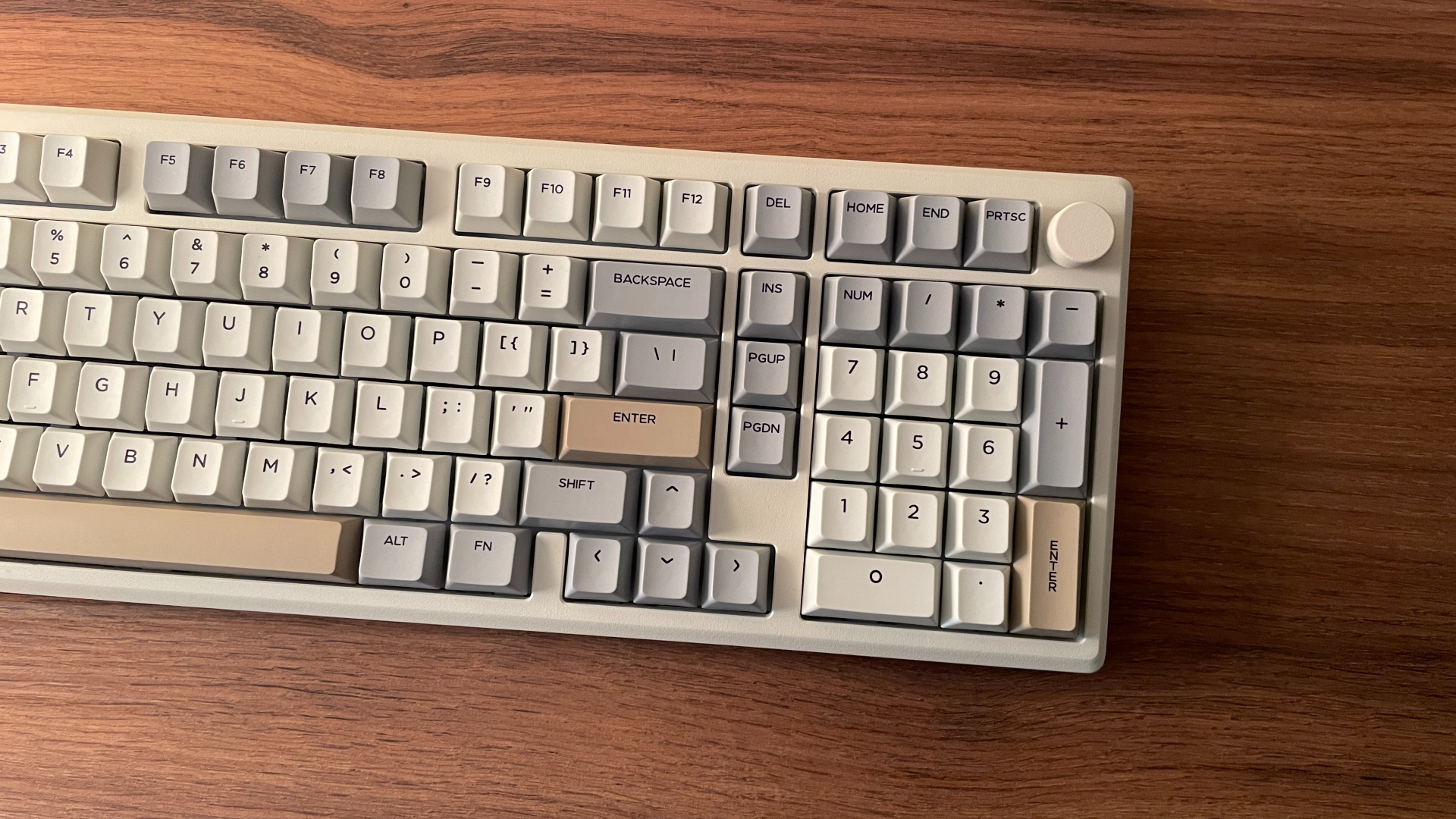
The Epomaker Galaxy100 ends up being a very strong option in a space where good near-full-size mechanical keyboards are still not that common. It brings together a robust 2 kg CNC aluminum case, a large 8000 mAh battery, bright and saturated RGB lighting, hot-swap support, two software choices (VIA and Epomaker Hub), a decent accessory bundle, a genuinely enjoyable typing experience with a clean marbly sound profile, and even a programmable knob on top.
All of that makes the Galaxy100 easy to recommend, but at around $100–110 (depending on the switch option), it is genuinely hard to beat if you want a well-built mechanical keyboard with a numpad.

Controller and mechanical keyboard enthusiast. Tech reviewer, regularly sharing thoughts about gadgets and computer peripherals.